
Contract Report
Summary
The Contract Report screen generates a summary report showing the status of all selected clauses across the chosen periods of a contract. The report reflects quota usage, carry-over amounts, and any over-consumption based on the selected calculation settings.
Report Settings
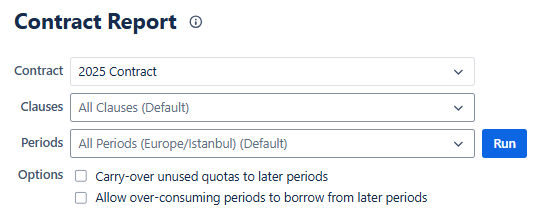
To run the report, the user must configure the following fields:
Contract: Select the contract you want to report on.
Clauses: Choose which clauses to include in the report. You can select a single clause or run the report for all clauses.
Periods: Choose one or more periods of the selected contract. The report will calculate and display results only for the selected periods.
Options: These options control how quota calculations are applied in the report:
Carry-over unused quotas to later periods
Allow over-consuming periods to borrow from later periods

Each contract has its own default carry-over and over-consumption settings defined in its configuration. When you select a contract, its default settings are automatically reflected here.
However, changes made on the report screen only affect the current report and do not modify the contract’s actual configuration. This allows the user to temporarily override the default behavior — for example, to view the report with or without carry-over — without altering contract settings.
After selecting the desired Contract, Clauses, Periods, and Options, click Run to generate the Contract Report.
Report Structure
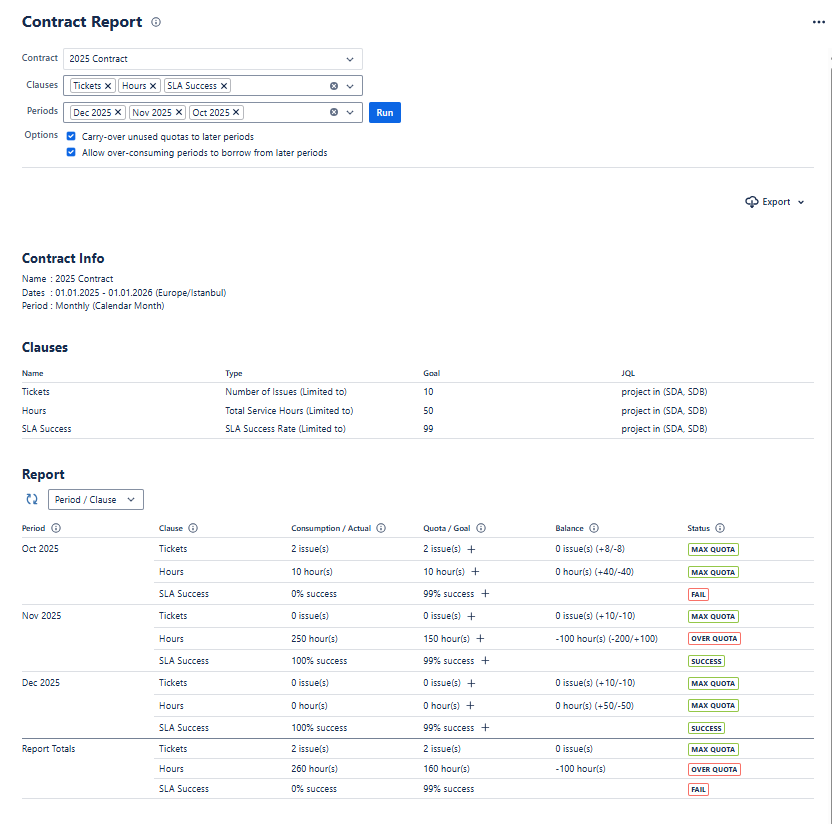
The Contract Report output consists of three main sections:
Contract Info
This section summarizes the basic details of the selected contract, including:
Contract name
Contract date range
Time zone
Period type
This section provides general context for the report and does not include any calculated data.
Clauses
The Clauses section lists all clauses included in the report, showing:
Clause name
Clause type
Goal (limit or target defined in the contract)
JQL used to evaluate the clause
This information comes directly from the contract definition and is provided to help the user interpret the report results.
Report
The Report section displays the calculated results for each selected period and clause.
Each row represents a single Period / Clause combination and includes the following data:
Consumption / Actual
Shows the combined consumption for the clause, calculated from Jira issue data and any amendments applied to the period.
Quota / Goal
Shows the effective quota or target for the clause in the selected period.
This value is based on the contract’s original quota definition but may be adjusted by amendments or borrowing rules. As a result, the displayed quota can include changes introduced through amends, carry-over from previous periods, or quota borrowed from future periods.
Depending on the clause type, this value may represent issue limits, hour limits, or SLA percentage goals.
Balance
Displays the difference between the Quota/Goal and Actual values for the selected period.
This value also reflects the impact of carry-over and over-consumption settings when they are enabled.
Positive balance indicates remaining quota
Zero balance indicates that the quota for the period has been fully used
Negative balance indicates over-consumption
When carry-over or borrowing is active, the Balance column may include an additional set of values shown in parentheses. These values explain how the initial imbalance was resolved across periods.
The value before the slash shows the initial imbalance.
The value after the slash shows the total amount borrowed or transferred as a result of carry-over or borrowing rules.
This column appears only when at least one of the borrowing or carry-over settings is enabled, since balance adjustments are relevant exclusively under those conditions.
Status
Indicates whether the clause met its contract requirement for that period:
SUCCESS: SLA goal met, or consumption is within limits
MAX QUOTA: Usage is exactly at the limit
OVER QUOTA: Clause exceeded its allowed limit
FAIL: Consumption exceeds the allowed limit, or the SLA success rate falls below the target.
UNLIMITED: The clause has no quota or target limit defined, so all usage is automatically considered valid.
Future periods (if selected) are displayed in the report to provide full visibility into upcoming contract cycles, but they are not calculated and therefore do not show any consumption, balance, or status values until those periods begin.
Amends
For each period and clause, the Contract Report includes an Amends section that shows detailed adjustments and calculation steps applied to that row.
If amends are available for a clause, a + (Show Amends) button appears next to the value.
Clicking + (Show Amends) expands the row and displays all amendment details.
Once expanded, the button switches to - (Hide Amends), allowing you to collapse the section again.
The section begins with Period Activity, which represents the base usage recorded during that period. If any amendments were added to the clause, they also appear as a separate row in this view.
These values are combined to form the Period Total, which reflects the clause’s usage before any borrowing logic is applied. If the contract is configured to allow carry-over or borrowing, the panel also shows quota transferred from other periods, listed as Borrow from Previous Periods or Borrow from Future Periods, depending on the direction of the adjustment.
After all activity, amendments, and borrowing rules are applied, the calculation results in a Net Total. This Net Total represents the final consumption for that clause and is the value used when determining the period’s Balance and Status.
The Amends panel provides full transparency into each step of the calculation, allowing users to understand exactly how the final result was derived.

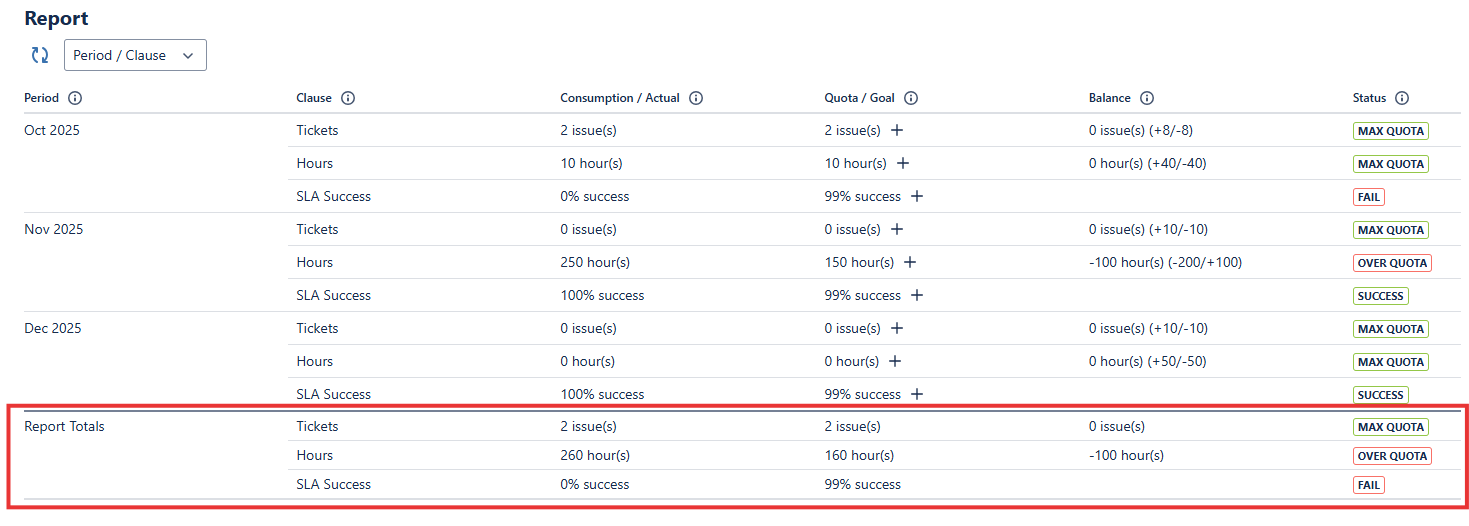
Report Totals
The Report Totals section provides an overall summary for all periods included in the report.
It displays the cumulative results of each clause type, including total limits, actual values, and status evaluations.
Export Options
The Contract Report provides multiple export options to allow users to download the report data in different formats.
Select the Export button at the top-right corner of the report to open the format list.
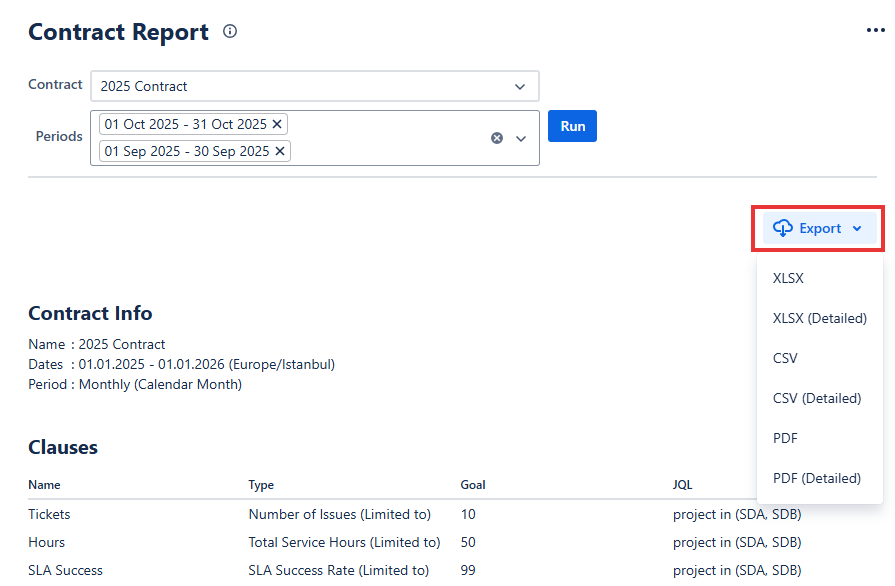
Available Export Formats
Format | Description |
|---|---|
XLSX | Standard Excel export with visible report data. |
XLSX (Detailed) | Excel export including clause-level details: Total Issues, Successful Issues, Failed Issues and Amends. |
CSV | Standard CSV export with visible report data. |
CSV (Detailed) | CSV export including clause-level details: Total Issues, Successful Issues, Failed Issues and Amends. |
Standard PDF export with visible report data. | |
PDF (Detailed) | PDF export including clause-level details: Total Issues, Successful Issues, Failed Issues and Amends. |