
Baselines for Confluence
/*<![CDATA[*/ div.rbtoc1769003340525 {padding: 0px;} div.rbtoc1769003340525 ul {list-style: disc;margin-left: 0px;} div.rbtoc1769003340525 li {margin-left: 0px;padding-left: 0px;} /*]]>*/ Baselines for Confluence 1.Description 2.Installation Upload an Add-On : Install the Add-On from Marketplace : 3.Configuration 3.1 Create a Baseline 3.2 Delete a Baseline 3.3 Compare Baselines 3.4 Configure Security 4. How It Works 5. Support
1.Description
Baselines for Confluence is a plugin that gives you a chance to define a base for your documents on Confluence.
2.Installation
To install Baselines for Confluence follow these steps:
-
Log in as a admin user with the Confluence Administrators.
-
Select Add-ons from the Administration menu at the top right of your screen.
You can install the Add-On in two ways : Install the Add-On from Marketplace or Upload an Add-On.
Upload an Add-On :
-
Click the Manage Add-ons link.
-
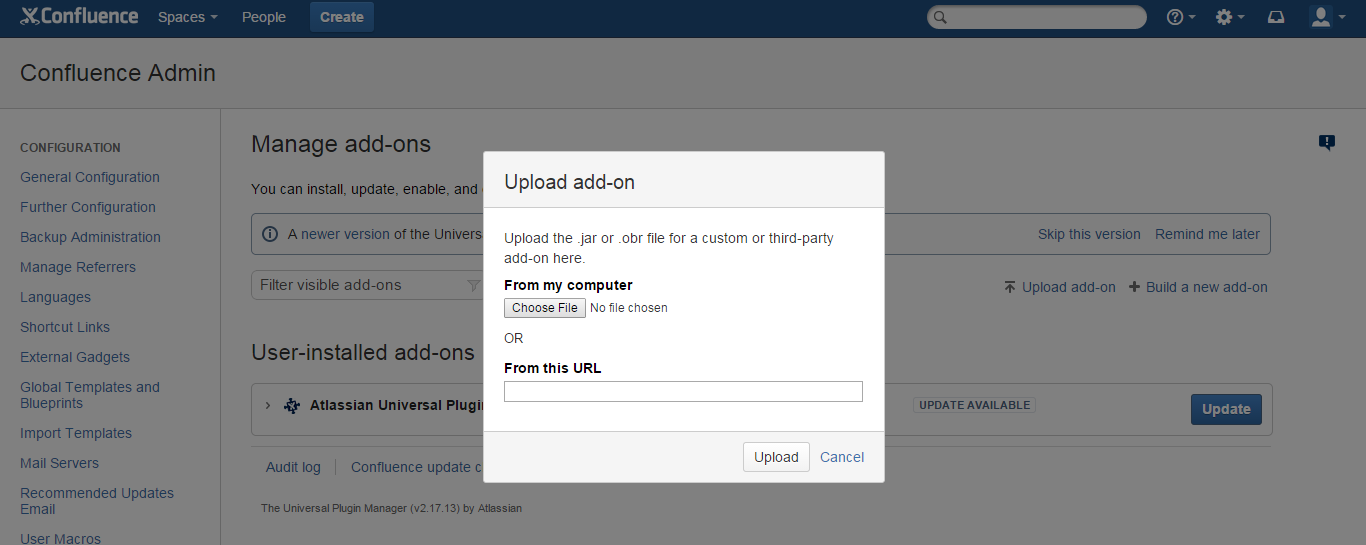
Click the Upload Add-on link at the top right side of the page.
The 'Upload Add-on' dialog appears. (
Picture 1
)
Picture 1
Install the Add-On from Marketplace :
Log into your Confluence instance as an admin.
-
Click

-
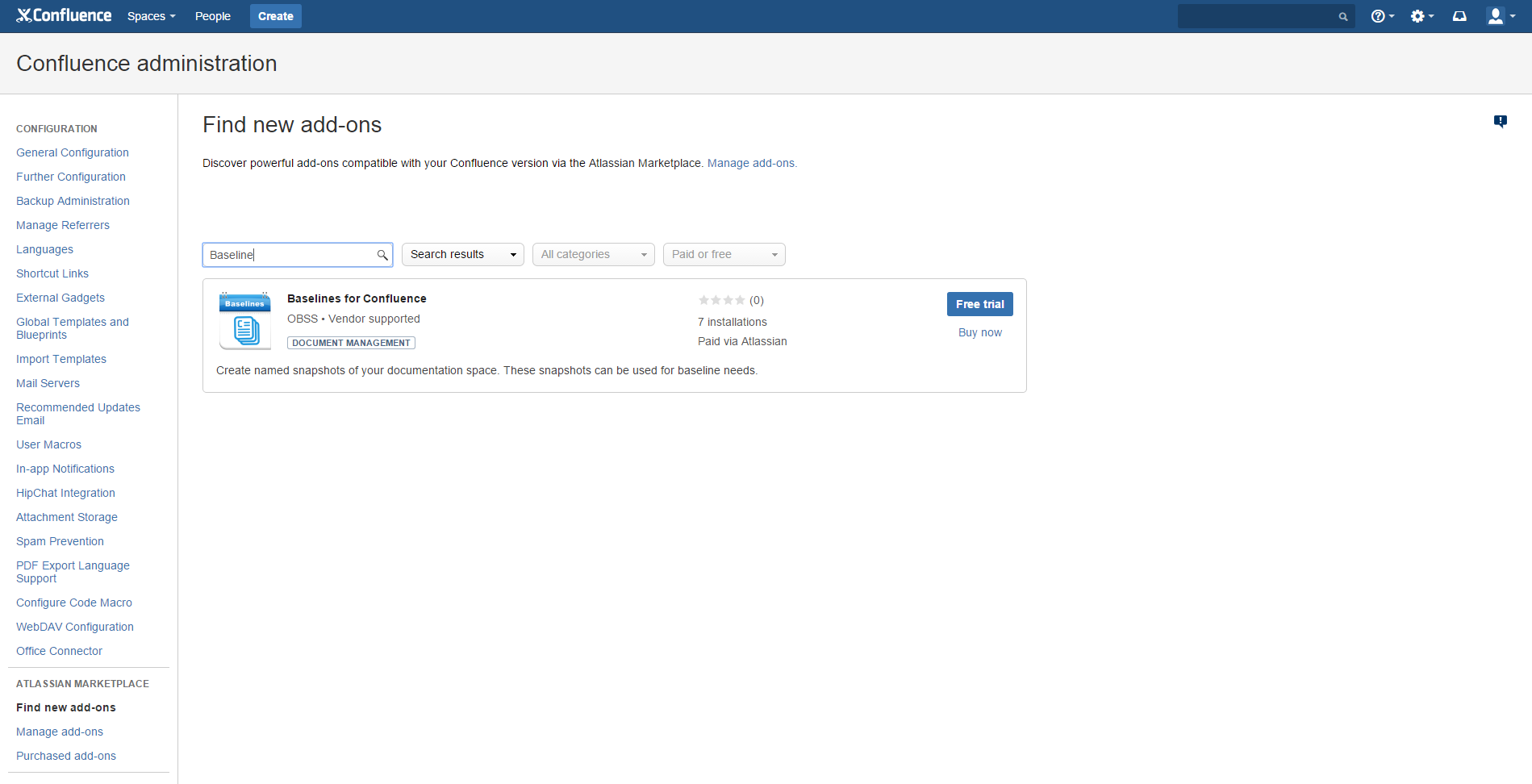
Click Find new add-ons from the left-hand side of the page.
-
Locate Baselines for Confluence via search. (Picture 2 )
-
Click Try free to begin a new trial or Buy now to purchase a license for Baselines for Confluence.
-
Enter your information and click Generate license when redirected to MyAtlassian.
-
Click Apply license.
Picture 2
3.Configuration
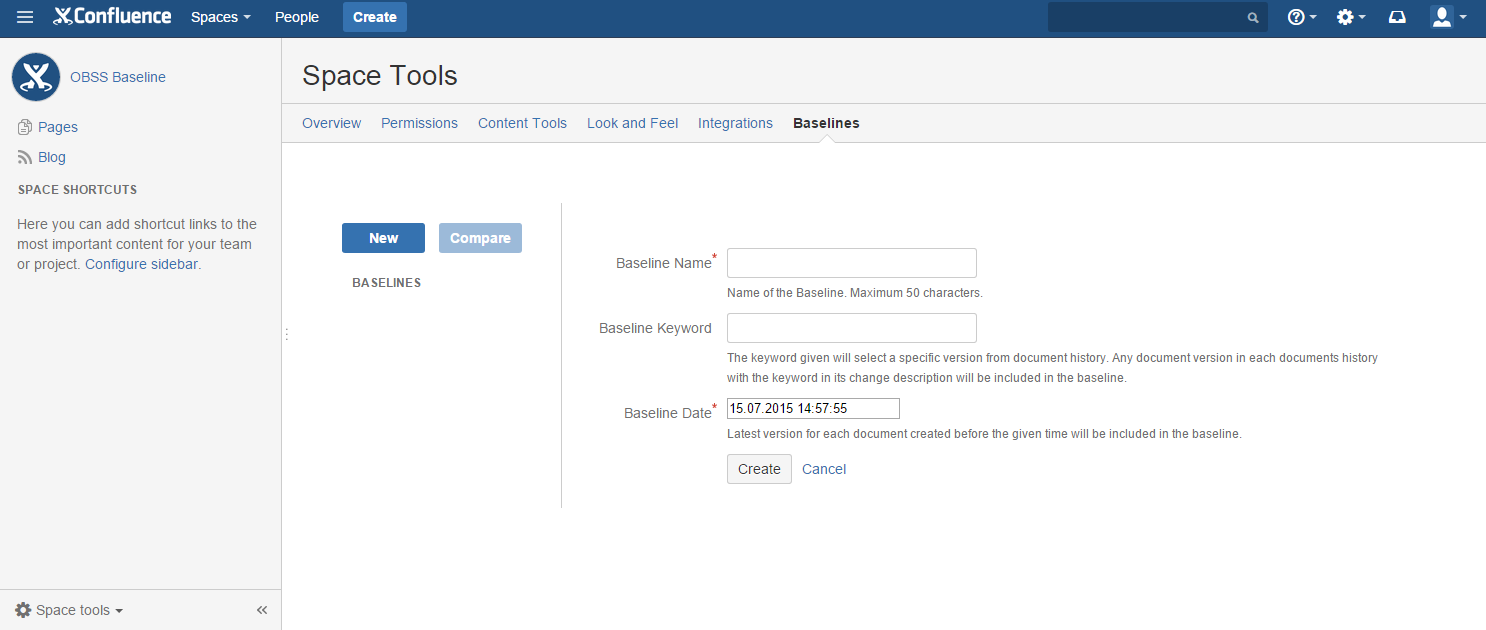
3.1 Create a Baseline
-
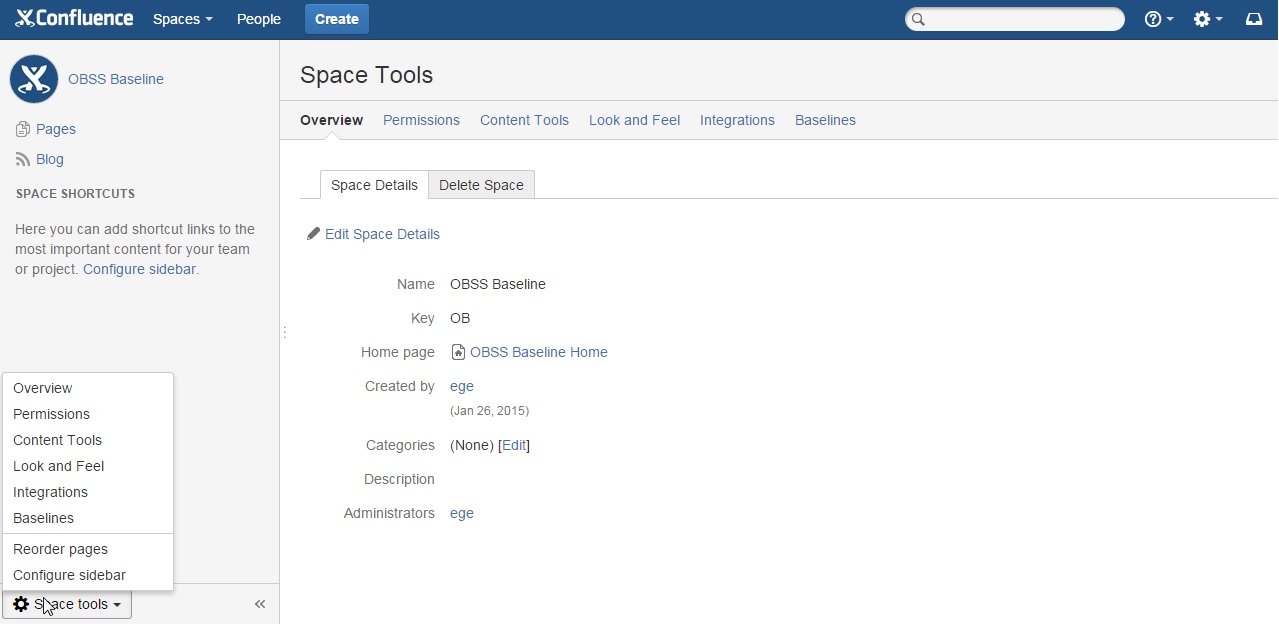
Click the "Space Tools" at the left bottom of a Space.
-
Click Baselines.
-
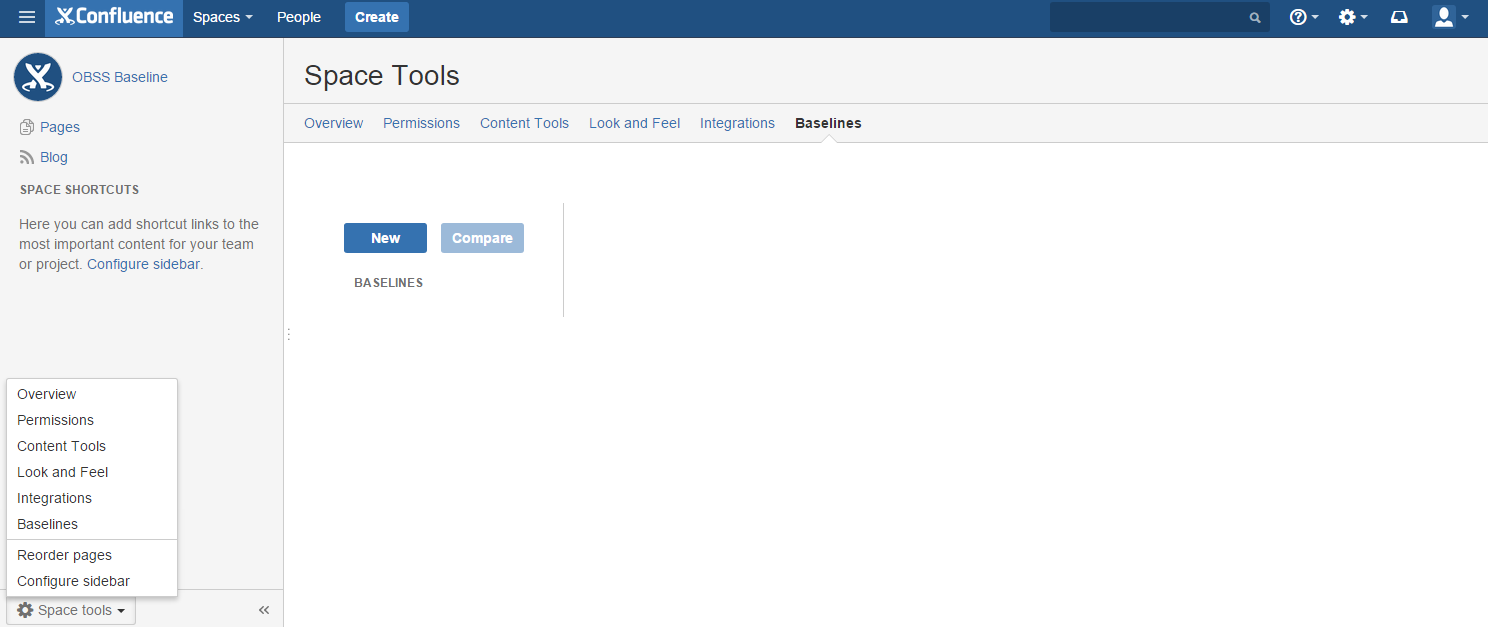
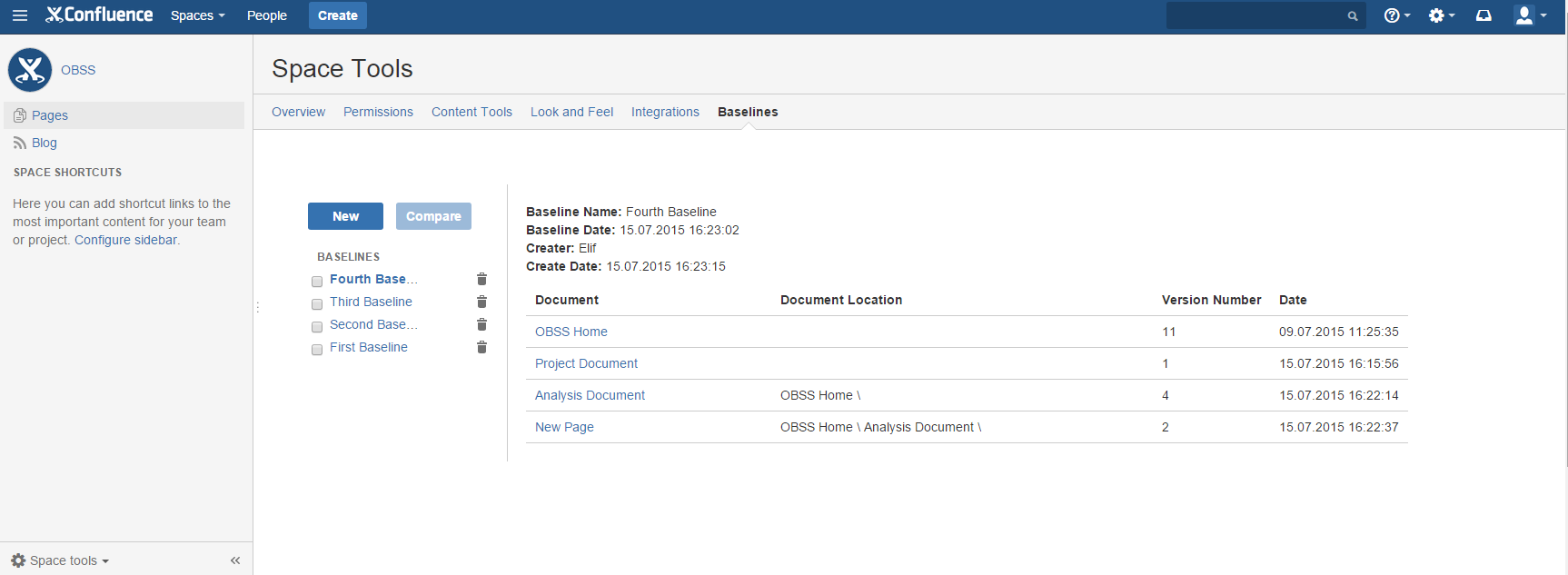
Click "New" to create a Baseline. (Picture 3)
-
Give a name and selected date for the Baseline.
Picture 3
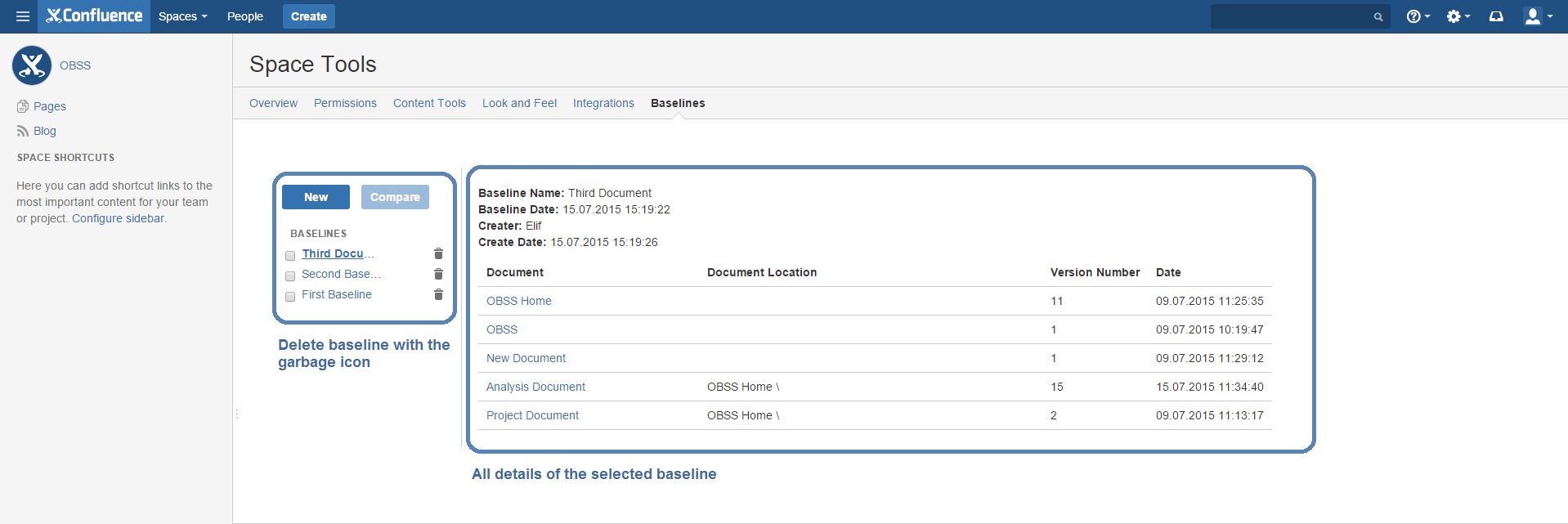
3.2 Delete a Baseline
-
Click the garbage icon near baseline that you want to delete. (Picture 4)
Picture 4
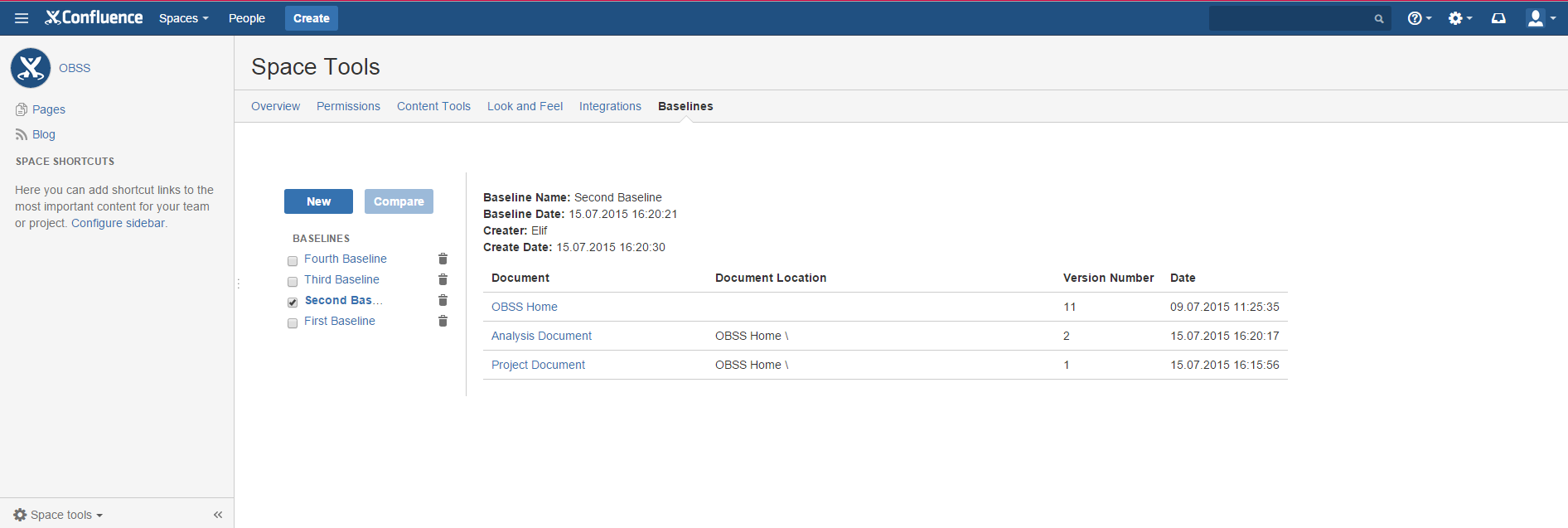
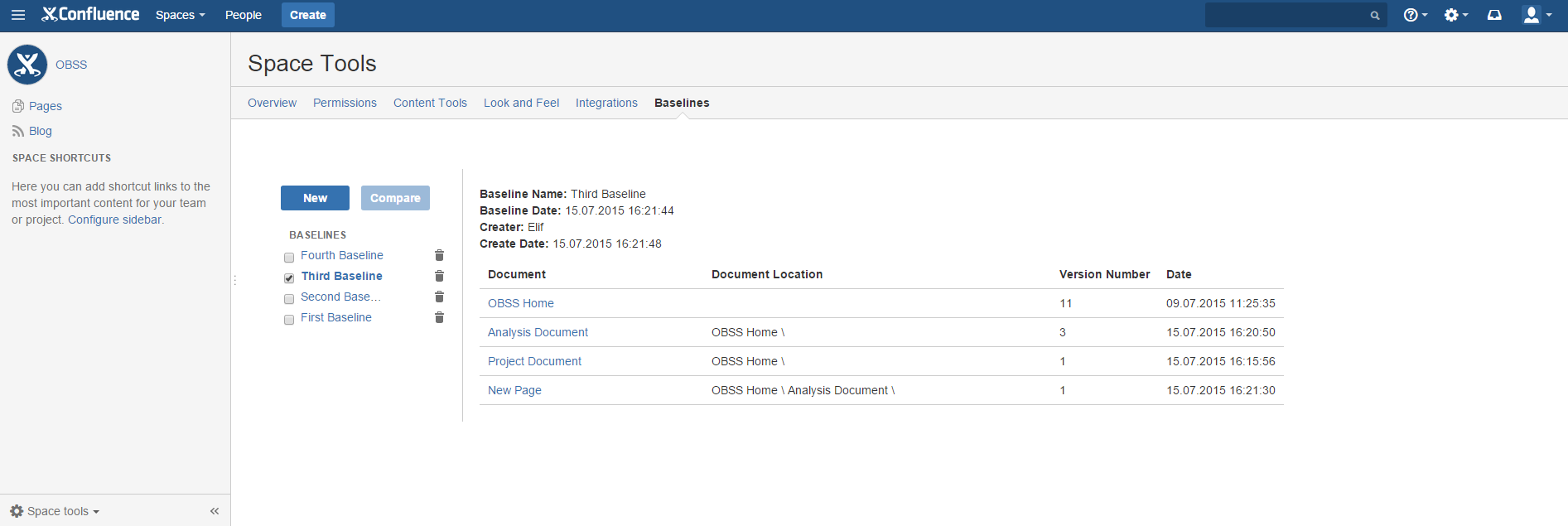
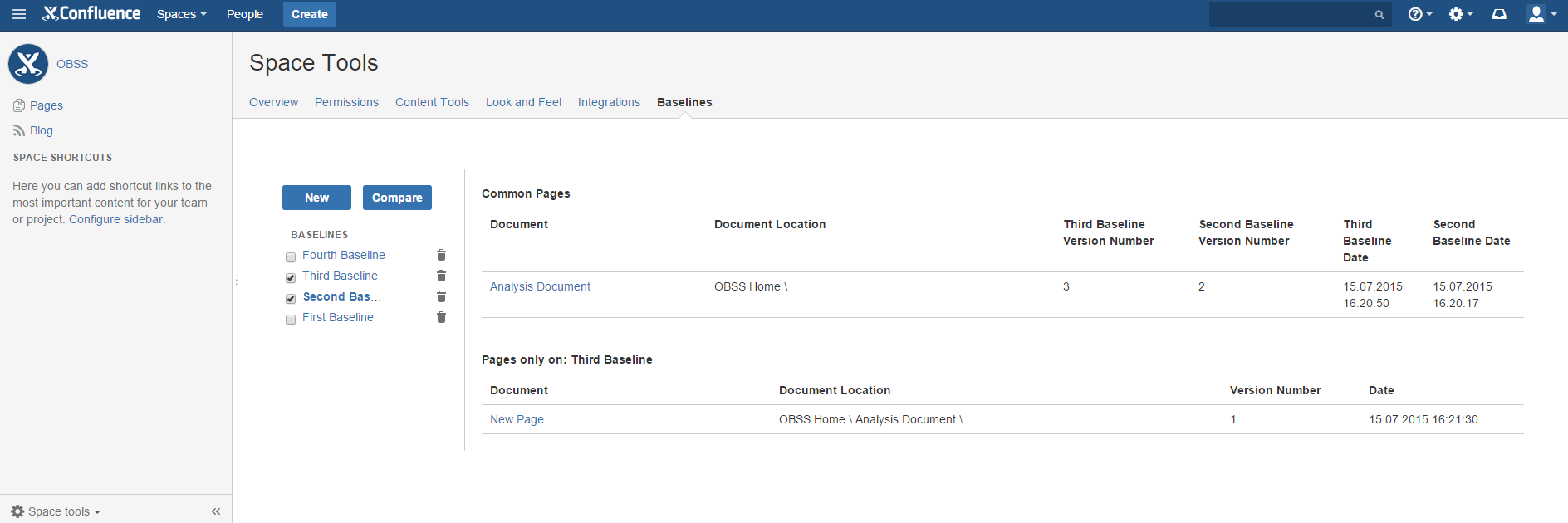
3.3 Compare Baselines
-
Select two baselines that you want to compare.
-
Click the 'Compare' button. (Picture 5 )
Picture 5
3.4 Configure Security
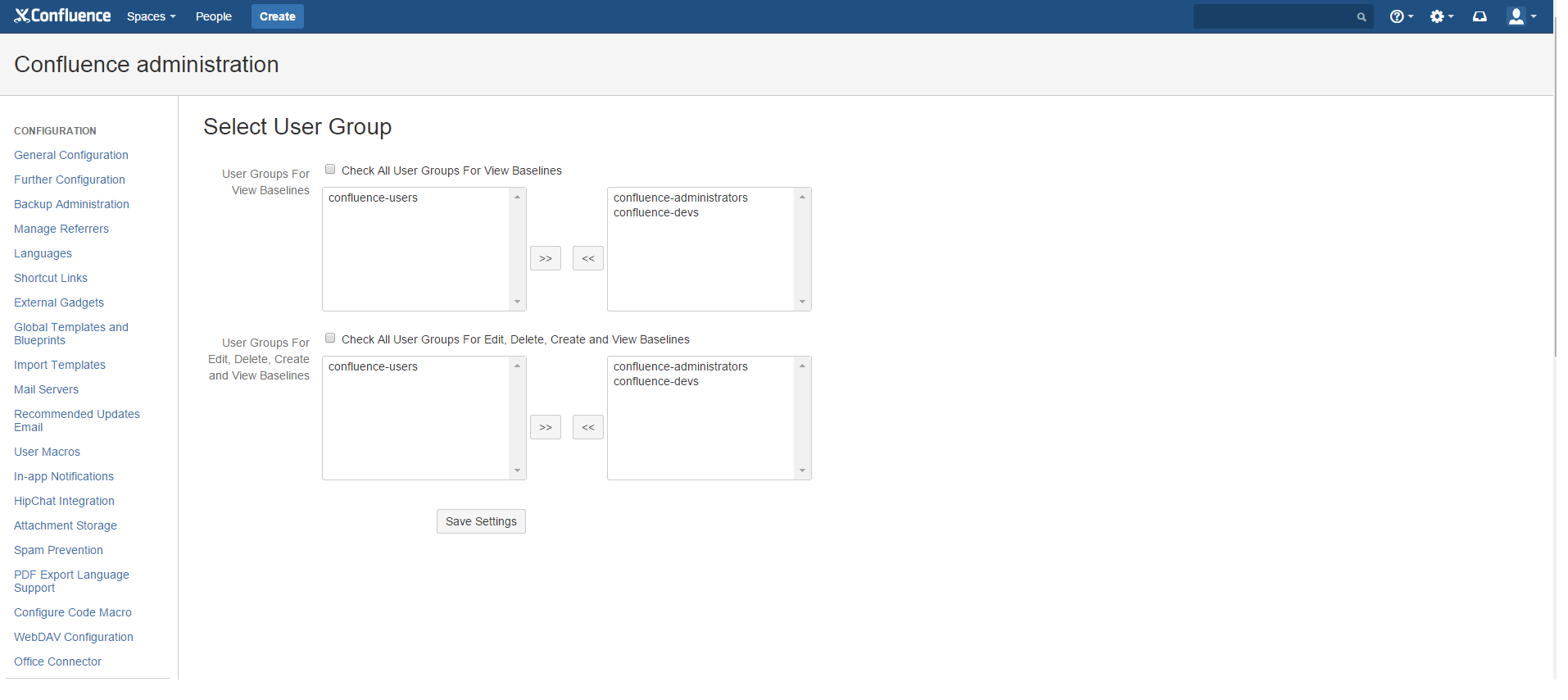
In Baselines for Confluence admin panel gives you a chance to set a security level.
-
Select Baselines for Confluence Settings from the Confluence Administration menu.
-
You can basically select user groups for view and edit Baseline's. (Picture 6)
Picture 6
4. How It Works
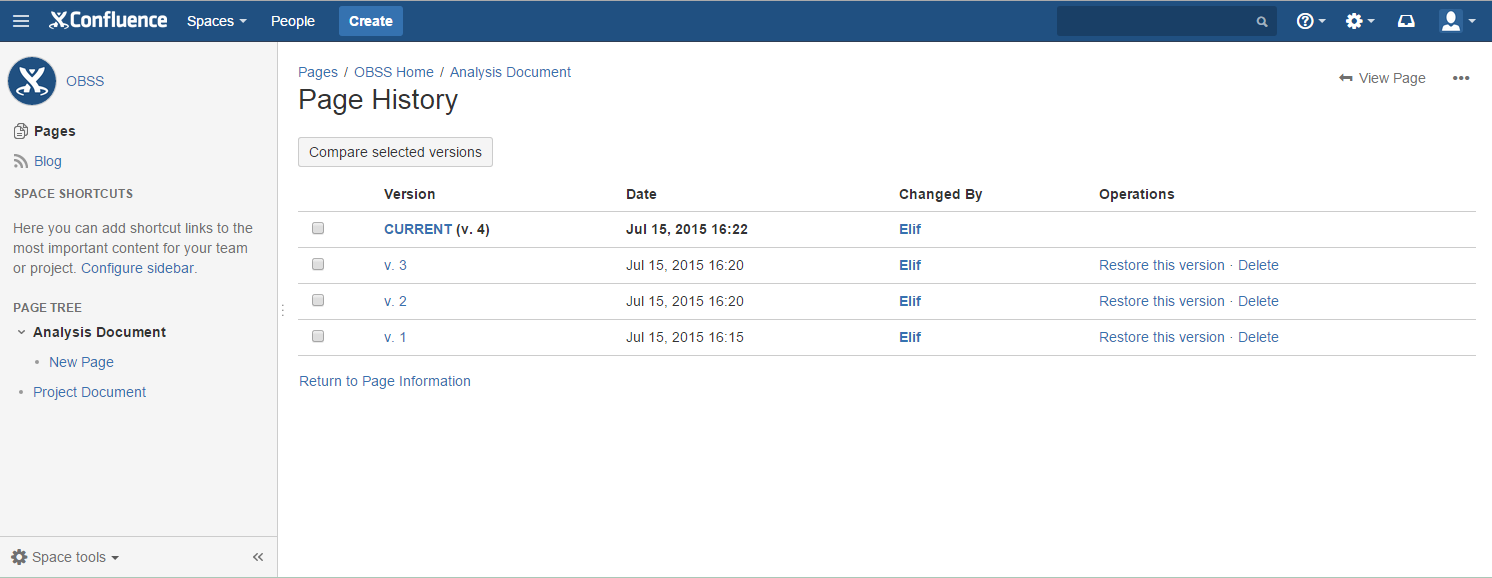
Confluence automatically creates a new version number every time a document edited. Baselines for Confluence helps you to save a collection of links to documents versions of a specific date & time.
After creating a baseline you can easily access specific versions of the documents in that baseline.
Baselines for Confluence only saves a collection of links to old versions of documents. It does not make a copy of those documents. If the document or its version is deleted from the space, document version in the baseline set will not be accessible.
Picture 7
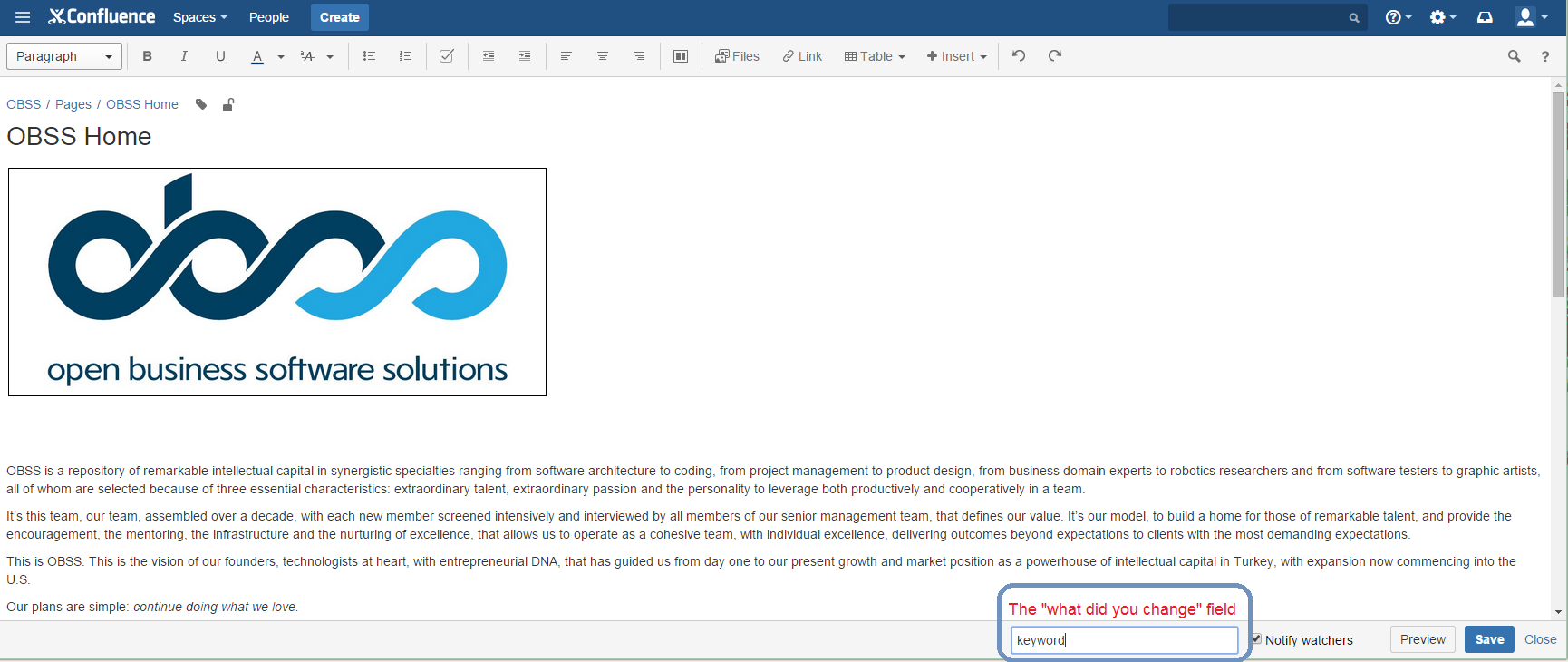
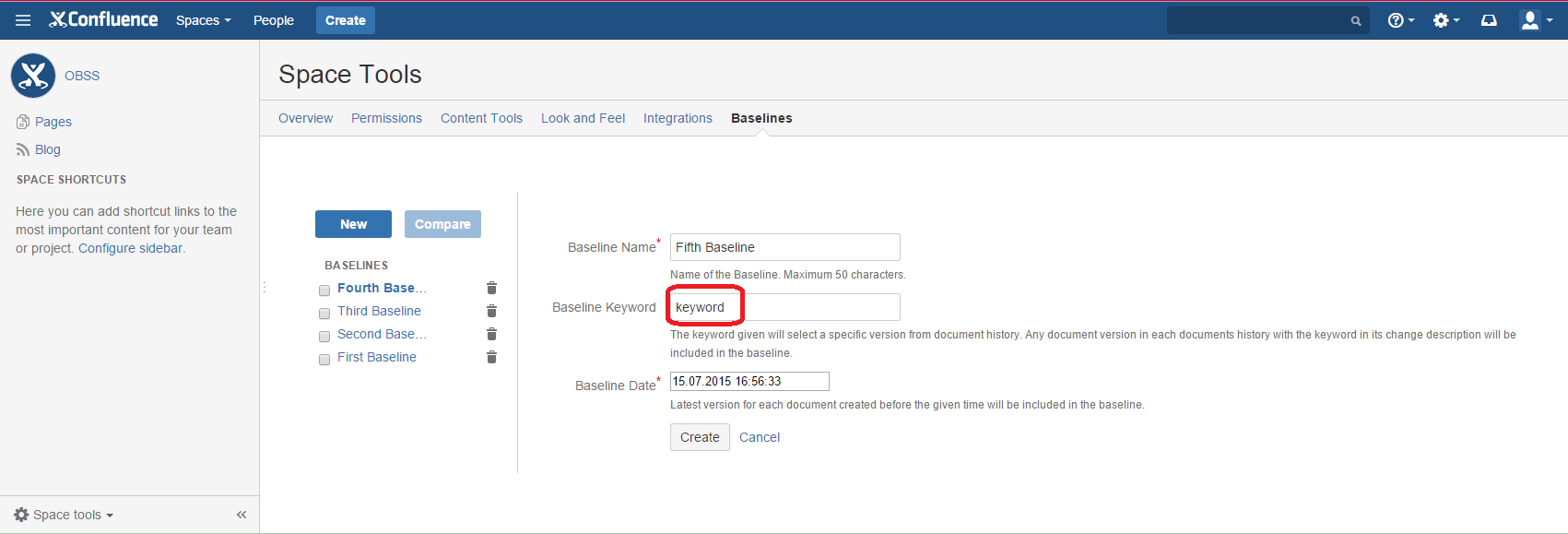
Baselines for Confluence also lets you select documents based on keywords. If you give a keyword in "What did you change" field while saving a document in Confluence you can use that keyword to select that document version while creating a baseline. If a keyword is provided when creating a baseline, Baselines for Confluence looks for the latest document marked with that keyword, before the given date. This feature can be used to distinguish between draft and stable versions.
Picture 8
5. Support
You can send an email to plugin@obss.com.tr to get support.