
Baselines for Confluence
/*<![CDATA[*/ div.rbtoc1769003340449 {padding: 0px;} div.rbtoc1769003340449 ul {list-style: disc;margin-left: 0px;} div.rbtoc1769003340449 li {margin-left: 0px;padding-left: 0px;} /*]]>*/ Baselines for Confluence Description Installation Upload an Add-On : Install the Add-On from Marketplace : Configuration Creating a Baseline Baseline Keyword Vieving Baseline Contents Deleting a Baseline Comparing Baselines Viewing Baselines for a Page Configure Security REST API Troubleshooting Support
Description
Baselines for Confluence is a plugin that gives you a chance to define baselines for your documents on Confluence.
The baselines will contain links to versions of pages and attachments on those pages that were the latest version at the selected baseline time.
Installation
To install Baselines for Confluence follow these steps:
-
Log in as a admin user with the Confluence Administrators.
-
Select Add-ons from the Administration menu at the top right of your screen.
You can install the Add-On in two ways : Install the Add-On from Marketplace or Upload an Add-On.
Upload an Add-On :
-
Click the Manage Add-ons link.
-
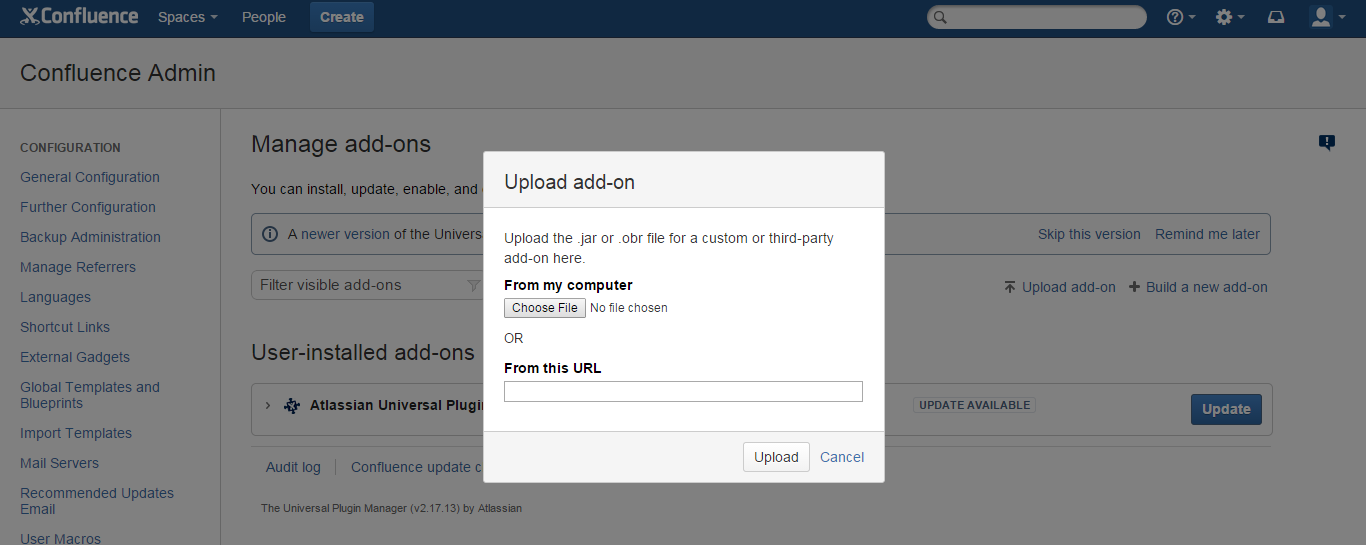
Click the Upload Add-on link at the top right side of the page.
The 'Upload Add-on' dialog appears. (
Picture 1
)
Picture 1
Install the Add-On from Marketplace :
Log into your Confluence instance as an admin.
-
Click

-
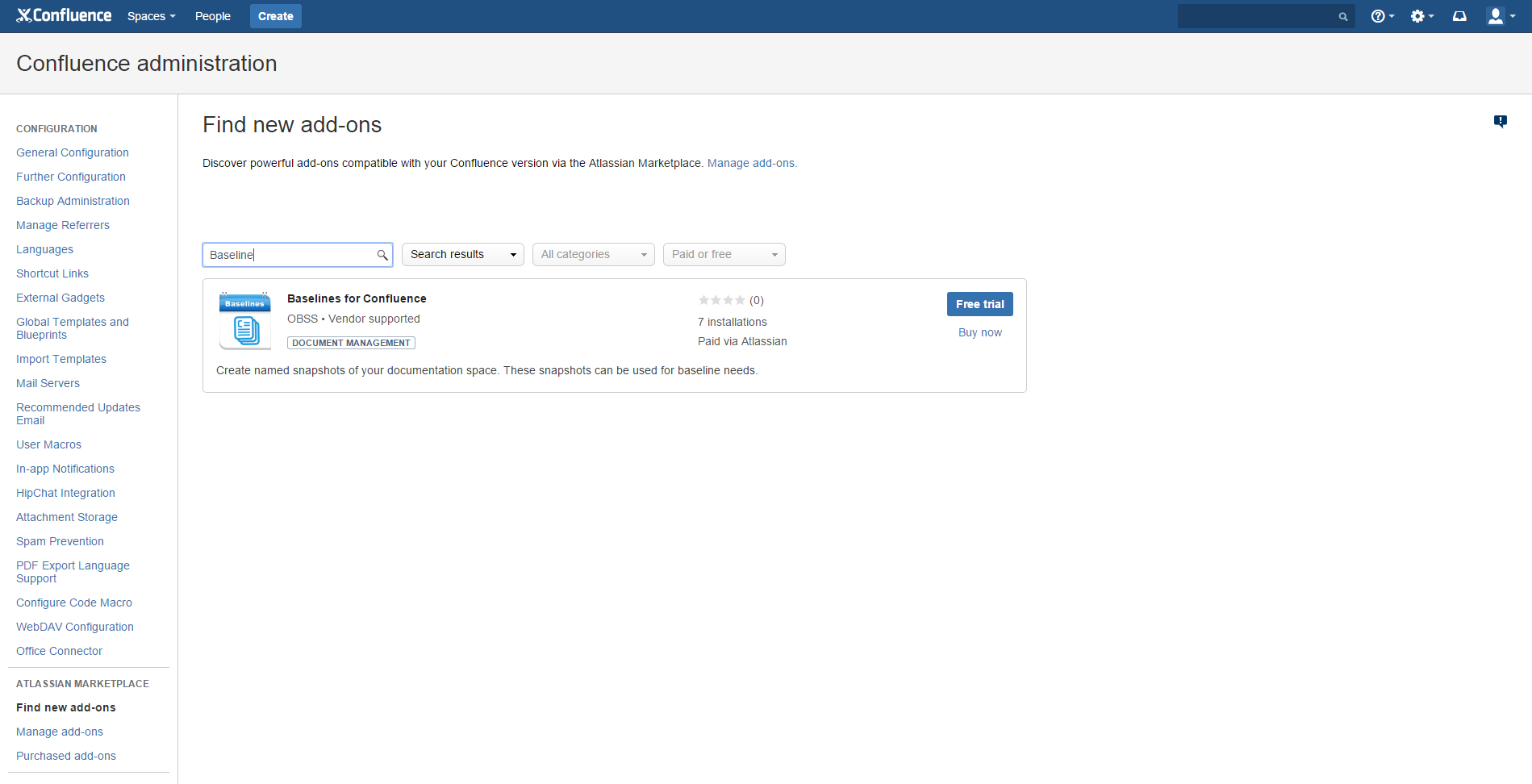
Click Find new add-ons from the left-hand side of the page.
-
Locate Baselines for Confluence via search. (Picture 2 )
-
Click Try free to begin a new trial or Buy now to purchase a license for Baselines for Confluence.
-
Enter your information and click Generate license when redirected to MyAtlassian.
-
Click Apply license.
Picture 2
Configuration
Creating a Baseline
-
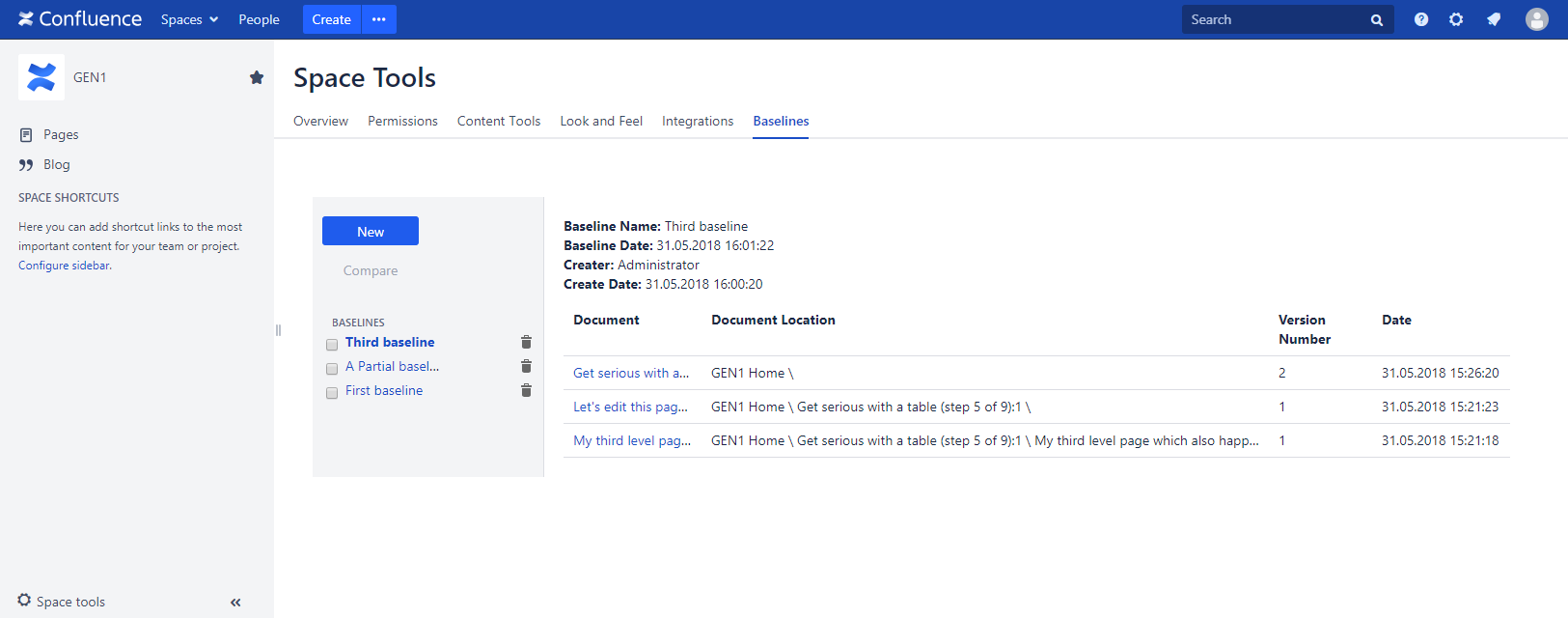
Open the "Baselines" tab in Space Administration section of your Confluence space.
-
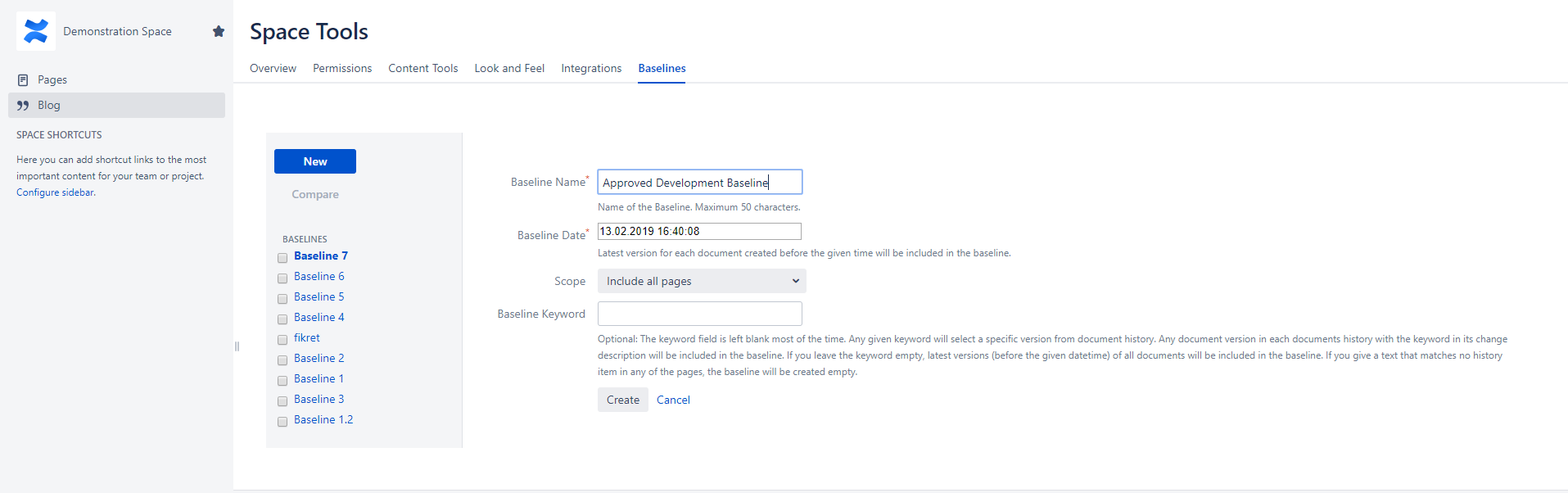
Click "New" to create a Baseline
-
Enter a name for the baseline
-
Select a date for the BaselineFor each document (page or attachment) in the space, the latest version that has a date earlier than the given date will be included in the baseline.
-
Select the scope of the baselines
-
Include All Pages
-
This option includes all pages (and attachments on those pages) in the space
-
-
Select Individual Pages
-
This option allows the user to select individual pages to be included in the baseline.
-
Attachments on selected pages will be included in the baseline.
-
-
Mark the checkbox next to each page that you want to include in the baseline.
-
The menu icon next to the checkbox of each page opens a context menu which allows the user to select or deselect a page with all its subpages.
-
-
-
Click Advanced and enter a baseline keyword, if any. (Further information about the use of Baseline Keyword is down in the document)
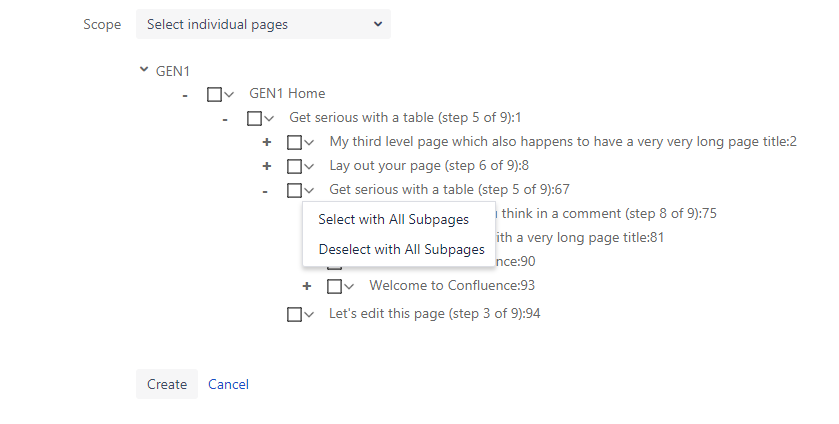
-
Click "Create" to create the baseline.
-
Your new baselines will be displayed as part of the baseline list on the left.
Baseline Keyword
You can set a keyword to pick individual page versions from each page's history. When you enter a keyword, the plugin searches for the keyword in revision comment of each page version and includes the newest version (that is earlier than the selected date) that matches.
This capability can be used to filter out draft versions of a page. Since each "save" creates a new version, you can enter a specific word in document revision notes for major versions of pages and using the "Baseline Keyword" feature, you can make the plugin pick those versions from the page history.
If you do not use keywords in history notes (or if your are not sure how to use this feature) just leave the keyword empty.
Vieving Baseline Contents
-
Open the "Baselines" tab in Space Administration section of your Confluence space.
-
On the left column of the screen you will see the list of existing baselined created for that space.
-
Click on one of the baseline to see the contents on the right.
-
Each row shows a document (page or attachment) in the baseline with its title, full page location, the version of the document included in the baseline and the date of the document version.
-
You can click on the document title to navigate directly to the document version.
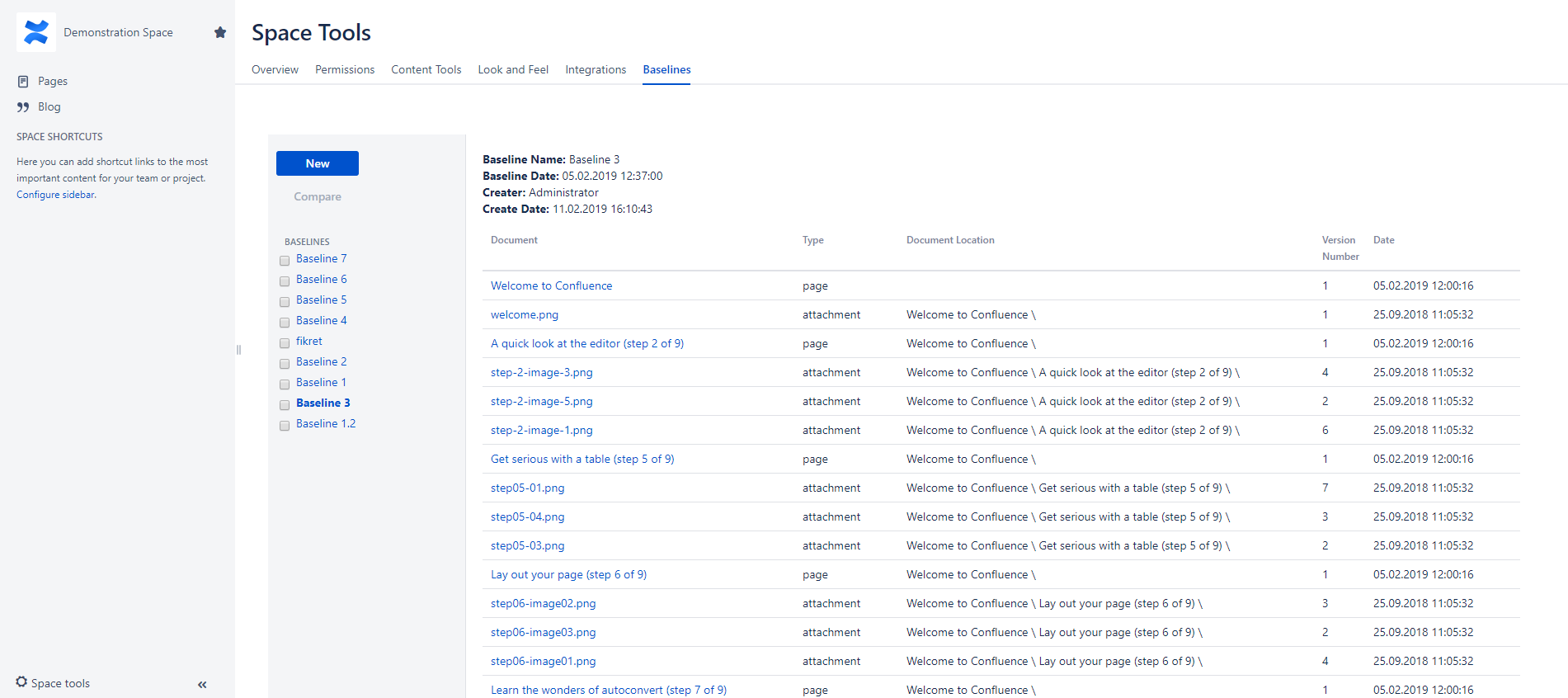
Deleting a Baseline
-
To delete a baseline, click on the garbage bin icon nextx to the baseline name in the list.
-
System will prompt you to confirm that you want to delete the baseline.
-
Click "Apply" if you are sure that you want to delete the baseline.
-
The baseline will then be permanently deleted and removed from the list.
-
Since the baseline contains only links to page versions, not actual pages themselves, deleting a baseline does not delete pages. Your pages will remain in their spaces.
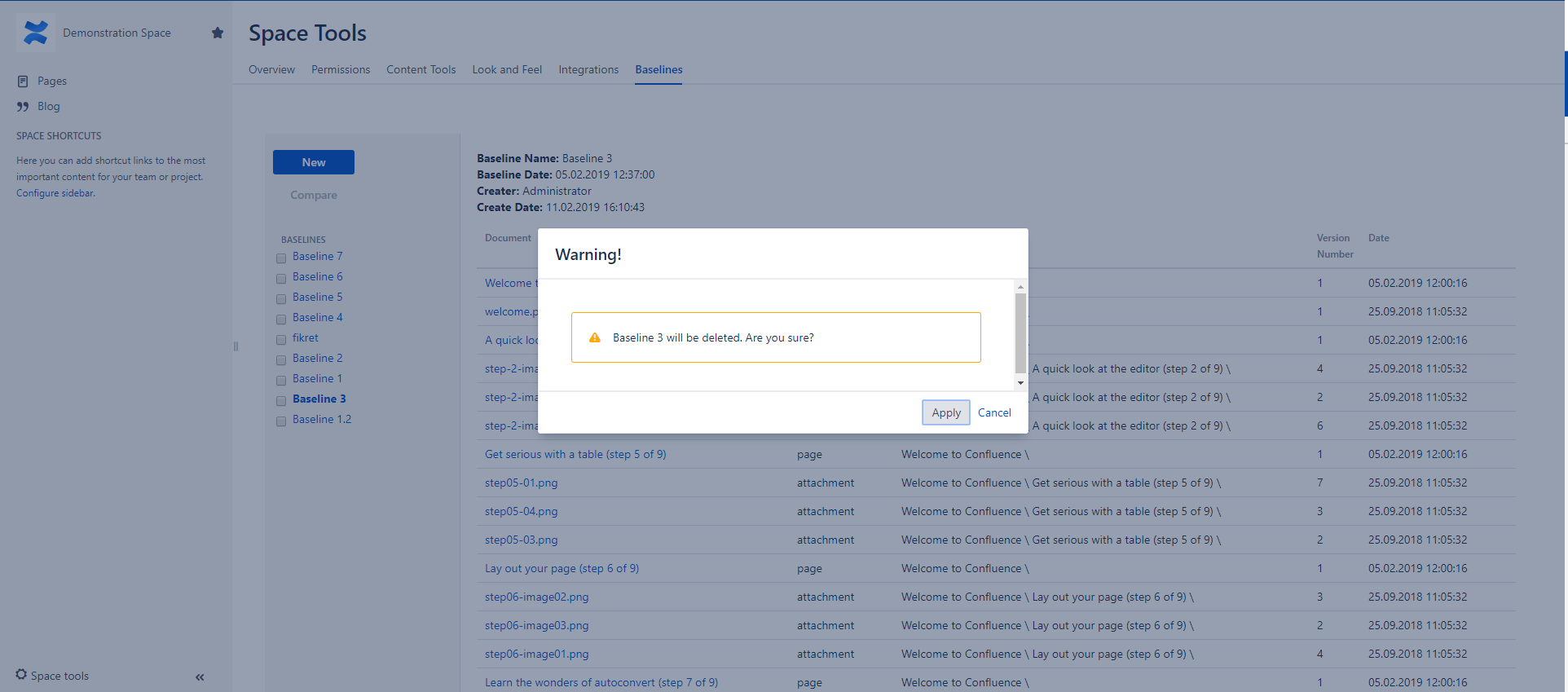
Comparing Baselines
-
To compare baseline contents, select exactly two baselines from the list and click compare.
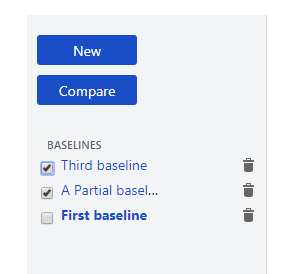
-
The compare screen will display three separate lists of pagesDocuments that are only included in the first selected baselineDocuments that are only included in the second selected baselineDocuments that are included in both baselines but have different versions in two baselines.Documents that are included in both baselines with same versions will not be listed
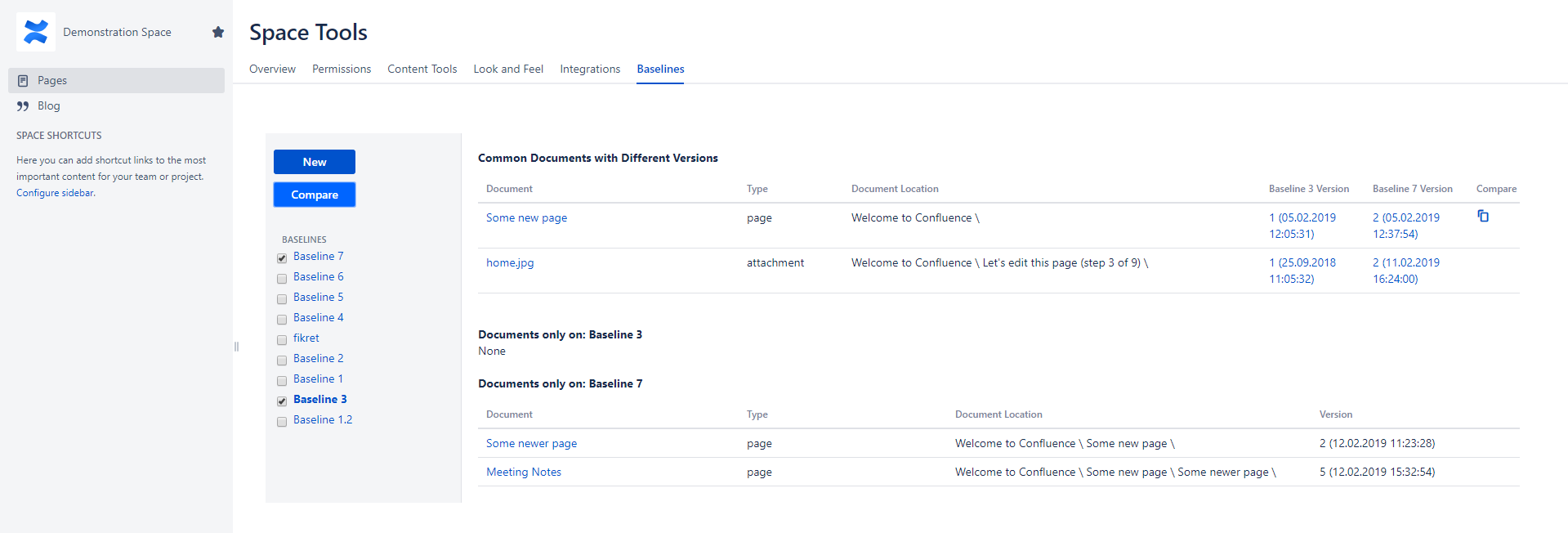
-
Click on any document title to navigate directly to the document version.
-
Documents with different versions in selected baselines will show links to navigate to both versions.
Viewing Baselines for a Page
A new menu item named "Show Baselines" will be added to page action menu when Baselines is installed.
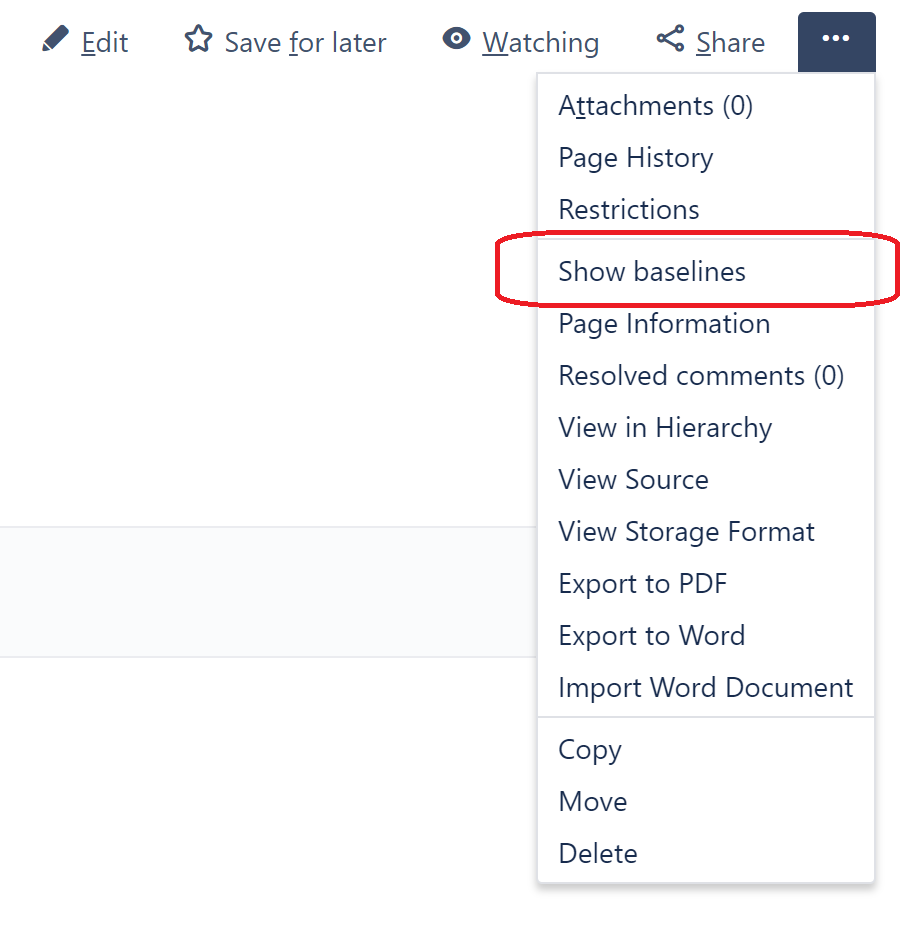
When clicked, this menu item displays a popup window that shows a list of baselines created in that space that include this page along with the versions of pages that were included in the corresponding baseline.
Using the links in the popup, you can navigate directly to each baseline or each page version.
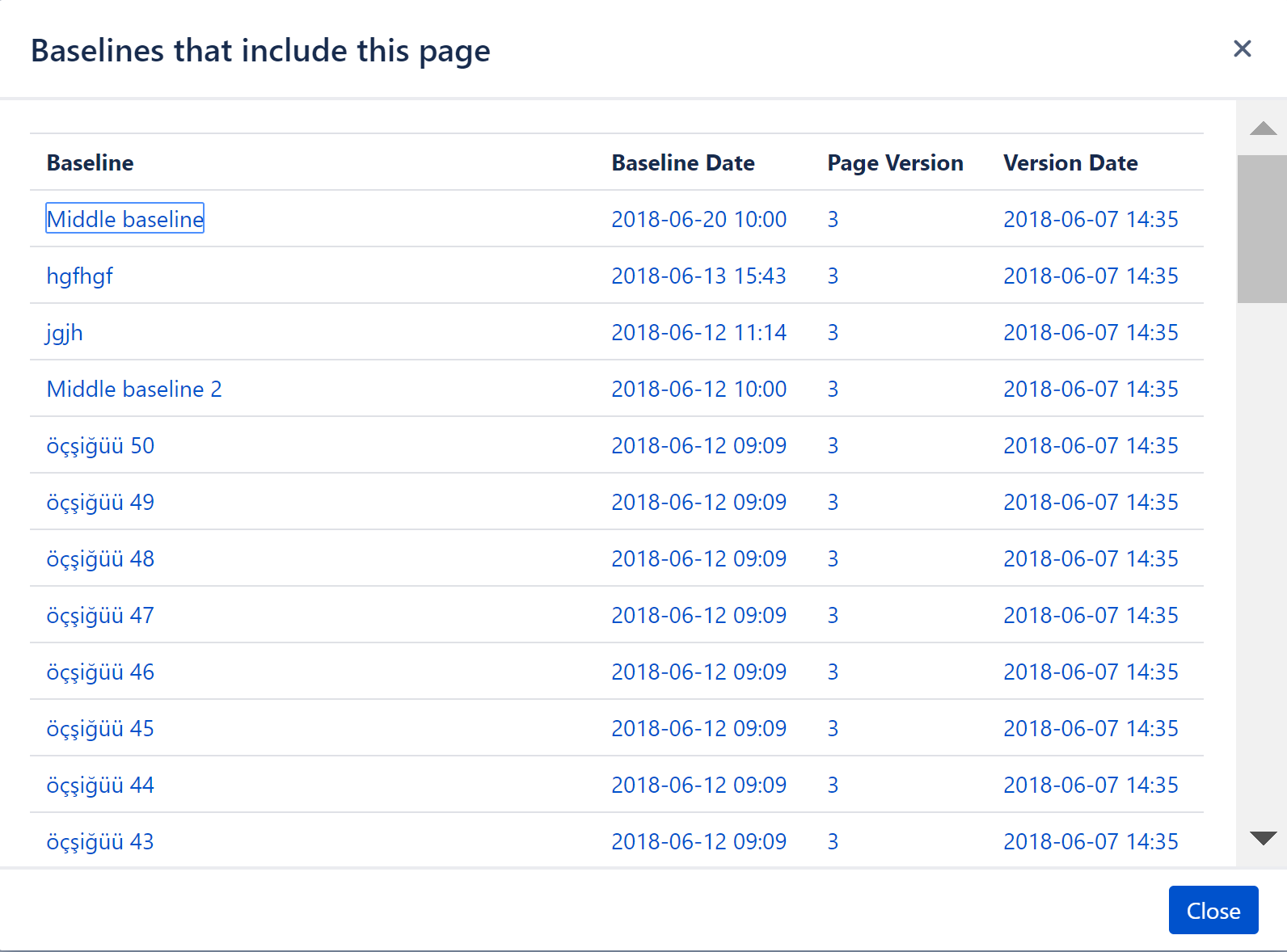
Configure Security
Baselines for Confluence admin panel allows JIRA admins to define who can view, create and delete Baselines.
To configure security:
-
Select Baselines for Confluence Settings from the Confluence Administration menu.
-
Select the user groups for view, create and delete permissions.
-
Click Save Settings.
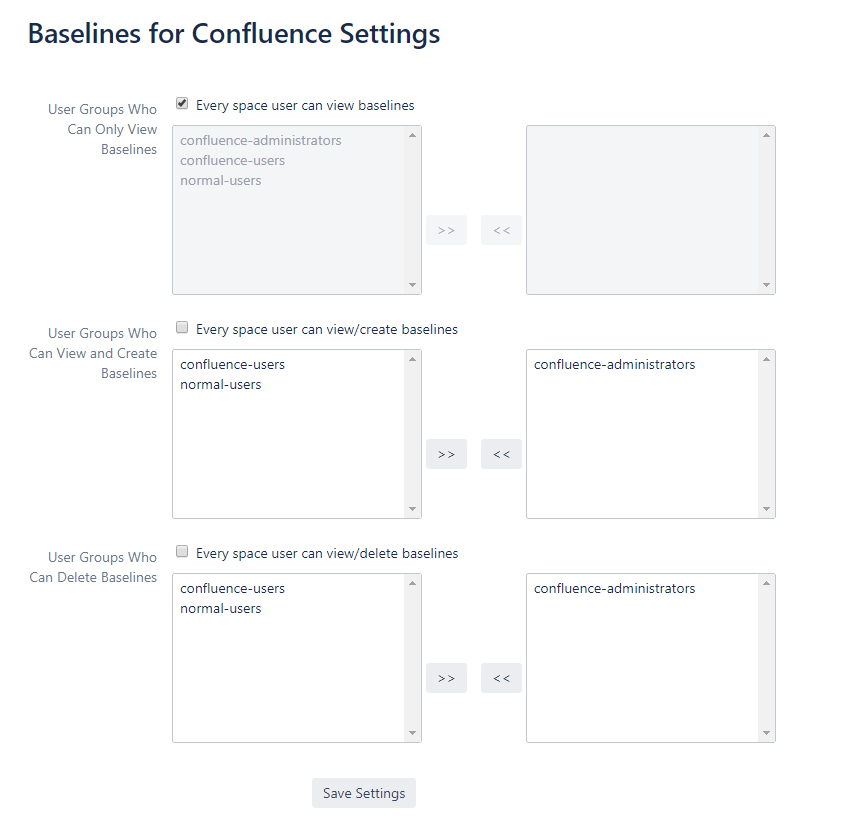
REST API
You can create baselines through REST API.
The format for a Baseline Create call is as follows:
HTTP POST
<confluence_server>/plugins/servlet/baselinecreateservlet?space-key=<space_key>&baseline-name=<baseline_name>&baseline-keyword=<baseline_keyword>&date-field=<baseline_date>&selectAllPages=<select_all_pages>&fullySelectedPages=<fully_selected_pages>&partiallySelectedPages=<partially_selected_pages>
|
Param |
Description |
Sample |
|---|---|---|
|
confluence_server |
The full URL for your Confluence Server |
http://192.168.0.71:6110/confluence611 |
|
space_key |
The key of the Confluence document space for which the baseline will be created |
ABC |
|
baseline_name |
The name of the baseline that will be created |
My New Baseline |
|
baseline_keyword |
(Optional) The keyword for the baseline. Any string works. !!! Leave empty if you are now sure how to use this. |
|
|
baseline_date |
The date and exact time for the baseline |
12.09.2018 11:08:12 |
|
select_all_pages |
Whether all pages in the space will be included in the baseline Possible values:
|
|
|
fully_selected_pages |
Used if "select_all_pages" is false A comma separated list of page ID's. The pages in this list will be included in the baseline WITH all their subpages. |
|
|
partially_selected_pages |
Used if "select_all_pages" is false A comma separated list of page ID's. The pages in this list will be included in the baseline WITHOUT their subpages. |
|
Sample Requests:
(HTTP POST)
http://192.168.0.71:6110/confluence611/plugins/servlet/baselinecreateservlet?space-key=ds&baseline-name=My New Baseline 1&baseline-keyword=&date-field=12.09.2018 11:08:12&selectAllPages=true
http://192.168.0.71:6110/confluence611/plugins/servlet/baselinecreateservlet?space-key=ds&baseline-name=My New Baseline 2&baseline-keyword=&date-field=12.09.2018 11:08:12&selectAllPages=false&fullySelectedPages=65540,66534&partiallySelectedPages=63578,34527
Troubleshooting
Support
You can reach OBSS support team through pluginsupport.obss.com.tr or send an email to plugin@obss.com.tr to get support.