
Using Baselines for Confluence, you can compare a baseline with the latest version of the space or you can compare two baselines.
Comparing Two Baselines
-
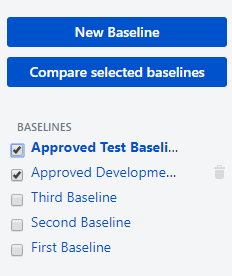
To compare the contents of two baselines, select two baselines from the list and click compare.
-
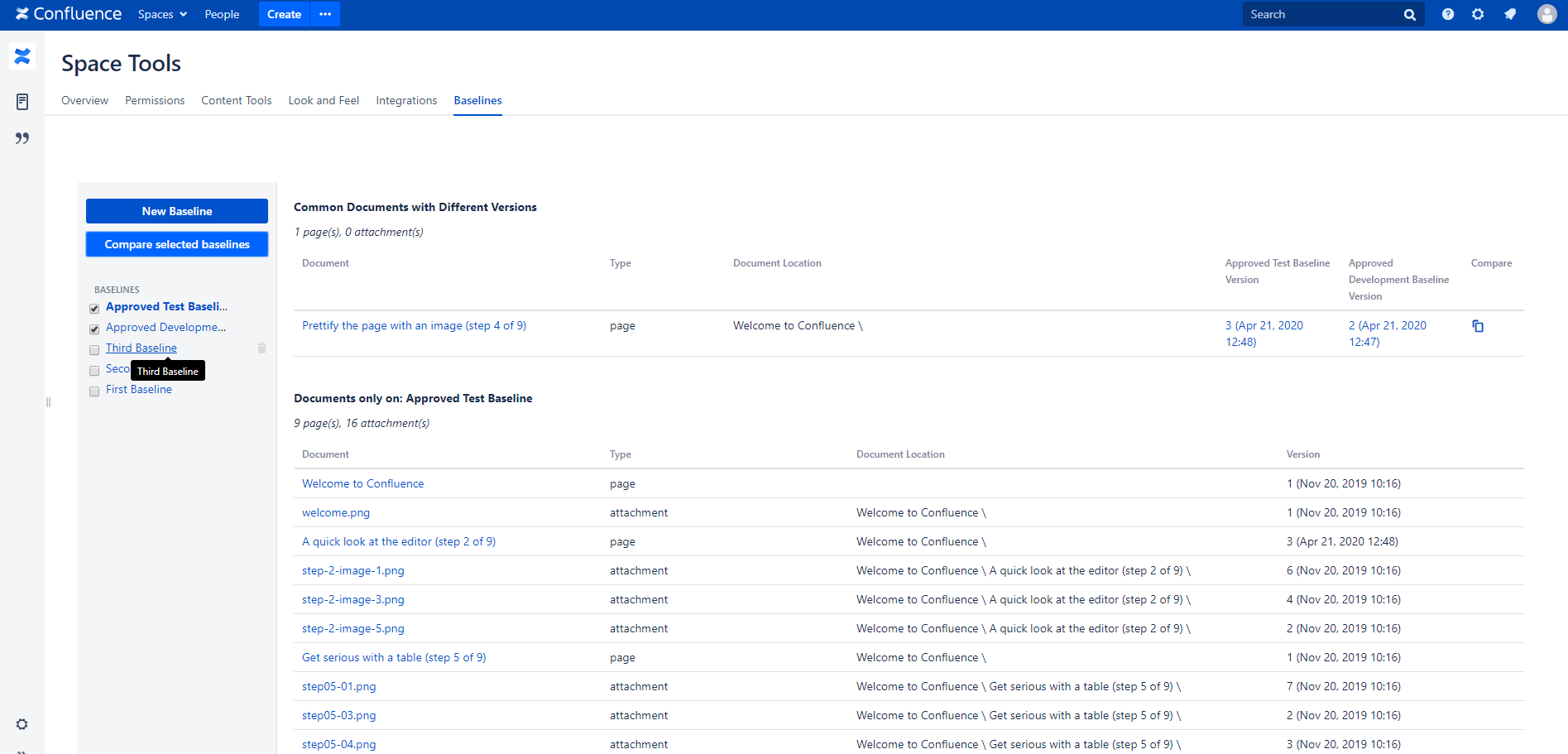
The compare screen will display three separate lists of pages
-
Documents that are only included in the first selected baseline.
-
Documents that are only included in the second selected baseline.
-
Documents that are included in both baselines but have different versions in two baselines.
-
Documents that are included in both baselines with same versions will not be listed but will be shown as a total count at the end of the compare page.
-
-
Click on any document title to navigate directly to the document version.
-
Documents with different versions in selected baselines will show links to navigate to both versions and show a compare link to compare page versions.
Comparing a Baselines with Latest
-
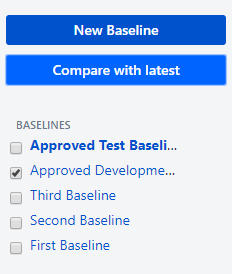
To compare the contents of a baseline with the latest content in the document space, select a baselines from the list and click "Compare with latest".
-
The app will create an in-memory baseline of the space and compare it with the selected baseline.
-
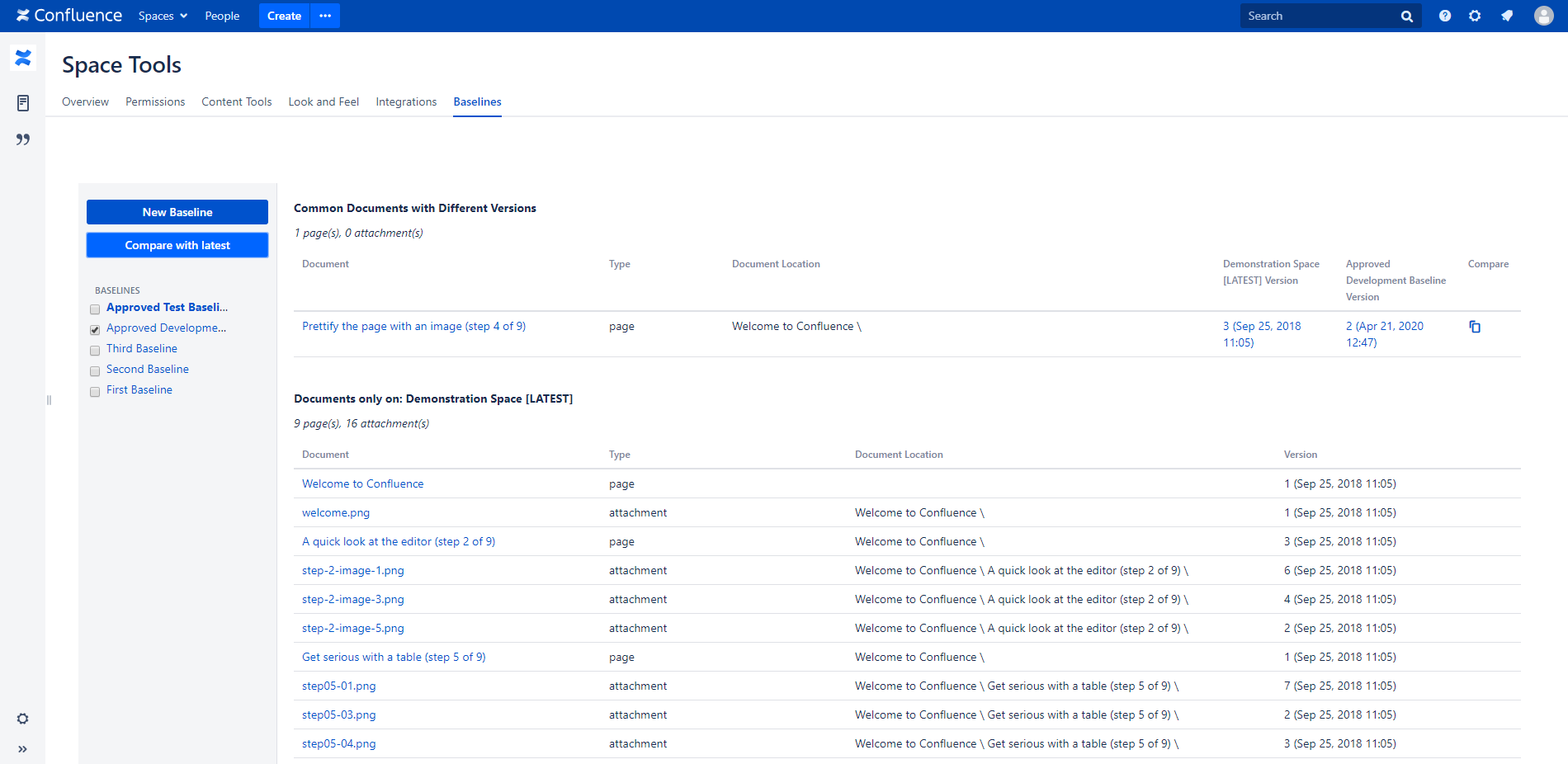
The compare screen will display three separate lists of pages.
-
Documents that are were included in the selected baseline but are no longer present in the space.
-
Documents that are added to space after the selected baseline was created.
-
Documents that are still present in the space but were updated after the baseline was created.
-
Documents that were not updated after the the baselines was created will not be listed but will be shown as a total count at the end of the compare page.
-
-
Click on any document title to navigate directly to the document version.
-
Documents with different versions in selected baseline and LATEST will show links to navigate to both versions and show a compare link to compare page versions.