Summary
Keychain - Delegation for Jira allows you to assign your Jira users as delegates of other users.
OK, but, how do you show the names of those delegates on issues, using Keychain - Delegation for Jira?
Solution
To show the names of delegate users on issues, we will use the new custom field type, introduced by Keychain.
To implement that, follow these steps:
-
Go to Jira Admin >> Issues >> Custom Fields page. Click Add new Custom Field button.

-
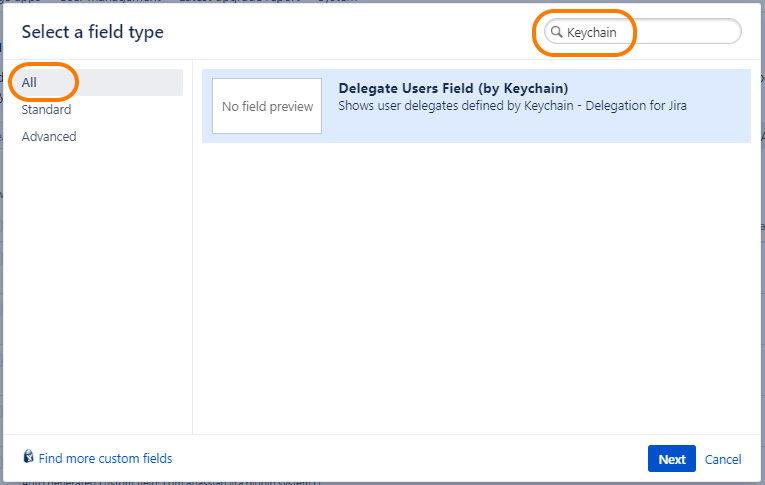
When the Add new Custom Field dialog opens, search for and select Delegate Users Field (by Keychain).Then click next.
-
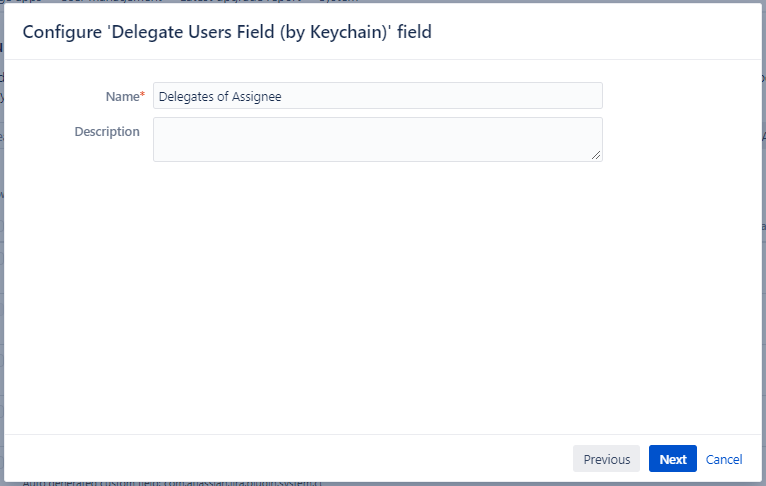
In the next dialog page, enter a name for your new Keychain custom field.In this example, we named the field Delegates of Assignee. but you can use any name that will be meaningful for your users.Then click next.
-
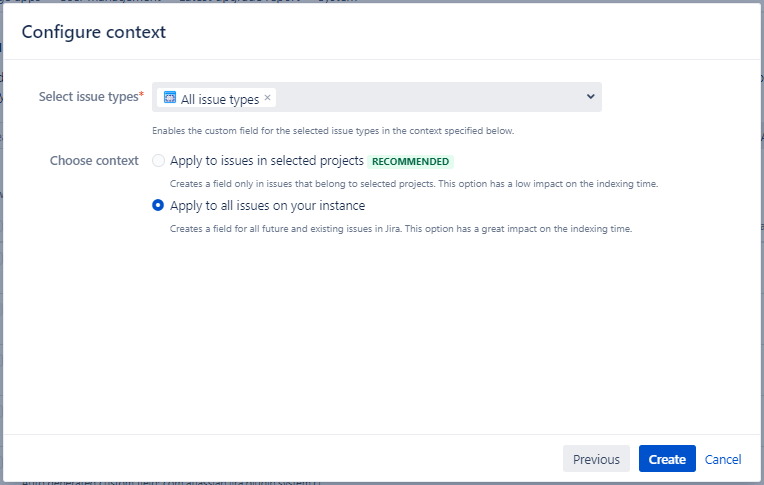
In the next dialog page, configure a context for your new custom field.In this example, we set a global context for our custom field (all projects and all issuetypes) so the custom field will be visible on all issues. The recommended approach is to set a narrower context to show the custom field only on relevant projects and issue types. This improves Jira performance significantly.This dialog page is present only in newer Jira versions. It is OK if your Jira does not show this page. Then click Create.
-
At this stage, the dialog will close and the screen selection page will open.Select the issue screens where you want this custom field to be displayed.Since this is a read-only field, it makes sense to select only View screens here. The field will not allow editing or display any value on create, edit, or transition screens.Then click Update.
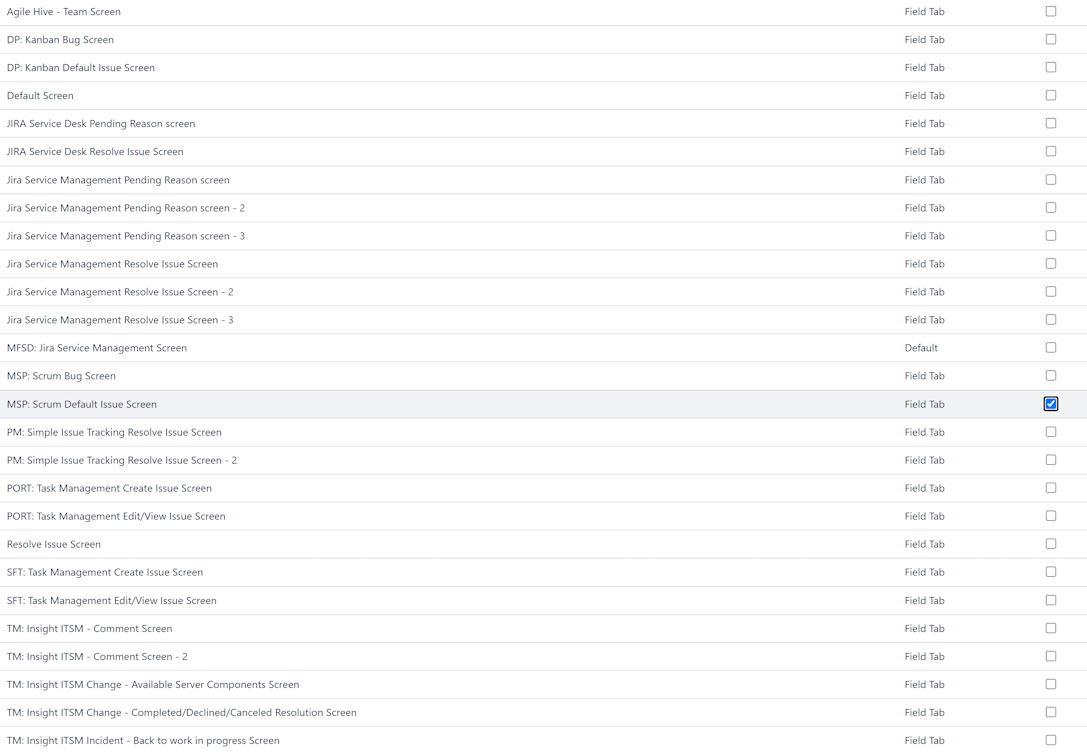
-
The browser will go back to the Custom Fields screen.Find your new custom field in the list and open its configuration page using the Configure option in the context menu.
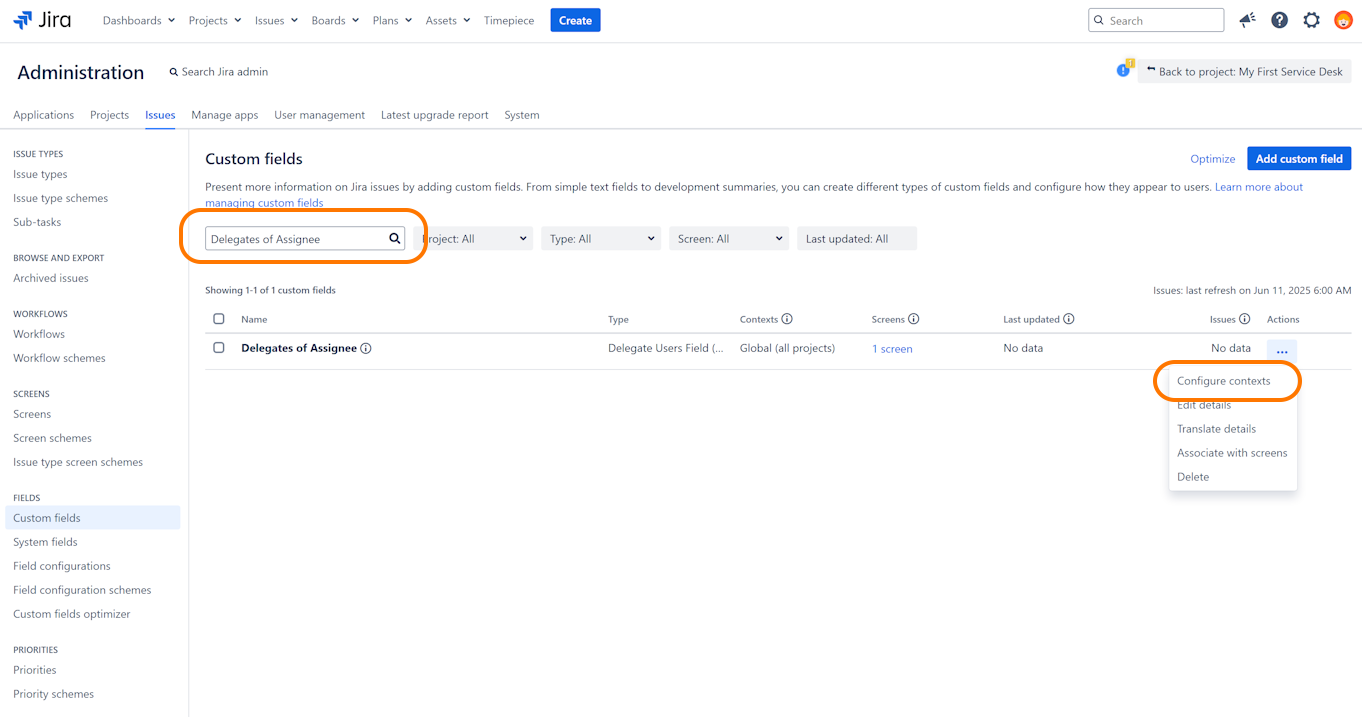
-
In the Configure Custom Field screen, select the Edit Delegator option to navigate to delegation-specific configuration.
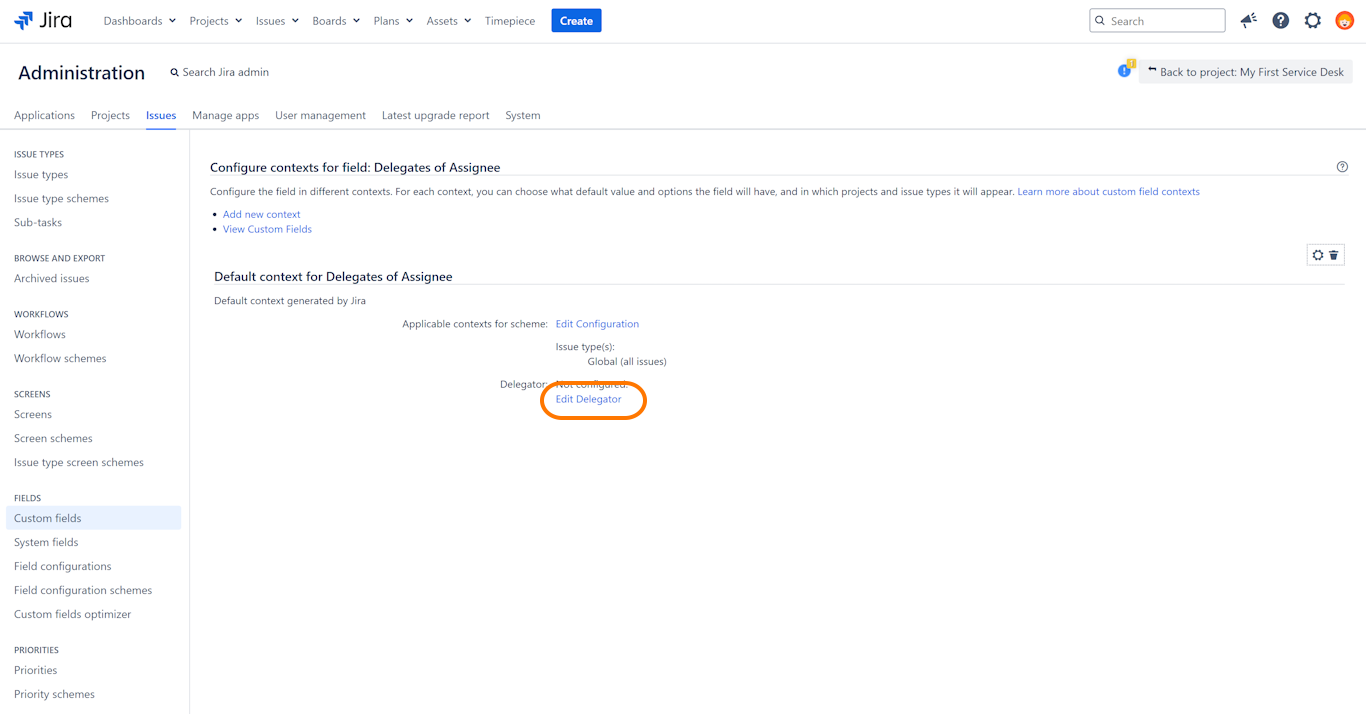
-
In the Delegation Configuration page, select the source that will provide the delegator users.In this example, we are selecting the Assignee option.For the Delegation Policy option, select Delegates Only so the custom field will display only the delegates of the Assignee.You see that the Delegate Users Field type can be configured to show the delegates of not only the Assignee, but also other users, project roles, groups, etc. Click Save.
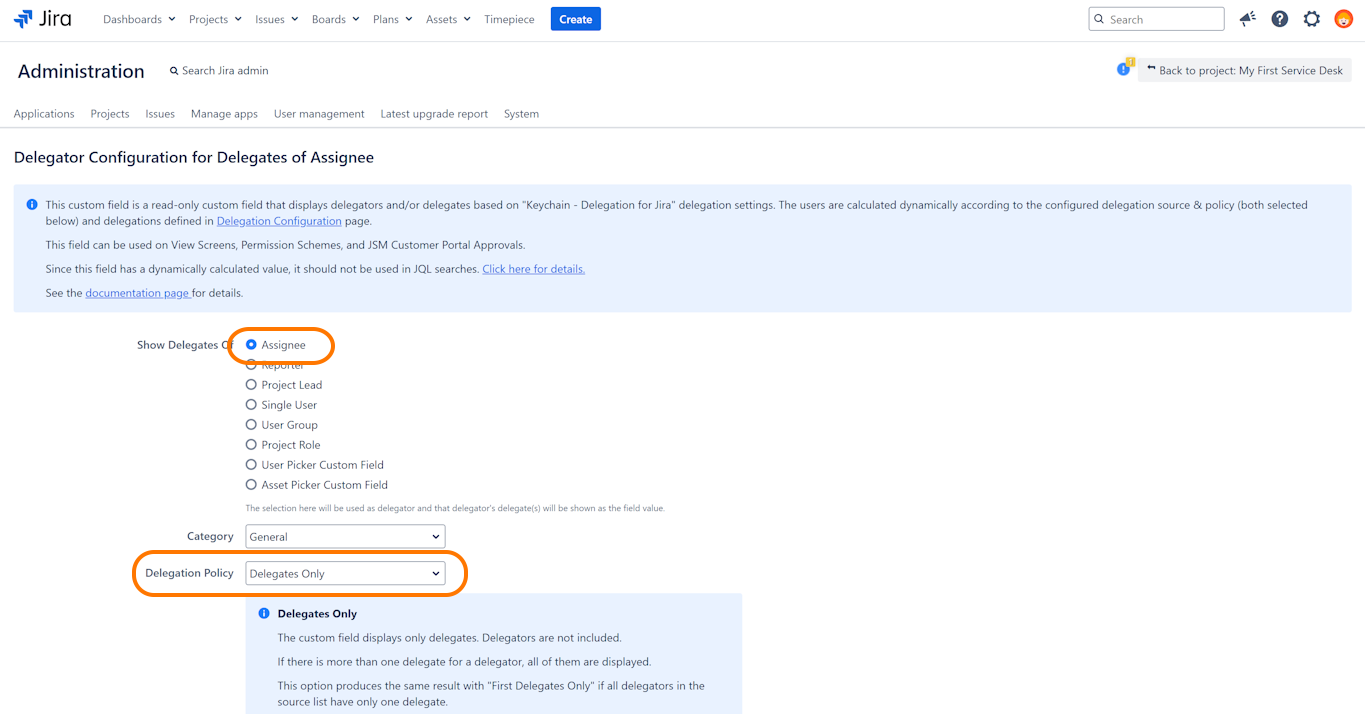
-
The configuration is complete.Your new Keychain custom field is ready to display delegate users.
-
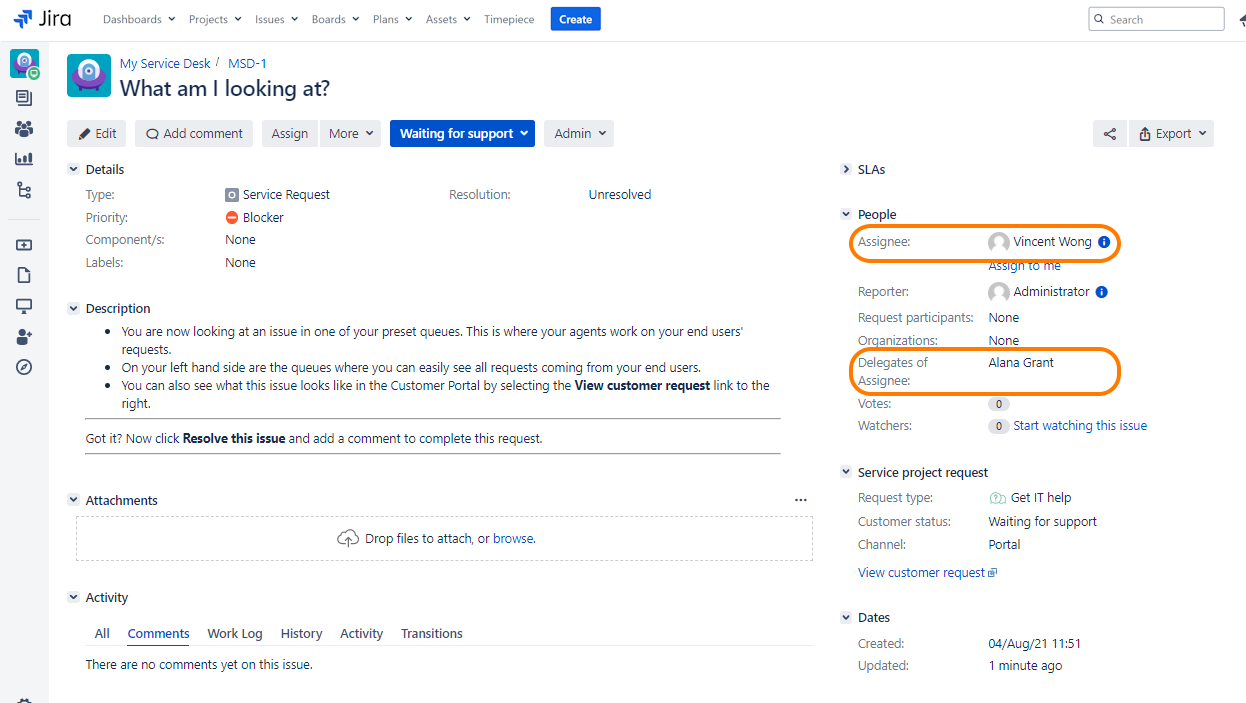
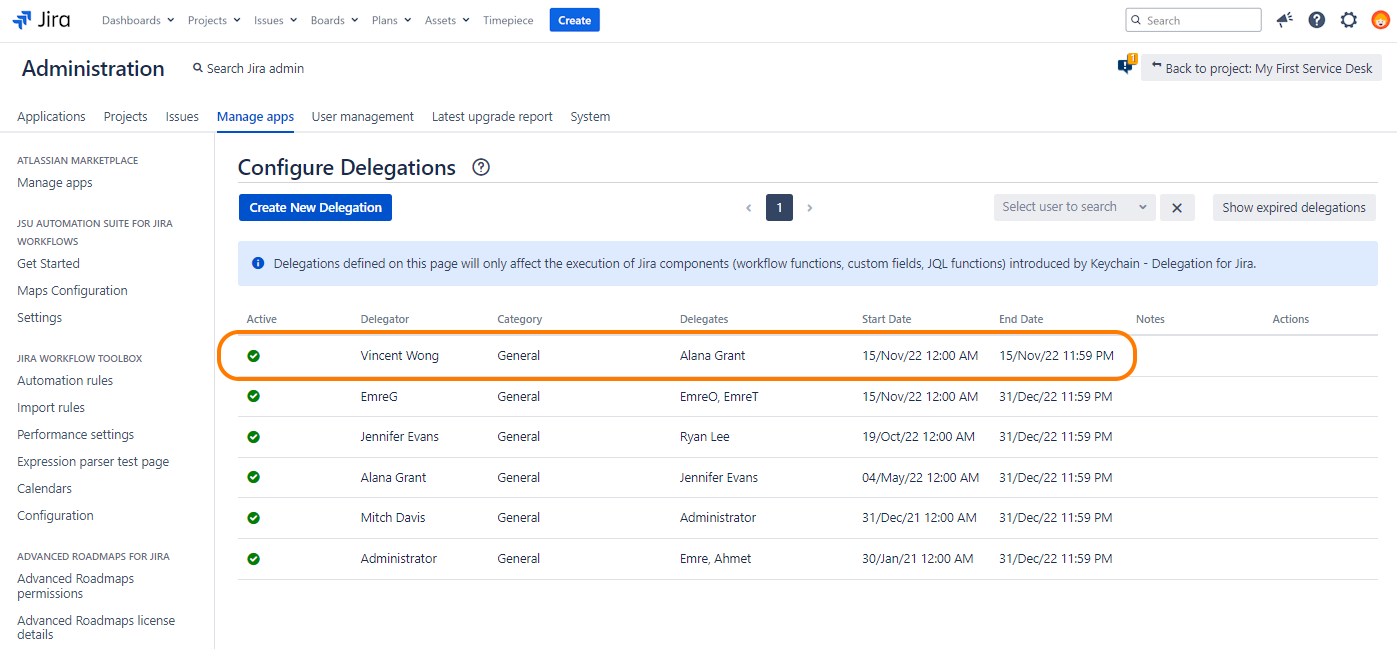
After following these steps, go to Configuring Delegations screen on your Jira to make some delegation definitions for your users. In this example, we've set Alana Grant as the delegate of Vincent Wong.
-
Open any issue that is assigned to one of the users that you set a delegate for.
-
The new Delegators of Assignee field will show the delegates for that user.
-
Whenever the Assignee of the issue changes, the Delegates of Assignee field will be updated immediately and display the delegates of the new assignee.
-