
The Contract Report is the primary reporting tool in TicketBook. It generates a detailed summary showing the status of all selected clauses across the chosen periods of a contract. The report reflects actual quota consumption pulled directly from Jira issue data, and takes into account any amends, carry-over settings, and borrowing rules configured on the contract. Contract Report can be used to verify that the terms of a service agreement are being met, eliminating the need for manual spreadsheets or end-of-month reconciliation exercises.
Running the Report
To run the Contract Report, navigate to the Contract Report screen from the TicketBook menu under Apps. Before the report can be generated, you must configure the following settings:
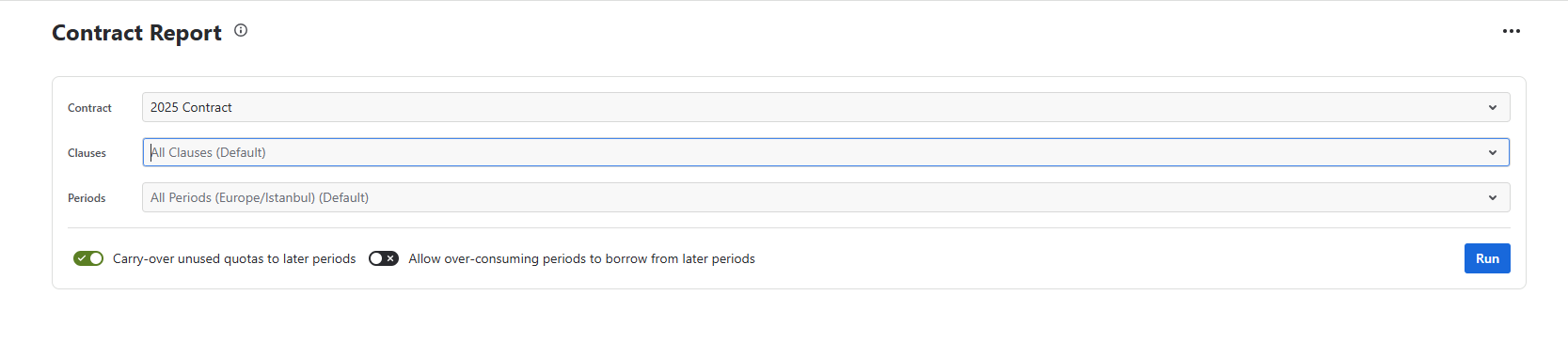
Contract
Select the contract you want to report on from the dropdown list. Only contracts you have been granted view access to will appear in this list.
Clauses
Choose which clauses to include in the report. You can select a single clause to focus on a specific part of the agreement, or include all clauses for a full picture of the contract's status.
Periods
Choose one or more periods of the selected contract. The report will calculate and display results only for the selected periods. You can select past periods to review historical performance, the current period to check live consumption, or future periods to see them listed as placeholders.
Options
These two options control how quota calculations are applied in the report:
-
Carry-over unused quotas to later periods — when enabled, unused quota from earlier periods is added to the quota of later periods
-
Allow over-consuming periods to borrow from later periods — when enabled, periods that exceed their quota can draw from the quota of future periods
Each contract has its own default carry-over and over-consumption settings defined in its configuration. When you select a contract, its default settings are automatically reflected here.
However, changes made on the report screen only affect the current report and do not modify the contract’s actual configuration. This allows the user to temporarily override the default behavior — for example, to view the report with or without carry-over — without altering contract settings.
After configuring all settings, click Run to generate the report.
Report Structure
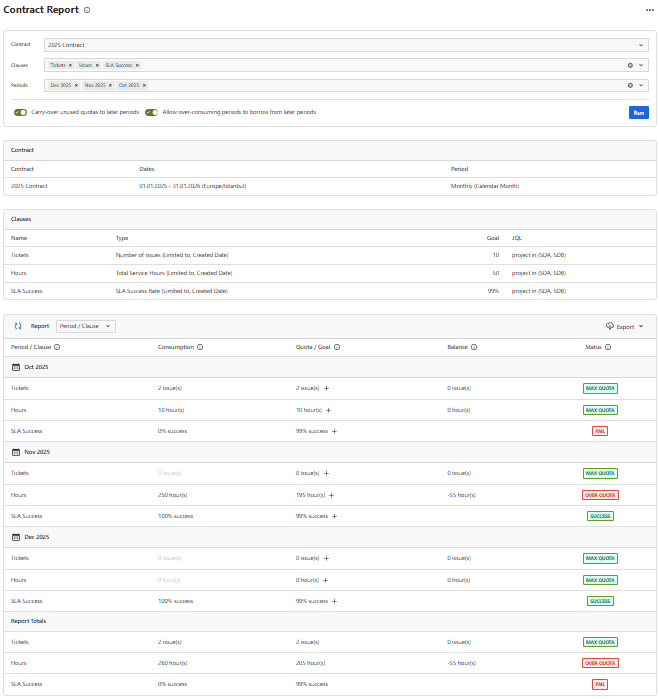
The Contract Report output consists of three main sections:
Contract Info
This section summarizes the basic details of the selected contract, including the contract name, date range, time zone, and period type. It provides general context for the report and does not include any calculated data.
Clauses
This section lists all clauses included in the report, showing the clause name, clause type, the goal or limit defined in the contract, and the JQL used to evaluate the clause. This information is provided to help you interpret the results in the Report section below.
Report
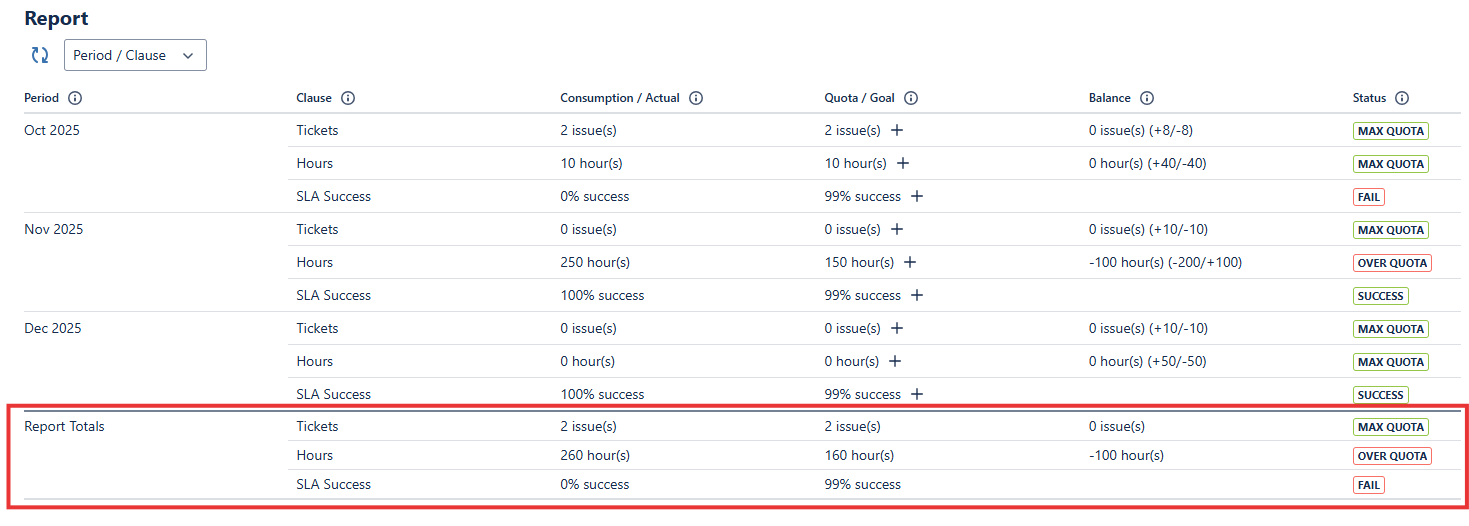
The Report section displays the calculated results for each selected period and clause combination. Each row represents a single Period / Clause pairing and includes the following columns:
-
Consumption / Actual
Shows the total consumption for the clause in that period, calculated from Jira issue data combined with any amends applied to the period.
-
Quota / Goal
Shows the effective quota or target for the clause in the selected period. This value is based on the contract's original quota definition but may be adjusted by amends, carry-over from previous periods, or quota borrowed from future periods. Depending on the clause type, this value may represent an issue count limit, an hours limit, or an SLA percentage target.
-
Balance
Displays the difference between the Quota/Goal and Actual values for the selected period.
This value also reflects the impact of carry-over and over-consumption settings when they are enabled.
Positive balance indicates remaining quota
Zero balance indicates that the quota for the period has been fully used
Negative balance indicates over-consumption
When carry-over or borrowing is active, the Balance column may include an additional set of values shown in parentheses. These values explain how the initial imbalance was resolved across periods.
The value before the slash shows the initial imbalance.
The value after the slash shows the total amount borrowed or transferred as a result of carry-over or borrowing rules.
This column appears only when at least one of the borrowing or carry-over settings is enabled, since balance adjustments are relevant exclusively under those conditions.
-
Status
Indicates whether the clause met its contract requirement for that period. The possible statuses are:
SUCCESS: SLA goal met, or consumption is within limits
MAX QUOTA: Usage is exactly at the limit
OVER QUOTA: Clause exceeded its allowed limit
FAIL: Consumption exceeds the allowed limit, or the SLA success rate falls below the target.
UNLIMITED: The clause has no quota or target limit defined, so all usage is automatically considered valid.
Future periods (if selected) are displayed in the report to provide full visibility into upcoming contract cycles, but they are not calculated and therefore do not show any consumption, balance, or status values until those periods begin.
Amends

For each period and clause, the Contract Report includes an Amends section that shows detailed adjustments and calculation steps applied to that row.
If amends are available for a clause, a + (Show Amends) button appears next to the value.
Clicking + (Show Amends) expands the row and displays all amendment details.
Once expanded, the button switches to - (Hide Amends), allowing you to collapse the section again.
The expanded section displays:
-
Period Activity — the base consumption recorded from Jira issue data during that period
-
Amendments — any amends added to the clause for that period, each shown as a separate row
-
Borrow from Previous Periods / Borrow from Future Periods — quota transferred from other periods, when carry-over or borrowing rules are active
-
Net Total — the final consumption figure after all activity, amends, and borrowing rules have been applied. This is the value used to determine the period's Balance and Status.
The Amends panel provides full transparency into each step of the calculation, allowing users to understand exactly how the final result was derived.
Report Totals
The Report Totals section at the bottom of the report provides an overall summary across all selected periods. It displays the cumulative results of each clause type, including total limits, total actual consumption, and an overall status evaluation for the full reporting range.
Exporting the Report
The Contract Report provides multiple export options to allow users to download the report data in different formats.
Select the Export button at the top-right corner of the report to open the format list.
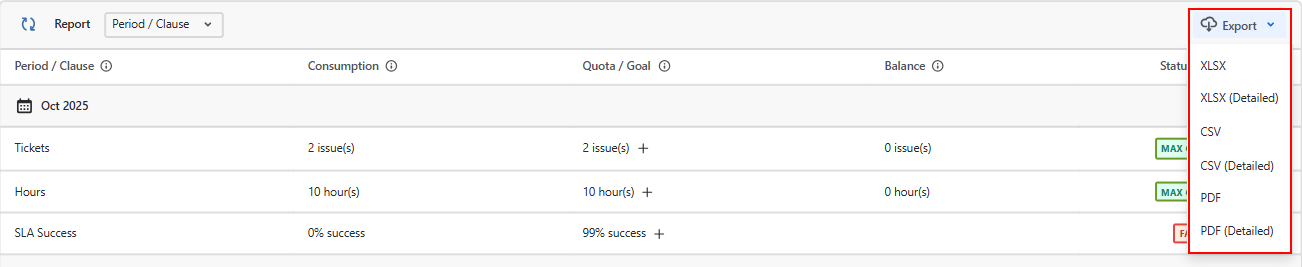
The following export formats are available:
|
Format |
Description |
|---|---|
|
XLSX |
Standard Excel export with visible report data. |
|
XLSX (Detailed) |
Excel export including clause-level details: Total Issues, Successful Issues, Failed Issues and Amends. |
|
CSV |
Standard CSV export with visible report data. |
|
CSV (Detailed) |
CSV export including clause-level details: Total Issues, Successful Issues, Failed Issues and Amends. |
|
|
Standard PDF export with visible report data. |
|
PDF (Detailed) |
PDF export including clause-level details: Total Issues, Successful Issues, Failed Issues and Amends. |