
The SLA List Report displays a detailed list of Jira issues alongside the full details of a selected SLA timer. It gives service teams a clear, issue-by-issue view of how their SLAs are performing, including which issues have met their targets, which have breached, and how much time remains on active timers.
This report is independent of Contract Definitions and Contract Reports. It is purely based on Jira Service Management's native SLA timers and can be used on its own as a standalone SLA monitoring and reporting tool.
Running the Report
To run the SLA List Report, navigate to the SLA List Report screen from the TicketBook menu under Apps. Before the report can be generated, you must configure the following settings:
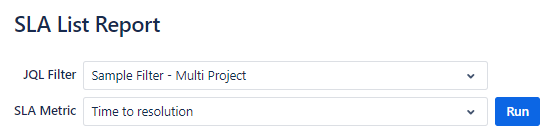
JQL Filter
Select a pre-saved Jira filter that defines the issues you want to include in the report. The filter must already exist in Jira before it can be selected here. Using a saved filter gives you precise control over the scope of the report, you can filter by project, customer, issue type, date range, or any other Jira field.
If you do not have a suitable filter saved yet, create one in Jira's issue search and save it before running the report.
SLA Metric
Select the SLA timer you want to report on. The SLAs listed here are Jira Service Management's native SLA timers. Only SLAs available in your Jira instance will appear in this list.
After selecting the filter and SLA, click Run to generate the report.
Report Structure
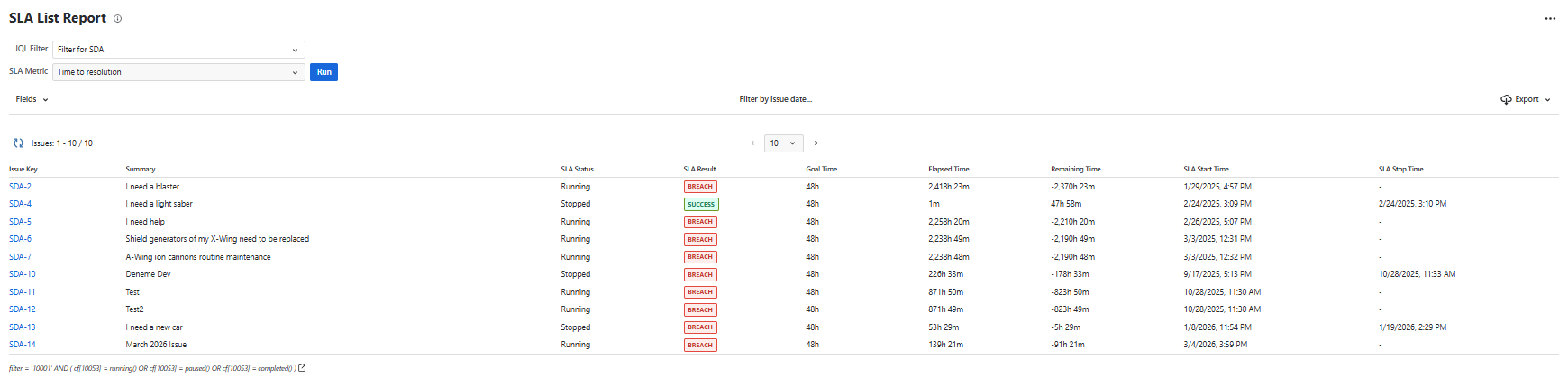
The report displays each issue matching the selected filter as a row in the report output.
-
The "Issue Key" column displays the IssueKey of the issue.
-
The "Summary" column displays the Summary of the issue.
-
The "SLA Status" column displays the status of the selected SLA Timer which can be Running, Paused, or Stopped.
-
The "SLA Result" column displays the outcome of the selected SLA Timer which can be Success or Breach. Issues with running SLA that haven't been breached yet are also displayed as Success.
-
The "Goal Time" columns display the SLA goal set for that issue.
-
The "Elapsed Time" column displays the time passed since the SLA Timer started.
-
The "Remaining Time" column displays the time remaining until the SLA is breached. For SLAs that are already breached, this can be a negative value.
-
The "SLA Start Time" column displays the date and the time when the SLA Timer started.
-
The "SLA Stop Time" column displays the date and the time when the SLA Timer stopped. For SLAs that are still running, this column is expected to be empty.
Adding Extra Fields
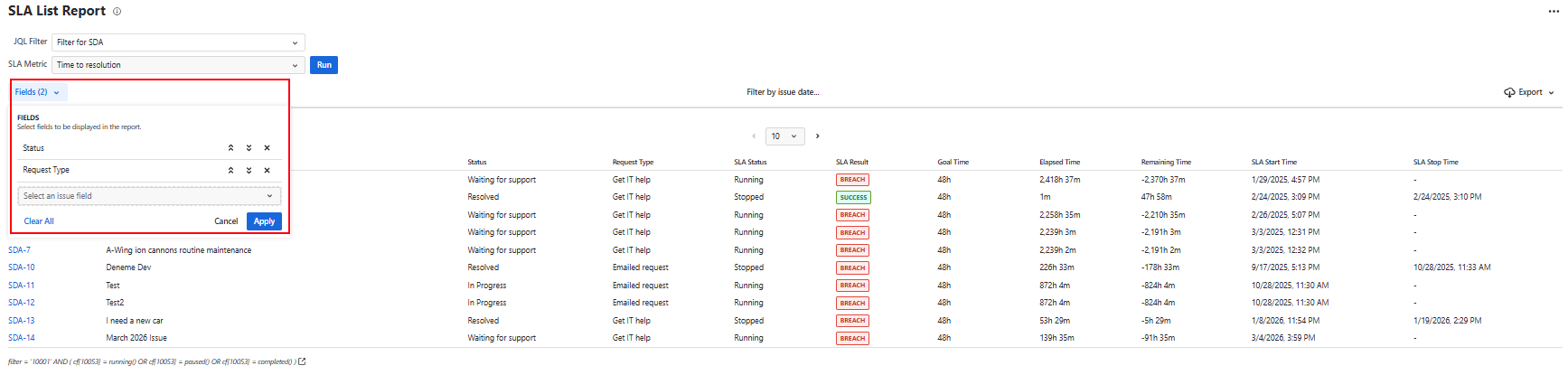
Issue fields can be added to the report as additional columns using the Fields button on the toolbar. This allows you to include any Jira issue field in the report, such as assignee, priority, project, or any custom field, giving you a more complete picture of each issue alongside its SLA data.
Filtering by Date
The issues returned by the selected filter can be further narrowed down by date using the date selection on the toolbar. You can filter by:
-
Created date — show only issues created within a specific date range
-
Updated date — show only issues that were last updated within a specific date range
-
Resolution date — show only issues that were resolved within a specific date range
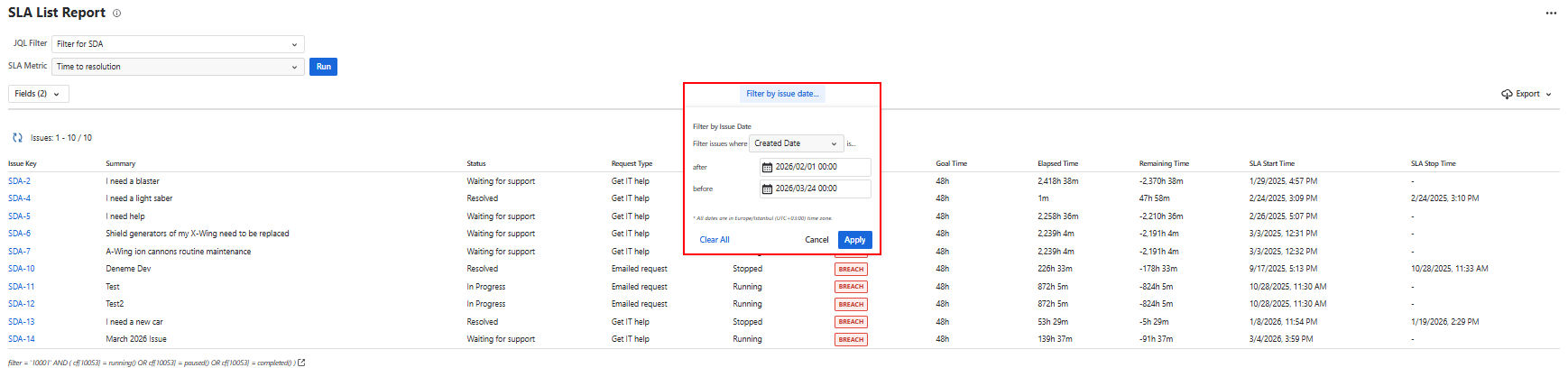
This is useful when you want to focus the report on a specific time window, for example, reviewing all SLA results for issues created during a particular month.
Export the Report
The SLA List Report provides export functionality to allow users to download report data in different formats.
Select the Export button located at the top-right corner of the report to choose the preferred option.
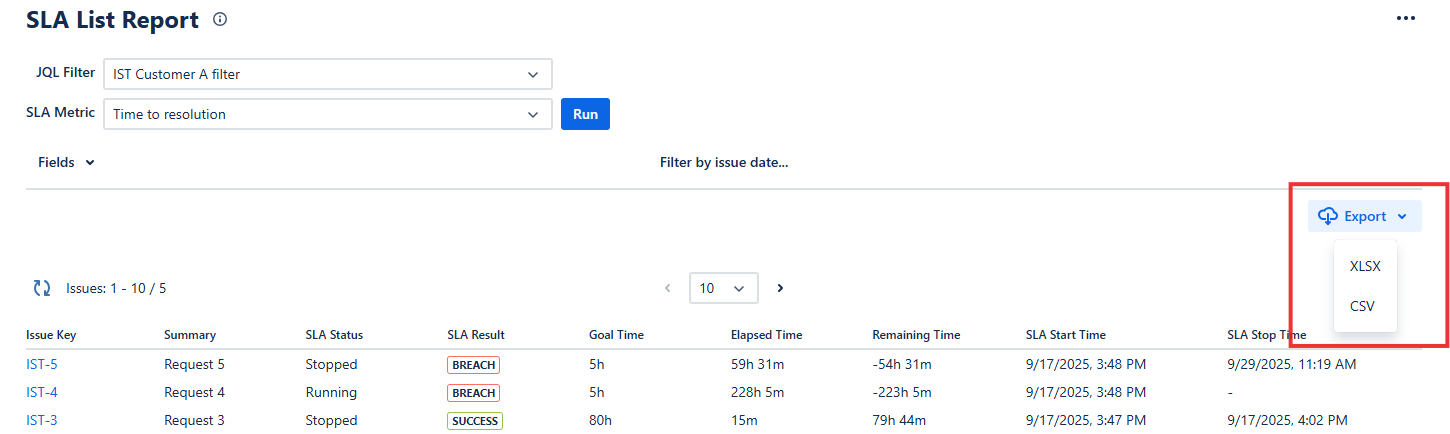
The SLA List Report can be exported using the Export button at the top-right corner of the report. The following formats are available:
|
Format |
Description |
|---|---|
|
XLSX |
Exports the report in Excel format including all visible columns in the current view. |
|
CSV |
Exports the report data as a CSV file |
Related
For calculating aggregated SLA success rates across groups of issues rather than viewing individual issue results, see SLA Success Rate Report.