
Historian provides several filtering options to help you narrow down the history log to exactly the changes you need. Filters can be applied directly from the column headers in the report table and are managed through the Filters Menu.
Column Filters
Once the report is generated, you can filter the displayed data directly from the table. Each column in the report has its own filtering option in the header. Click the Filter button and create a filtering rule specific to that column.
-
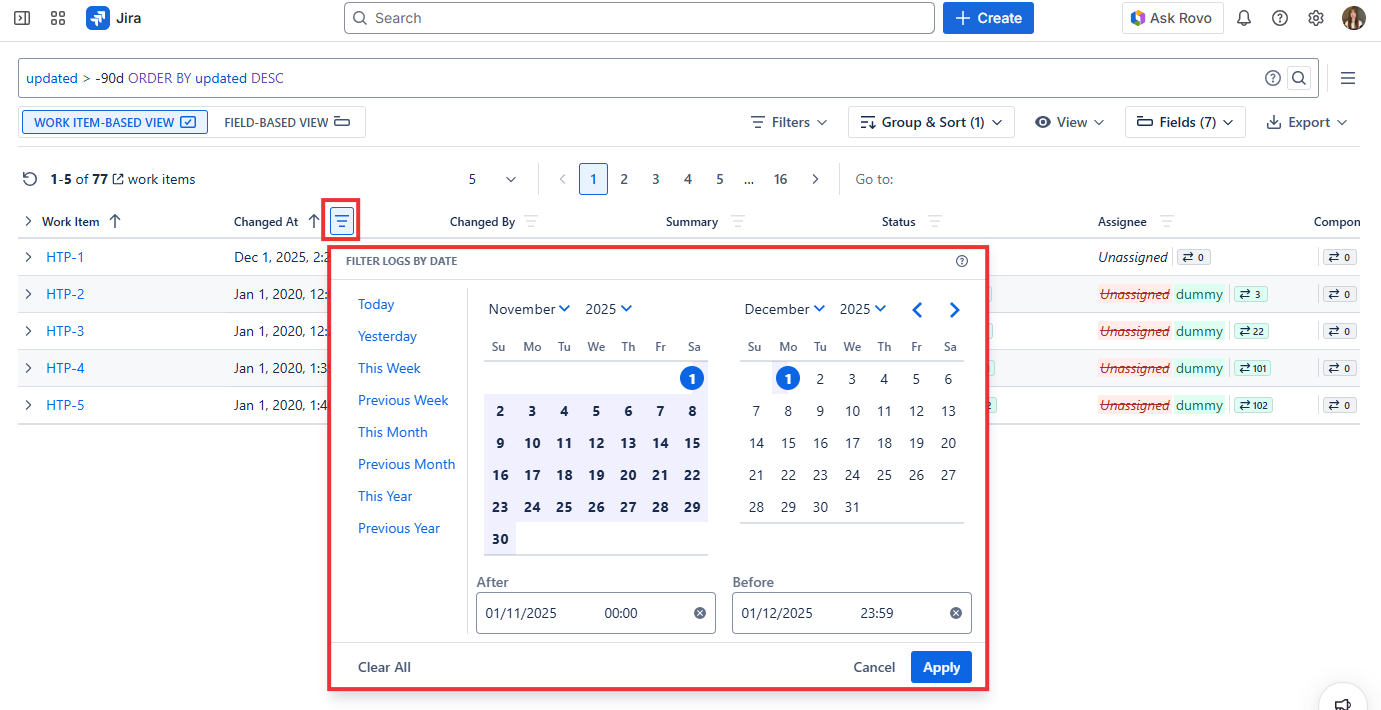
Changed At Filter
Filter to limit the Work Item History changes included in the report to a specific time range. You can choose predefined ranges (e.g., Today, This Week, This Month) or enter custom After / Before values.
-
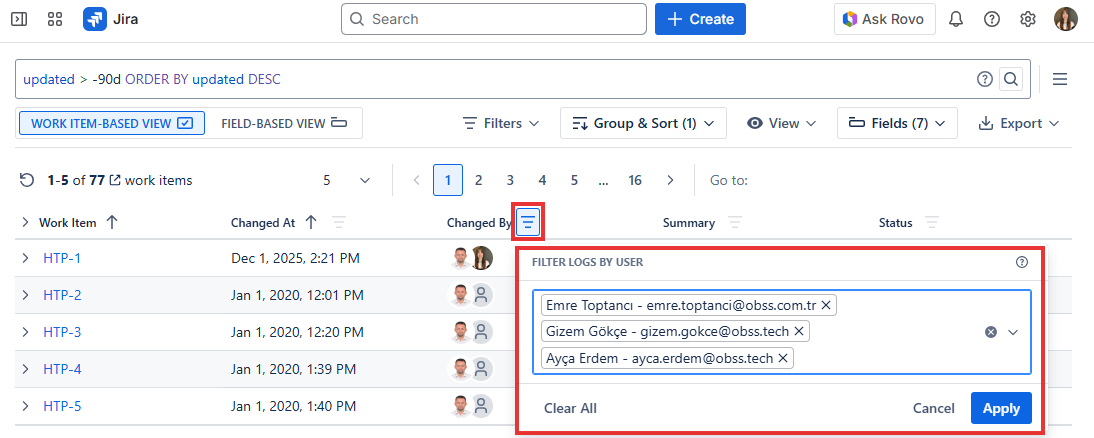
Changed By Filter
Filter to limit the Work Item History changes included in the report to those made by specific Jira users. This filter allows you to filter logs by user. You can select one or more users. If no user is selected, the report will display all results.
-
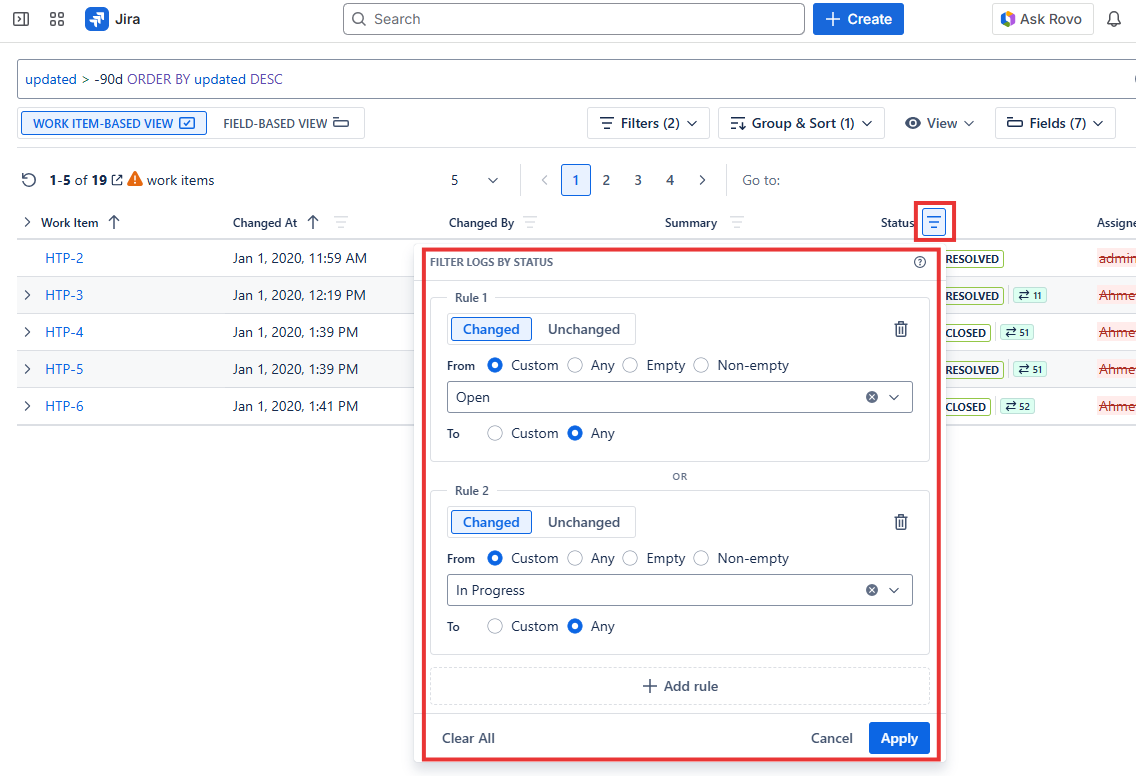
Field Filter (Work Item-Based View)
Field Filtering can be applied to all fields included in the Work Item-Based View. To do this, use the filter button located at the top of each field column. In the Filter dialog, click Add Rule and specify the conditions for your rule. You can create up to 10 rules per filter. All rules are applied using OR logic.
-
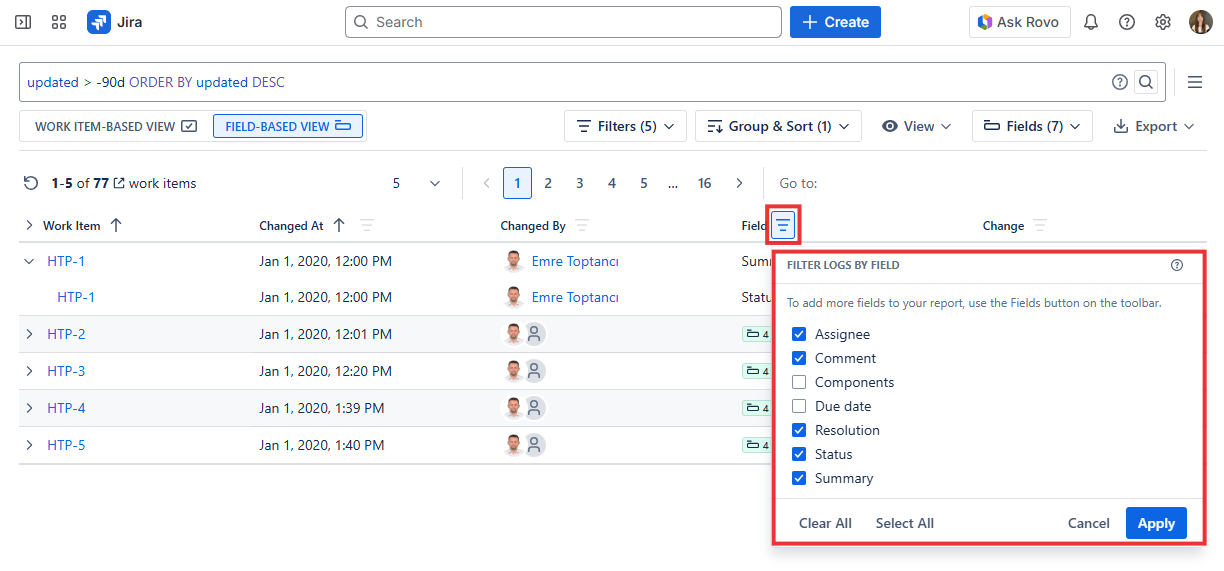
Field Filter (Field-Based View)
This filter is applicable for the Field-Based View. It controls which fields’ change logs appear in the report. On the Field column, you can check or uncheck the fields included in your report. By default, all fields selected in the top Fields menu are included in the report. If you want to add new fields to the report, use the Fields panel in the toolbar.
-
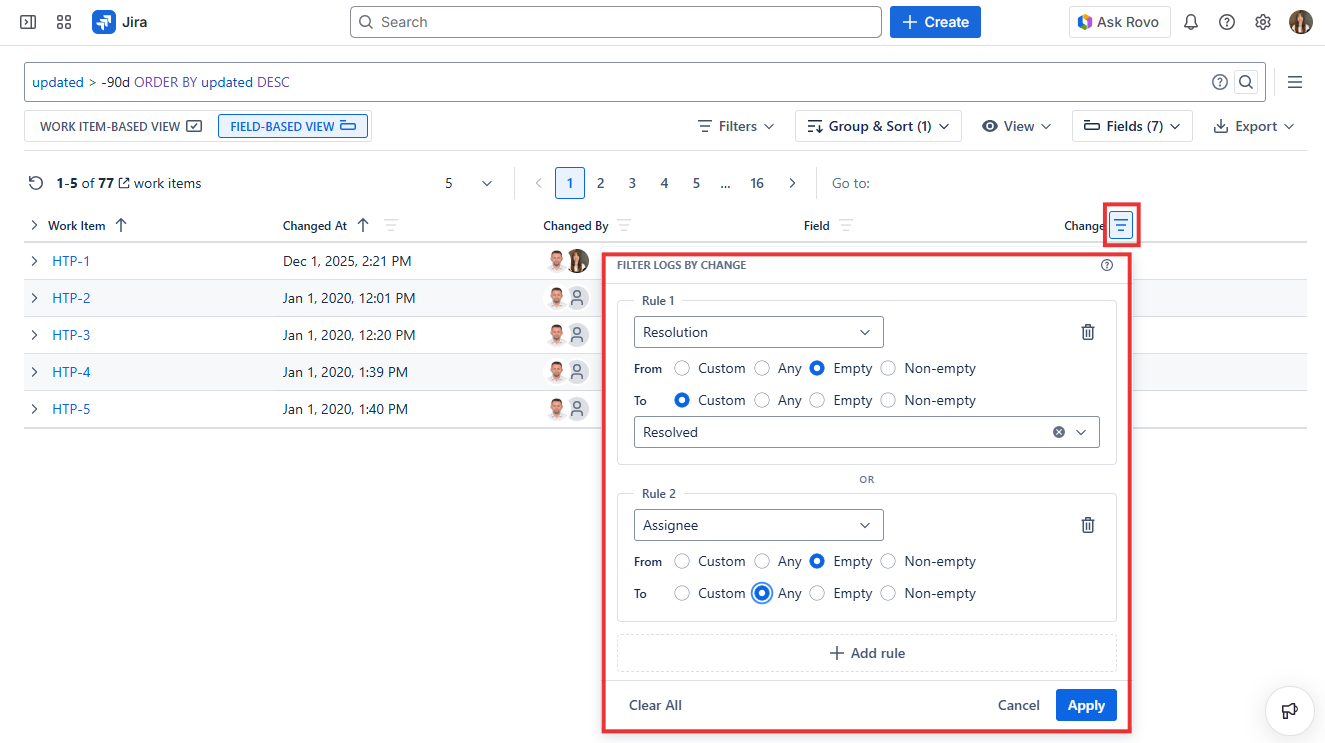
Change Filter
This filter is applicable for the Field-Based View. It controls which types of changes are displayed for each field. In the Filter dialog on the Change column, click Add Rule and specify the conditions for your rule. You can create up to 20 rules, and all rules are applied using OR logic.
Filters Menu
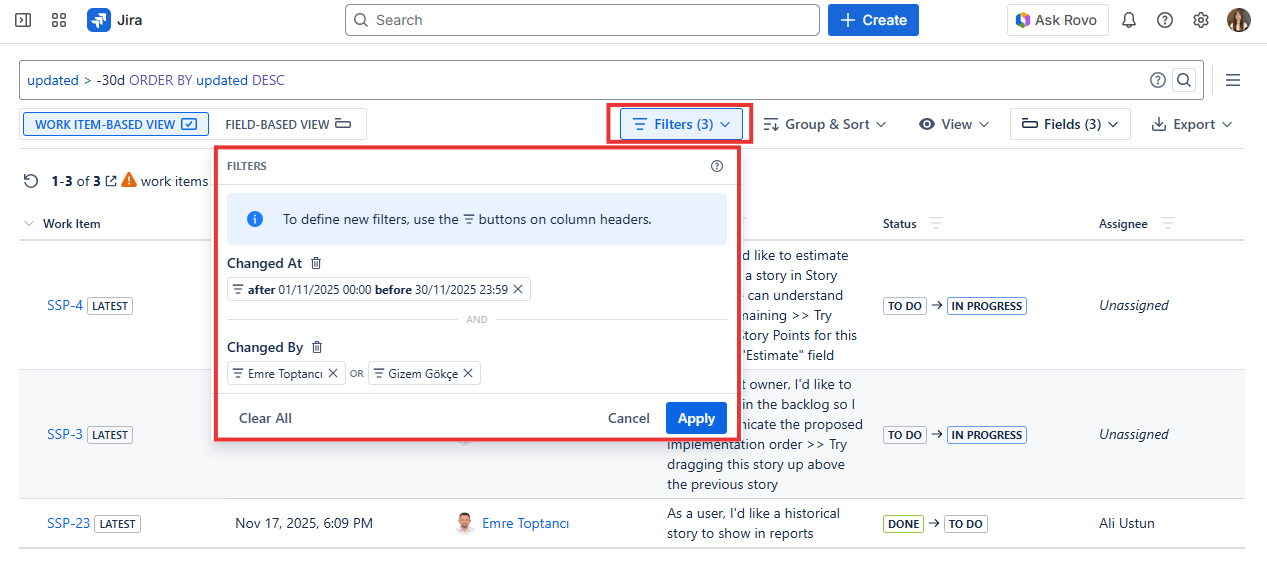
When a filter is applied to a column, it becomes visible under the Filters menu. Using the Filters menu, you can remove a filter but you cannot modify it. To modify an existing filter or add a new one, column filters must be used.
By clicking the Clear All button at the bottom of the Filters menu, you can remove all filters applied to the report.
Each column filter works independently. When multiple column filters are applied across different columns, they are combined using AND logic.
Filters are applied differently in Field-Based View and Work Item-Based View. Separate filters must be defined for each view. Some filters, such as Changed At and Changed By, apply to both views, while field-specific filters are view-dependent. When switching between views, your last filter is cached in the browser, so you do not lose your filters during view changes.
Applying multiple complex filter rules may increase processing time on large datasets.