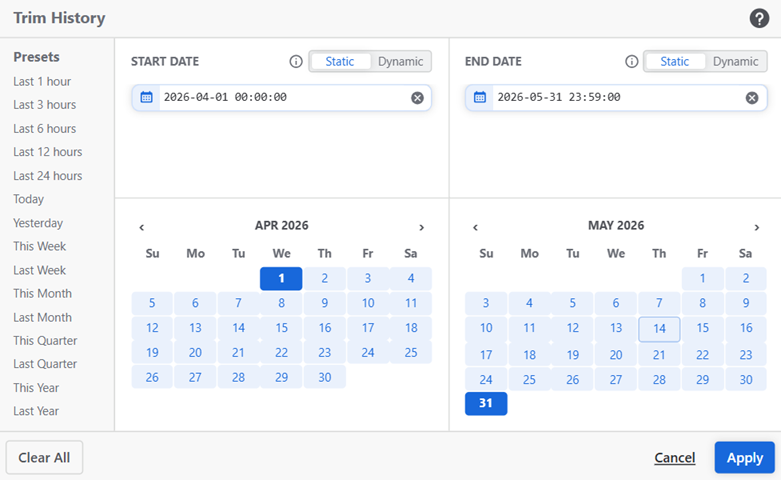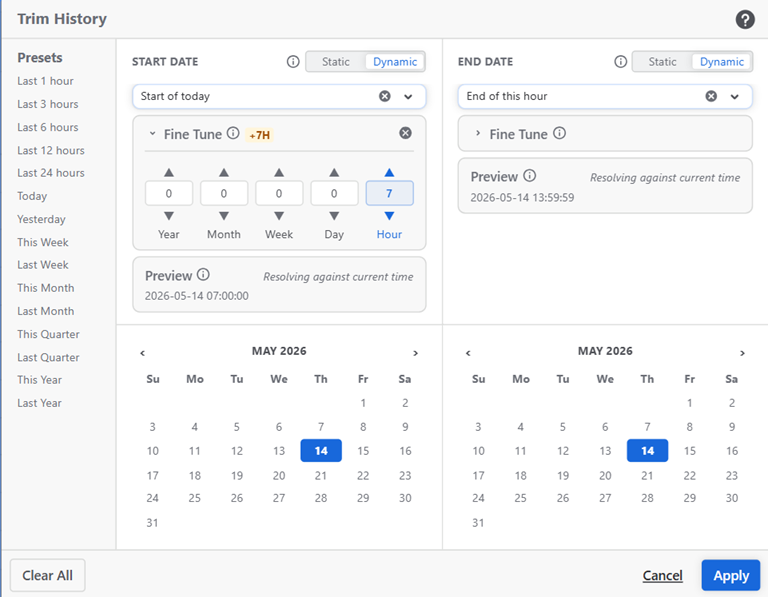
The Date panel allows you to select the start and end dates of the report. Dates can be set as static (fixed dates selected from the calendar) or dynamic (dates automatically calculated relative to the current time whenever the report is run). This can be done in two ways.
Filtering
For Filtering, you select beginning and/or end dates for the filter. Date filtering clauses are added by the system to the report filter and all issues outside the selected date interval are excluded from the report.
In other words, Filter Dates reduce the number of issues in the report.
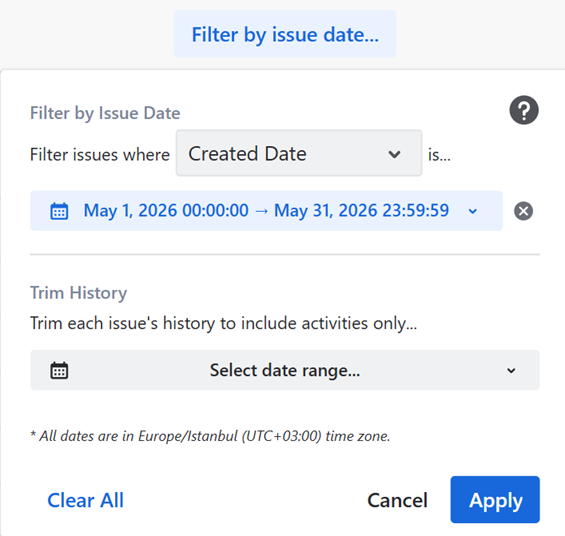
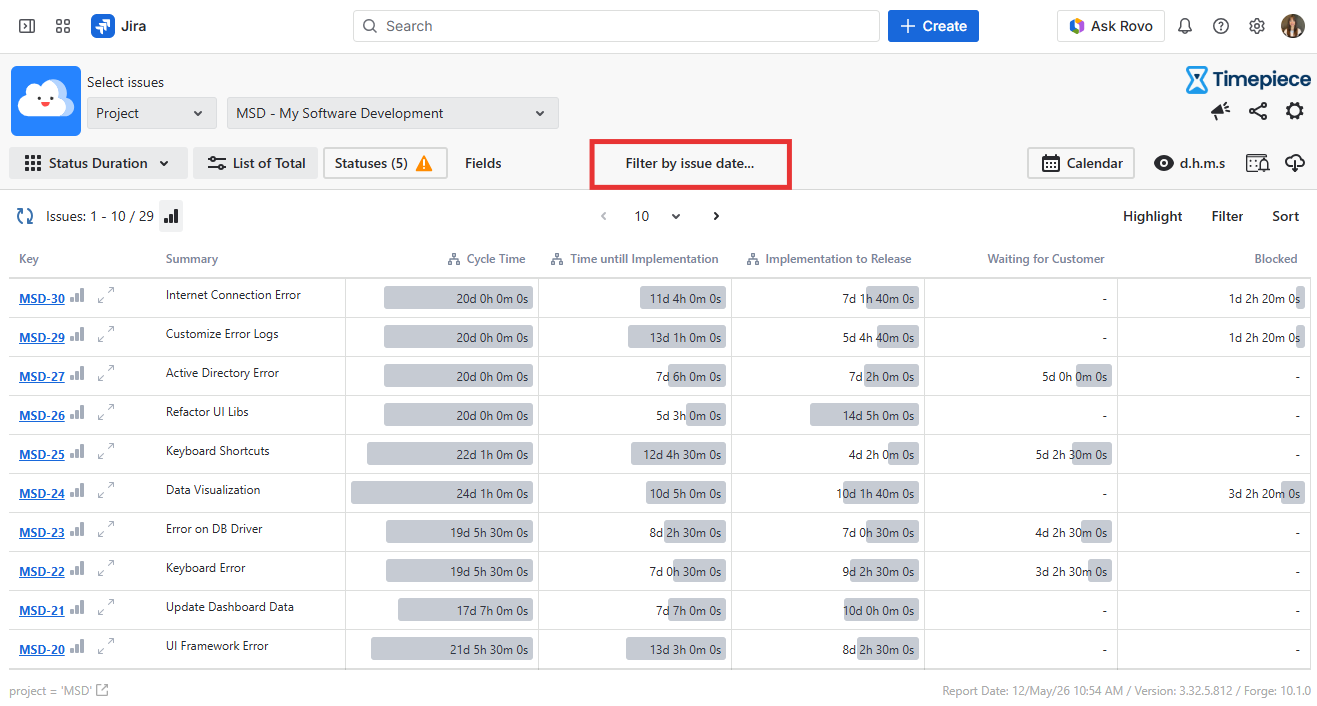
The filtering dates are not mandatory so you can choose to leave them empty or provide only one of them.
The date filter can be based on Created Date, Resolution Date or Update Date of issues.
When at least one filter date is selected, the selected date(s) will be shown on the toolbar, as shown in the screenshot.
Filtering can be configured using either static or dynamic dates. The Start Date and End Date of filtering dates can be configured independently. For example, the Start Date can be dynamic while the End Date remains static, or the End Date can be dynamic while the Start Date remains static.
Static Dates
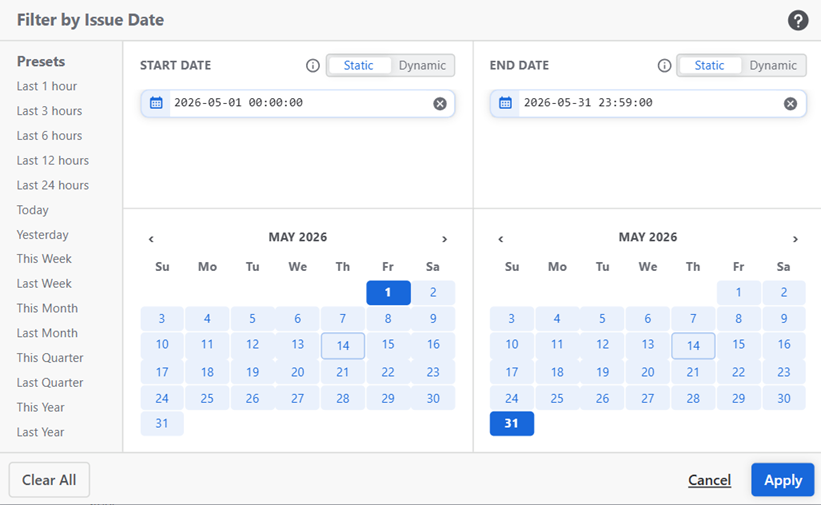
Select a fixed date and time from the calendar. The selected value will not change unless you manually update it.
Dynamic Dates
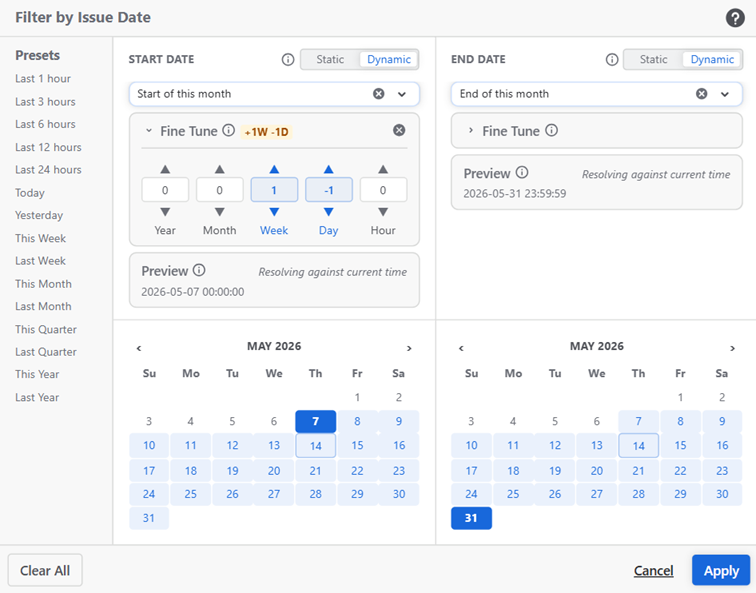
Instead of a fixed date, you can select an anchor point such as Start of this month or Yesterday. In each report execution, the date is recalculated based on the current time.
You can further adjust the anchor using the Fine Tune controls to shift the resolved date by any combination of years, months, weeks, days, or hours. The Preview shows what the expression resolves to at the current moment.
A list of ready-to-use Presets (such as Last 7 days, This Quarter, Last Year) is available on the left side of the date panel for quick selection.
.png?cb=e7e4d274f0f4ecea84ce9d13c11d5600)
Trim History
History Trimming is a more advanced form of date filtering.
Once again you select the beginning and/or end dates (after/before dates) for the trim. Trim History causes the history of each issue in the report to be trimmed down to include only the activities between given dates. It will be as if the issue was created at the trim beginning date (with the data the issue contained at that moment) and ceased to exist at the trim end date.
In other words, Trim Dates will not reduce the number of issues in the report, but will limit which activities in each issue's history are processed for the report.
This feature is particularly useful when your issues have long lifespans, but for a particular Timepiece report, you are interested in what happened to those issues between two specific dates.
The trimming dates are not mandatory, so you can either leave them empty or provide only one.
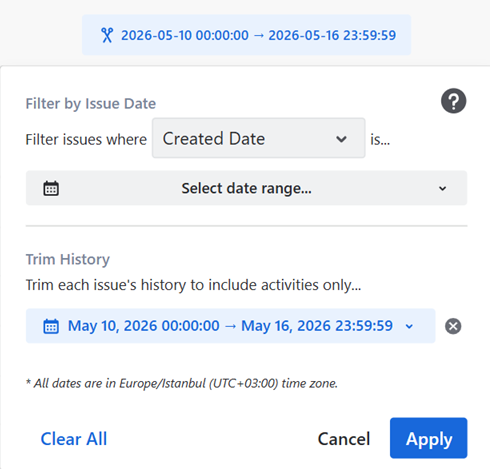
When at least one trim date is selected, a scissors icon will appear on the date selection button of the toolbar to indicate that the values in the report are calculated by trimmed histories.
Filtering Dates and Trim Dates are completely independent, and the selection of one does not affect the other.
Trim dates also support Static and Dynamic modes, identical to the filtering dates described above. The Start Date and End Date of a trim range can be configured independently. For example, the Start Date can be dynamic while the End Date remains static, or the End Date can be dynamic while the Start Date remains static.