
Summary
View Format Panel allows you to set some options that will shape how the report values will be displayed.
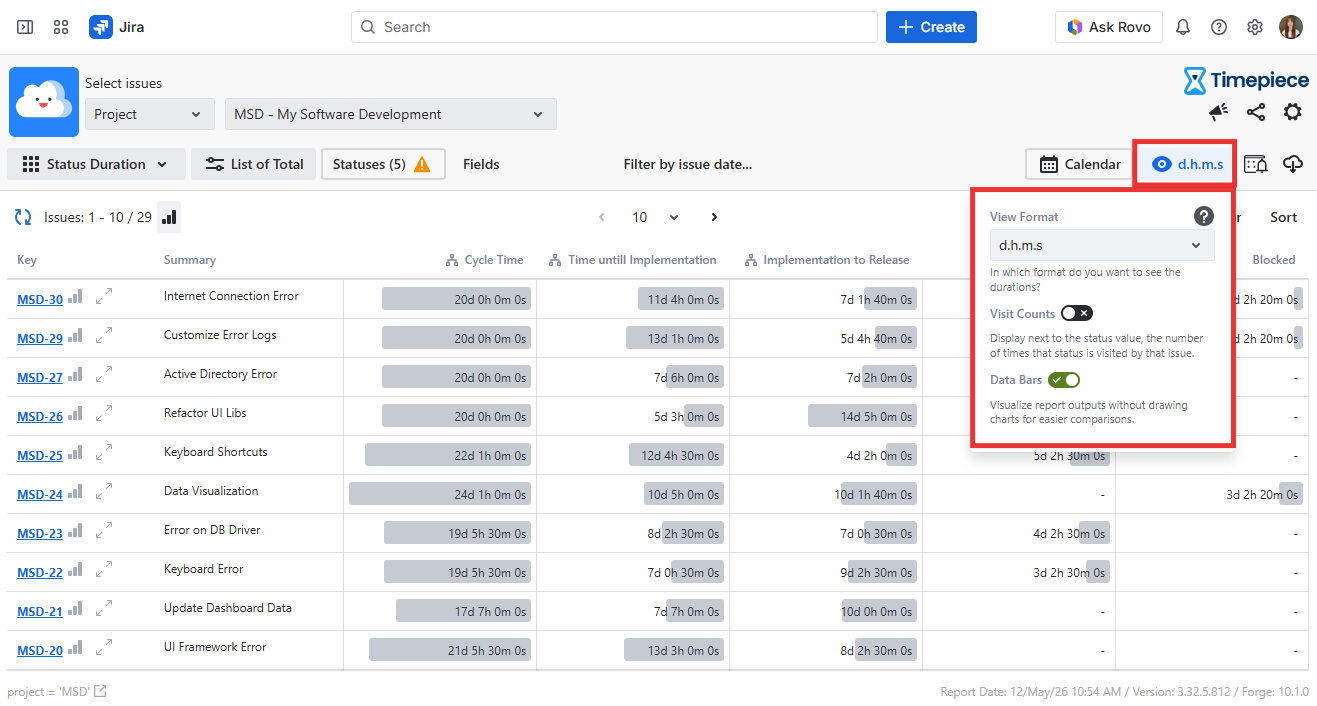
View Format
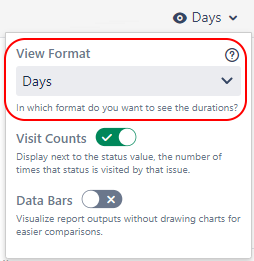
View format option allows the user to select the format in which durations will be displayed.
There are 7 options:
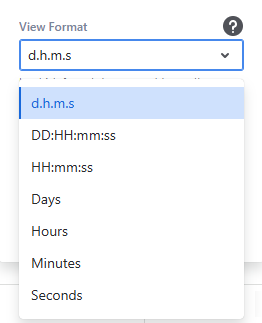
The d.h.m.s, DD:HH:mm:ss and HH:mm:ss formats shows values in a more user-friendly format. Days, Hours, Minutes and Seconds formats shows values as a single decimal number.
Example:
-
d.h.m.s: 5 d 18 h 54 m 45 s
-
DD:HH:mm:ss: 5:18:54:45
-
HH:mm:ss: 138:54:45
-
Days: 5.79
-
Hours: 138.91
-
Minutes: 8334.75
-
Seconds: 500085
Since this option affects only the duration calculations, ViewFormat selection is not visible for Count or Date report types.
Visit Counts
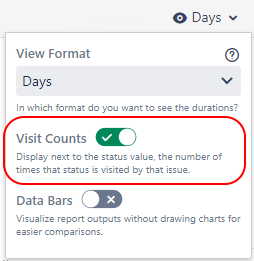
An issue might have visited a status multiple times. While reporting on the durations of those visits, it is often useful to also see how many times an issue visited each status. The Visit Counts option shows or hides the status visit number in the on-screen report output.
Similarly, this option will be shown as Value Counts when an aggregation report (average, sum, median, std dev) is displayed. In that case, it will show the number of values that contributed to the aggregated value. For example there might be 50 issues in your report but only 20 of them has a value for a particular assignee. When getting an Assignee Duration - Average report, the number of issues will be 50 but the Value Count for that particular assignee will be 20.
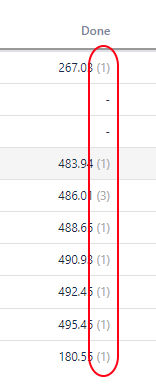
Visit Counts/Value Counts selection is available for all report options for Status Duration reports and only for aggregated reports on other report types. (In other words, Visit/Value Counts are available for all aggregated reports and are not available for List reports of any report type other than Status Duration)
Data Bars
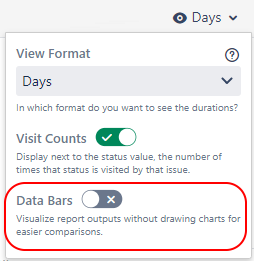
The Data Bars option allows the user to enable or disable Data Bars. Please see Data Bars for more details.
View Setting for Date Reports
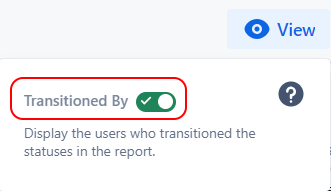
The Transitioned By option allows the user to enable or disable displaying the users who transitioned the statuses in the report.
When enabled, the report shows last person who performed each transition for example, in Date Reports, the transition date will be followed by the username in parentheses, such as
|
25/Nov/24 1:44 PM (Mary Joe) |