
You can uninstall Timepiece from the Atlassian admin page.
Steps
-
Select your Jira site
-
Navigate to Apps → Connected apps
-
Find Timepiece - Time in Status for Jira
-
Click View app details
-
Click Uninstall and confirm
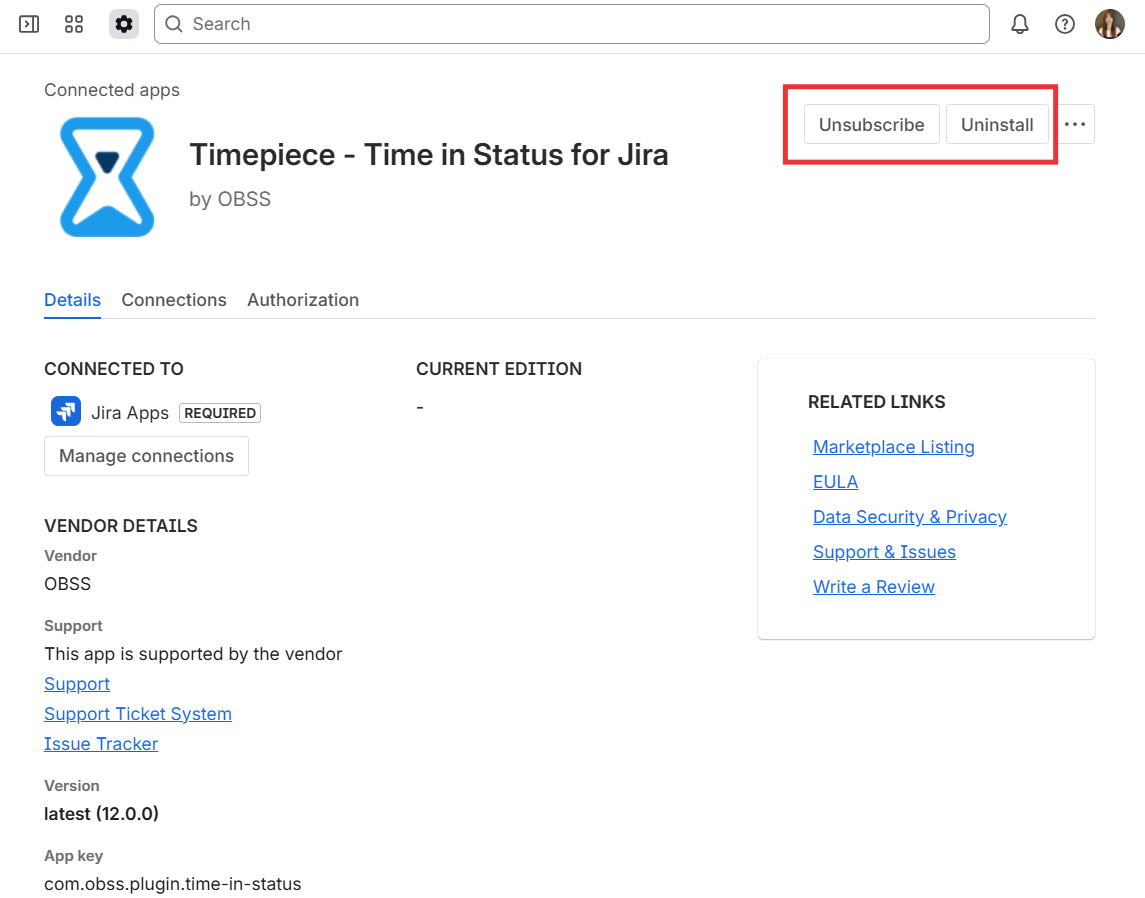
What is the difference between Uninstall and Unsubscribe?
On the Connected apps screen, these actions serve different purposes:
Uninstall
Removes the app from your Jira site immediately.
Users can no longer access the app.
Unsubscribe
Cancels the Marketplace subscription.
The app may remain installed and usable until the current billing period ends.
Which one should I choose?
-
To stop using the app immediately, uninstall it
-
To stop future billing, unsubscribe
-
To fully stop both usage and billing, you should do both
Why can’t I uninstall the app?
Only Site/Jira/Billing admins can uninstall apps.
If you don’t see the uninstall option, please get in touch with your site administrator.
What happens to my data after uninstalling Timepiece?
-
Jira issue history is stored by Jira and is not affected by uninstalling Timepiece.
-
Saved reports, scheduled reports and application settings are preserved and become available again after reinstalling Timepiece on the same Jira Cloud site.
-
Dashboard gadgets remain on Jira dashboards but cannot display data while the app is uninstalled.
-
Export files and temporary caches continue to follow their normal retention policies.
Before uninstalling, we strongly recommend ensuring that you are running the latest version of Timepiece to avoid any potential configuration data loss during uninstall and reinstall operations.