
Once Timepiece calculates and writes the values in a Timepiece custom field, the field displays the value in various places across Jira.
The values in Timepiece custom fields are not live. They are calculated with scheduled runs with pre-defined intervals. Hovering over the field values on an issue view screen will display when the value was last updated.
Jira Issues
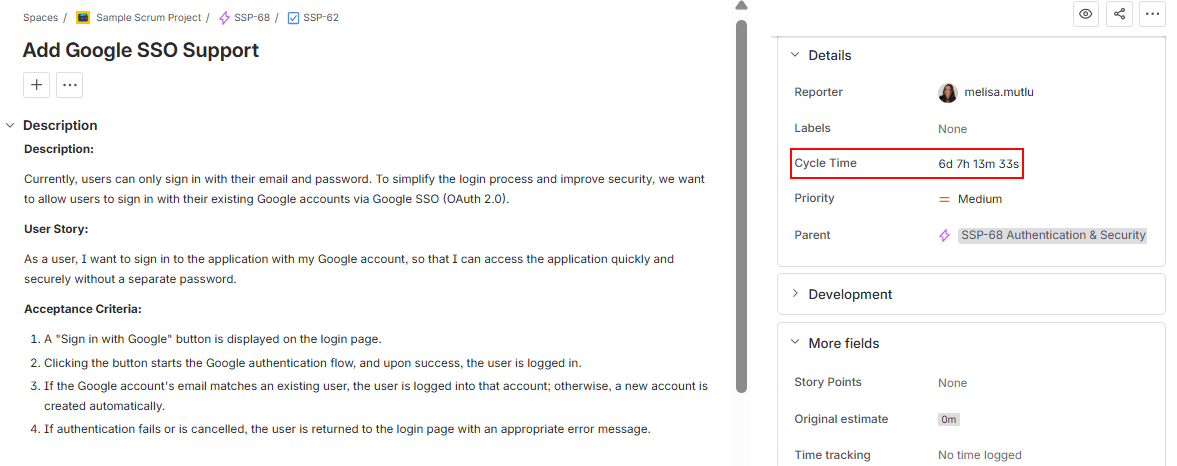
The calculated value is displayed directly on the work item view, allowing you to see Time in Status data at a glance while working on the issue.
Jira Search Results
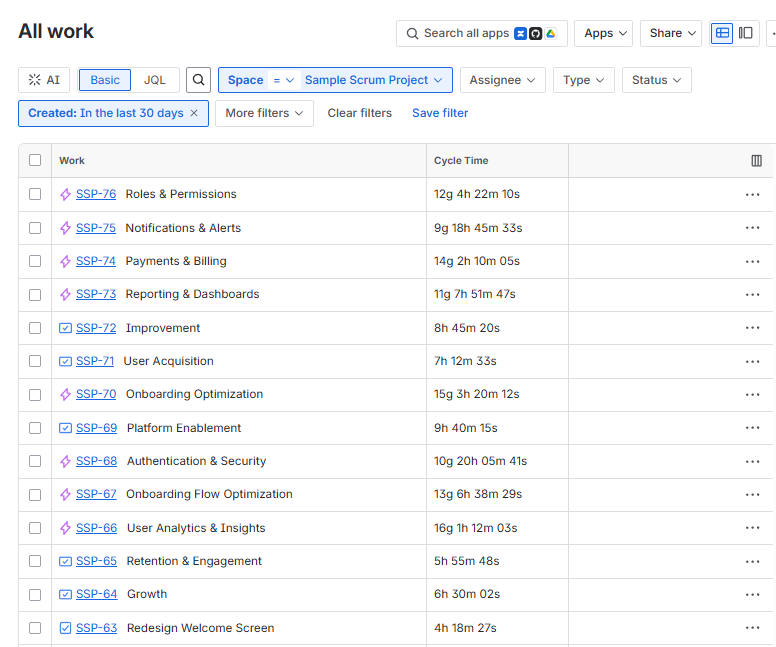
Since the field is a Jira custom field, it can be added as a column in Jira search results. To add it, open the column settings in the search results view, search for the custom field by name, and select it to display the calculated values alongside your work items.
JQL Searches
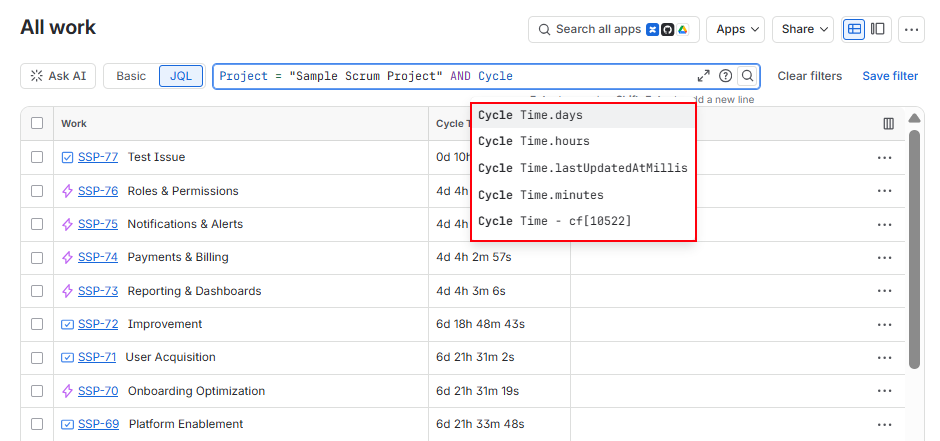
The Timepiece custom field can also be used in JQL to search and filter work items.
When you type the field name in the JQL editor, Jira suggests the field along with duration-based units in days, hours, and minutes. In other words, even if the field is configured to display its value in Days, you can search for its value in other units (Days, Hours, Minutes, etc.).
The “lastUpdatedAtMilis” option refers to the date the value in this field was last updated. We don’t expect end users to search based on this, but if you do, for technical reasons, this value can only be searched in milis.
Timepiece Reports
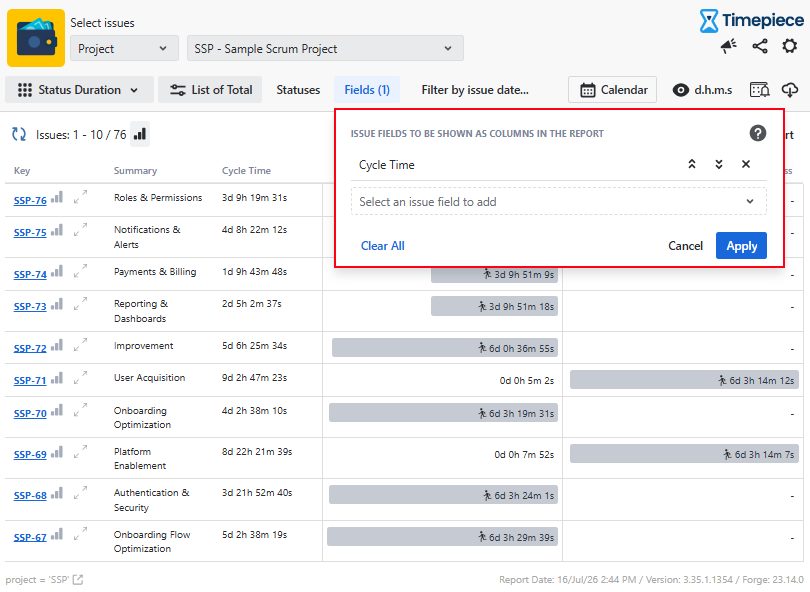
The custom field can be added as a column to Timepiece reports, just like any other Jira field.
To add it, open the Fields tab on the reporting page, search for the custom field by name, and select it to include it as a column in the report.
Related use case articles: