Business Need
You want to see time metrics like Cycle Time or Lead Time on your Jira work items. You also want to filter work items using JQL based on the values of these metrics.
Solution
Timepiece Custom Fields can be used to display time metrics on work items. Work Items can be searched and filtered using JQL based on Timepiece Custom Field values.
Step 1: Create and Configure Custom Field
-
Go to the Jira Fields page.
-
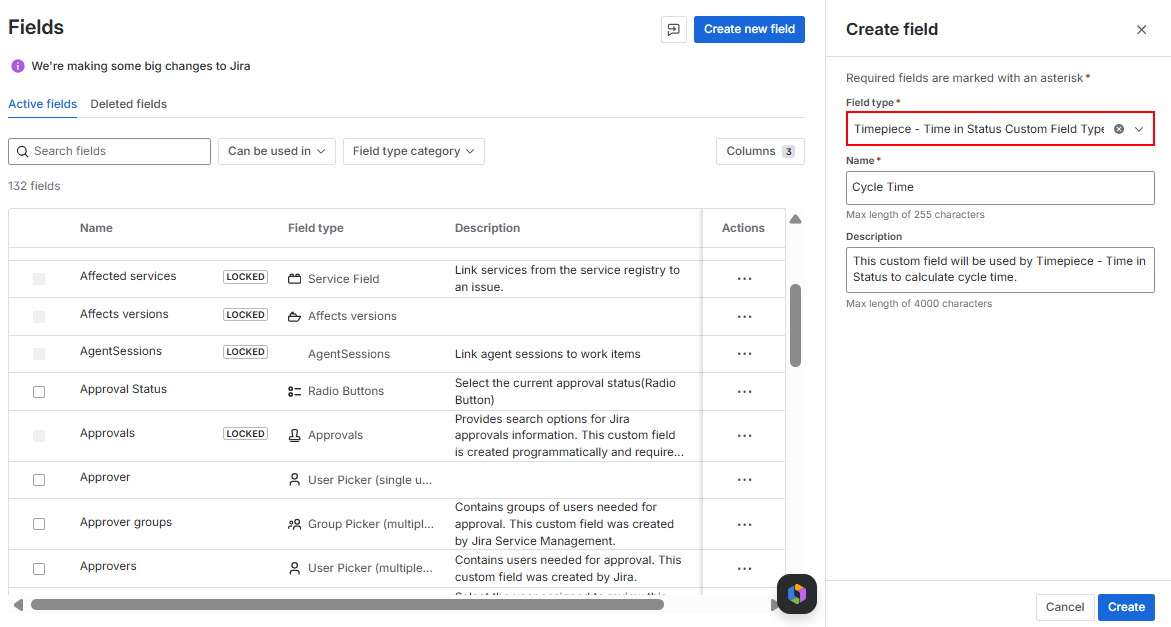
Create a new custom field named Cycle Time.
-
Select “Timepiece - Time in Status Custom Field Type“ for your new field.
-
Add your new custom field to a Field Configuration Scheme and relevant Issue View Screens.
Step 2: Configure the Field
-
To Configure the settings, open the context menu of the field and select the “Contexts and default values” option.
-
Click on “Edit Custom Field Configuration” to open the config page.
-
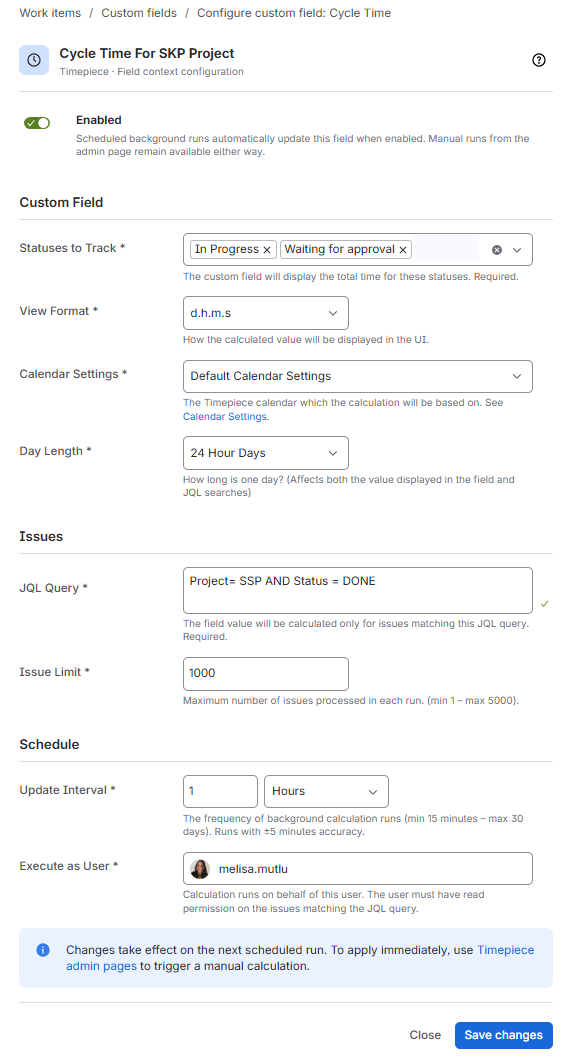
Select the statuses that will be included in your Cycle to “Statuses to Track” field.
-
Select a View Format.
-
Select a Calendar.
-
Enter a JQL Query to select the issue which the Cycle Time value will be calculated for.
-
Select and Update Interval and a Executor User.
-
Click Save Changes.
Step 3: Run the Calculation (Optional)
-
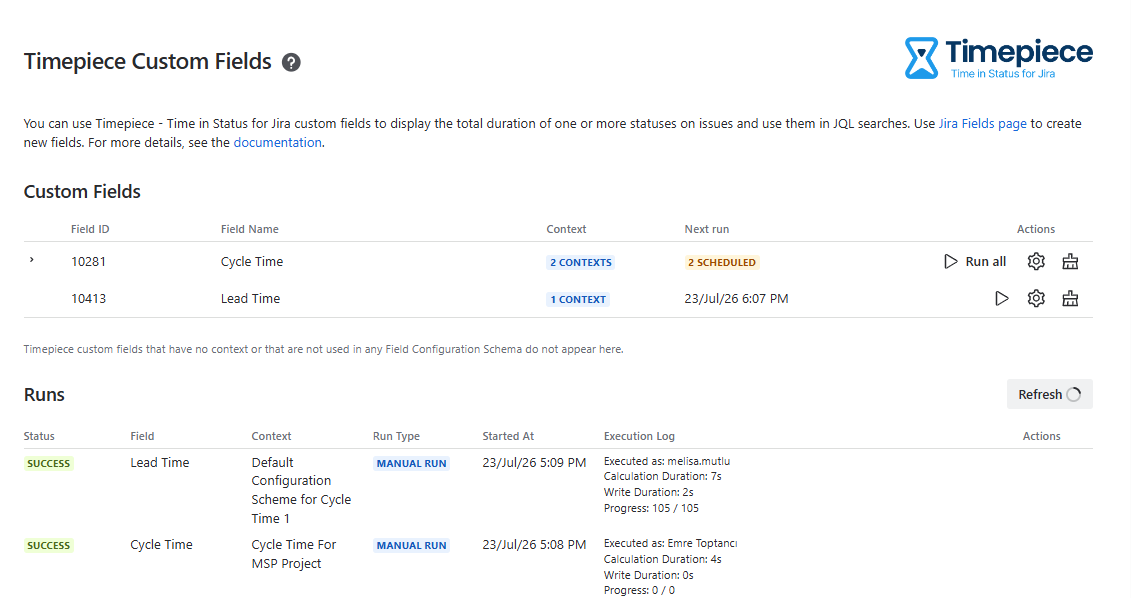
Go to the Timepiece Custom Fields Admin page.
-
Either wait for the next scheduled run, or trigger a manual run to calculate the values immediately.
-
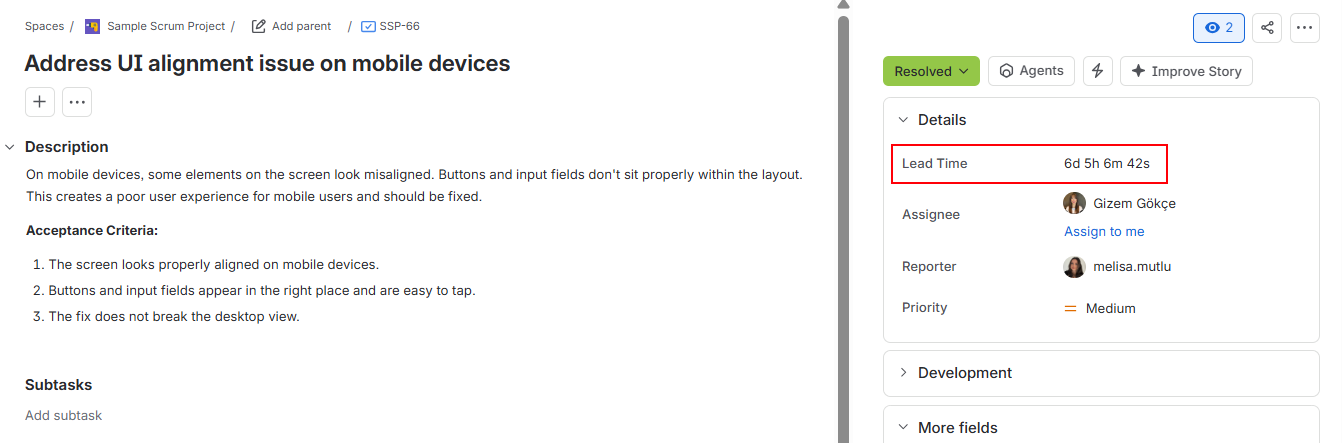
Once the run completes, the calculated values are added to the work items, and they are visible on issue view screens.
Step 4: Search with JQL
Once the values are calculated, the custom field can be used in JQL to search and filter work items both in Jira and in Timepiece.
-
Open the Jira search page and switch to the JQL editor.
-
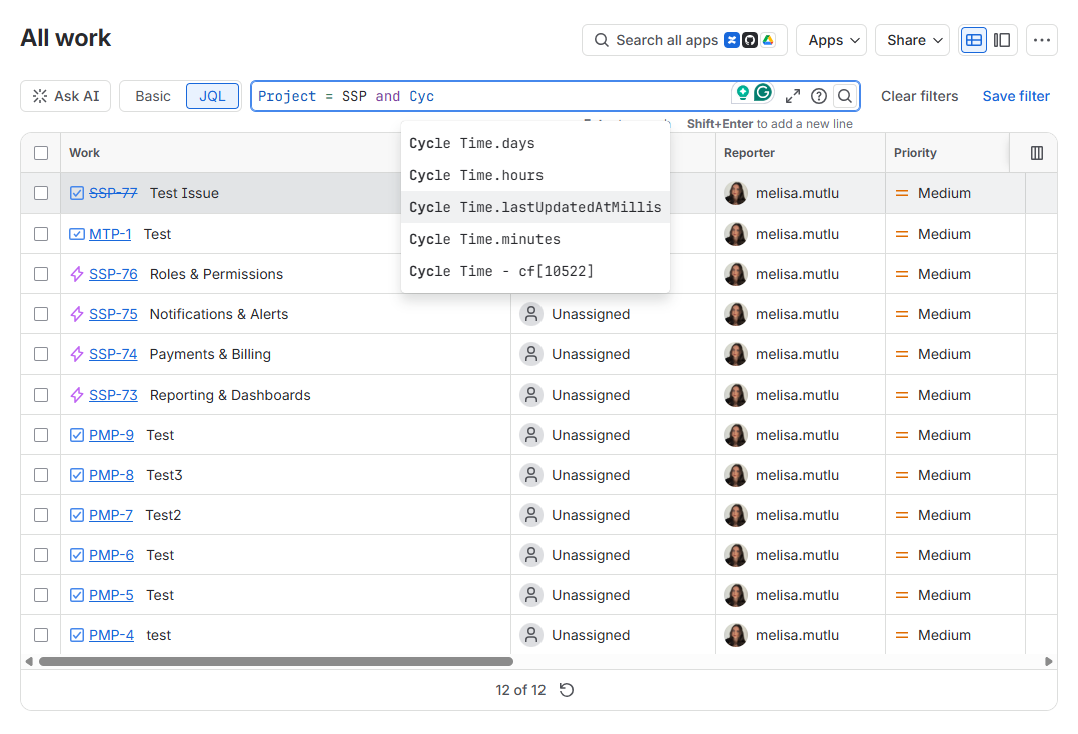
Type the name of your custom field. Jira suggests the field itself along with duration-based units in days, hours, and minutes. Even if the field is configured to display its value in Days, you can search for its value using other units, such as Days, Hours, and Minutes.
-
Select the unit you want to search in and complete the query with a comparison operator, for example
"Cycle Time.days" > 10to find the work items whose Cycle Time exceeds 10 days.