
Introduction
The Timepiece tab is available at multiple locations where a Jira issue is displayed. This tab shows "Time in Status" data for a single issue.
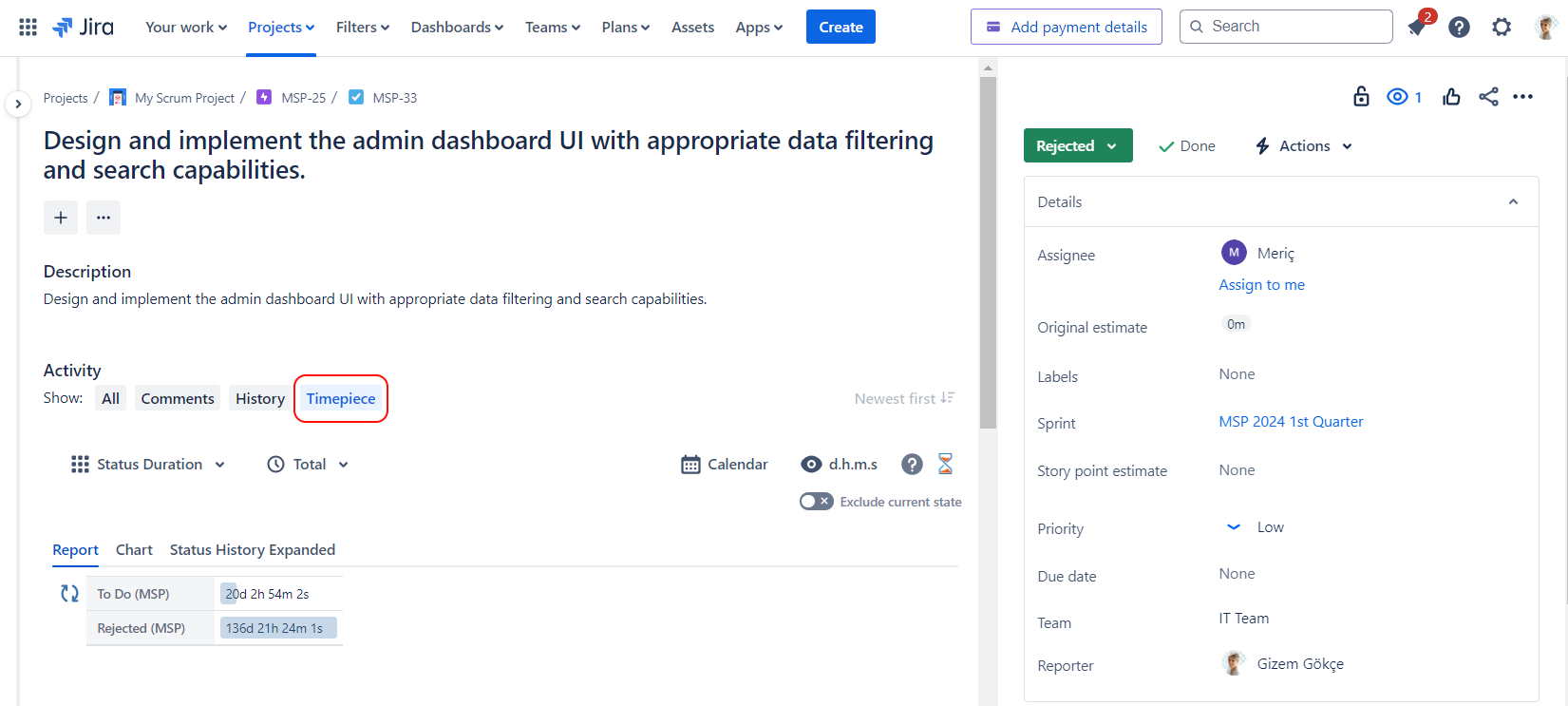
Full Page Issue View Screen
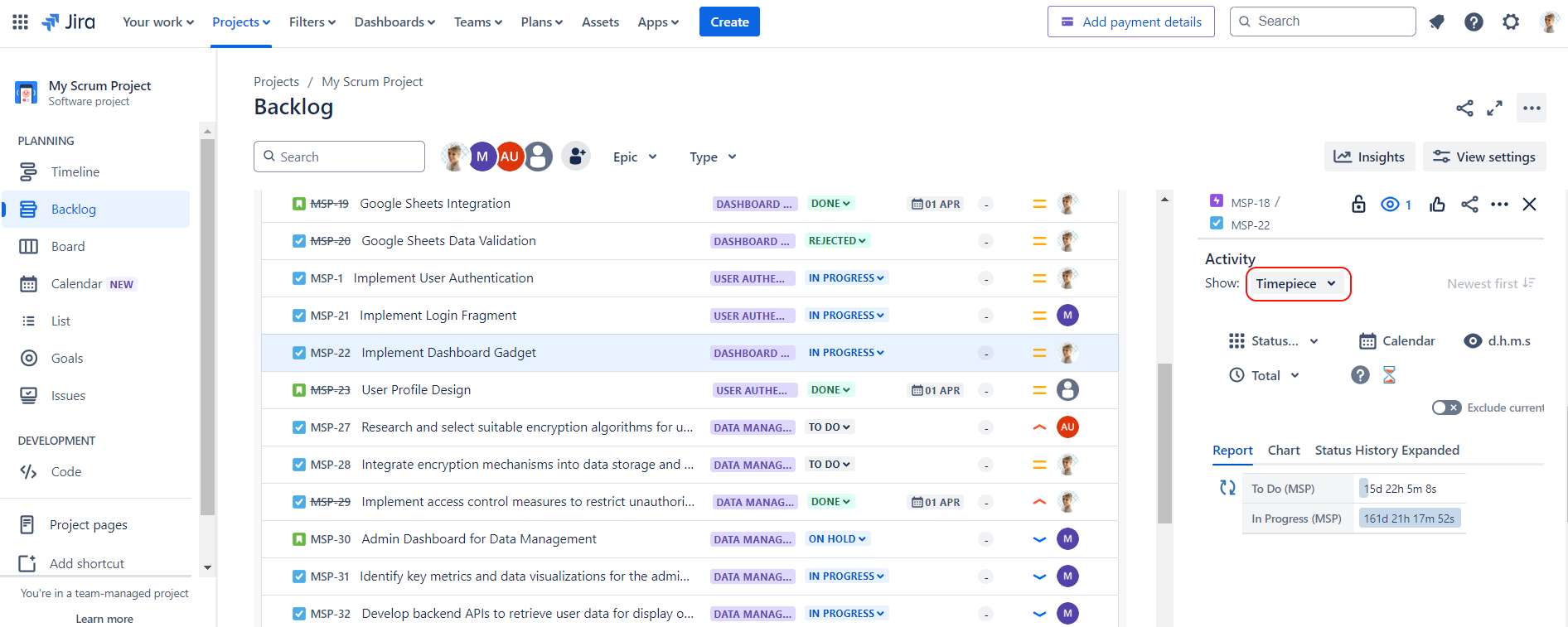
Backlog View of a Jira Board
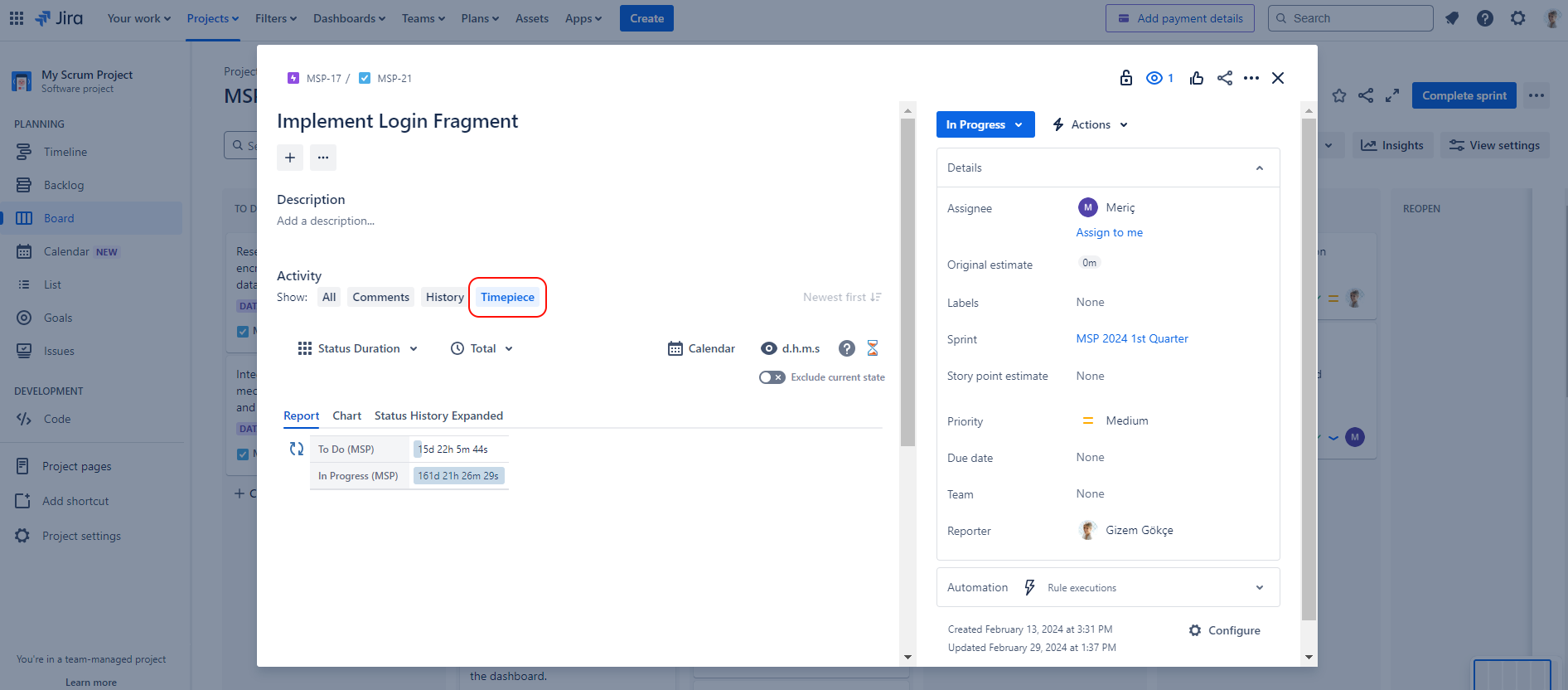
Issue Popup Panel in a Jira Board
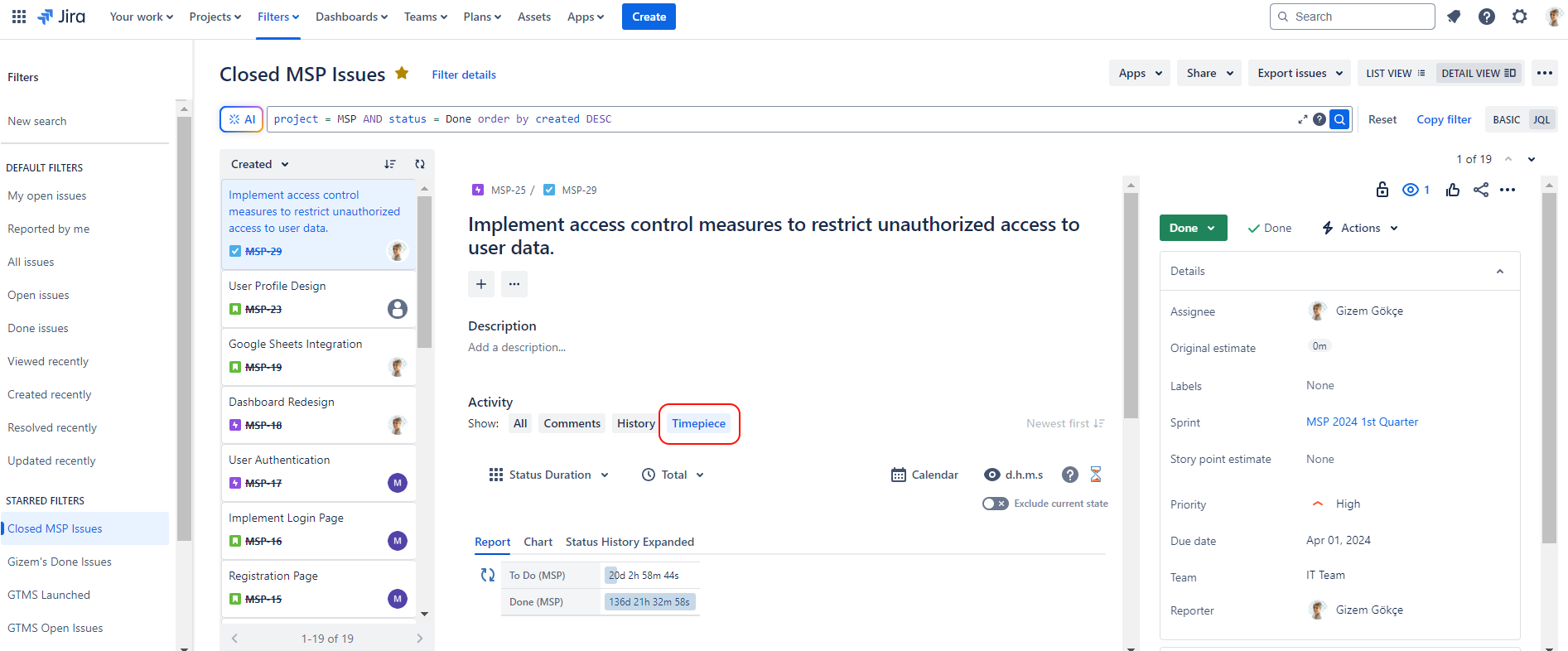
Jira Issue Navigator (Issue Search Screen)
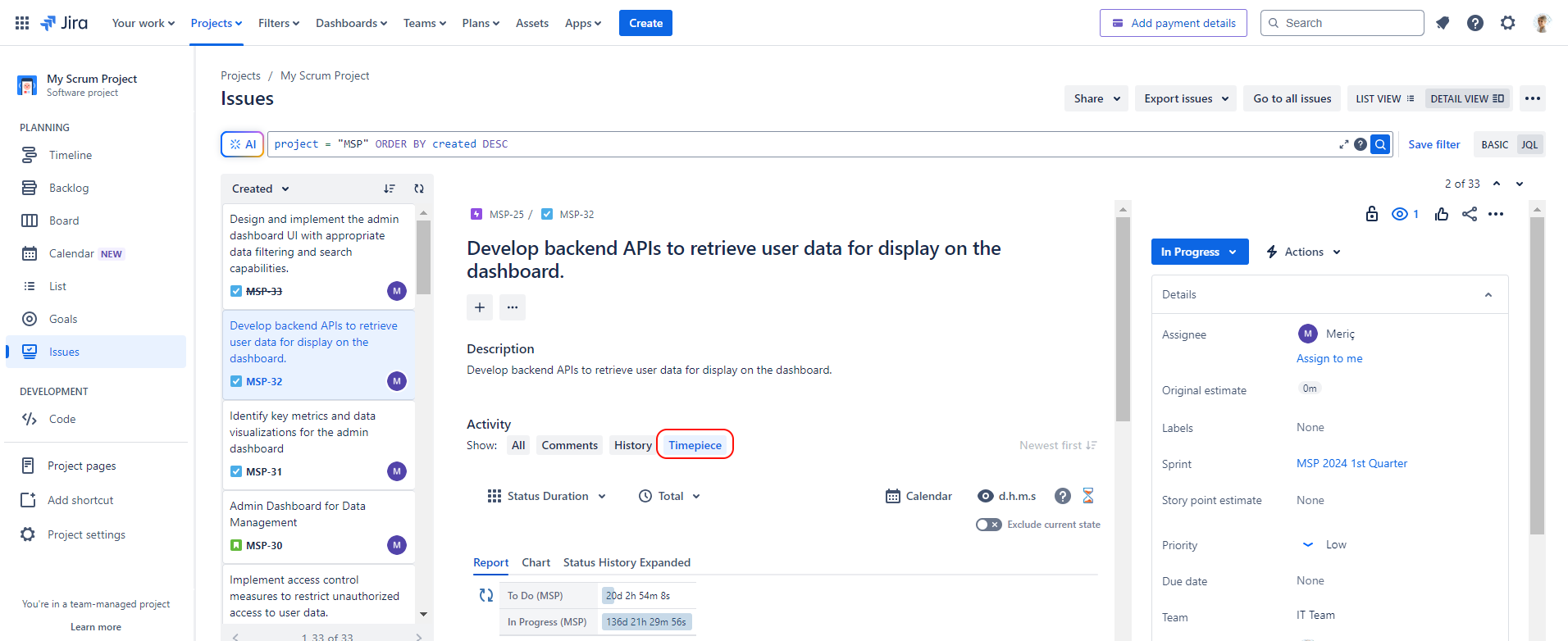
Issues Page of a Jira Project
All report types of Timepiece are also available here as well as view format and calendar selection.
By default, all users can see this tab. You can use the Access Settings page to configure which users can see this tab.
Tabs
There are multiple sub-tabs that are visible under Timepiece tab.
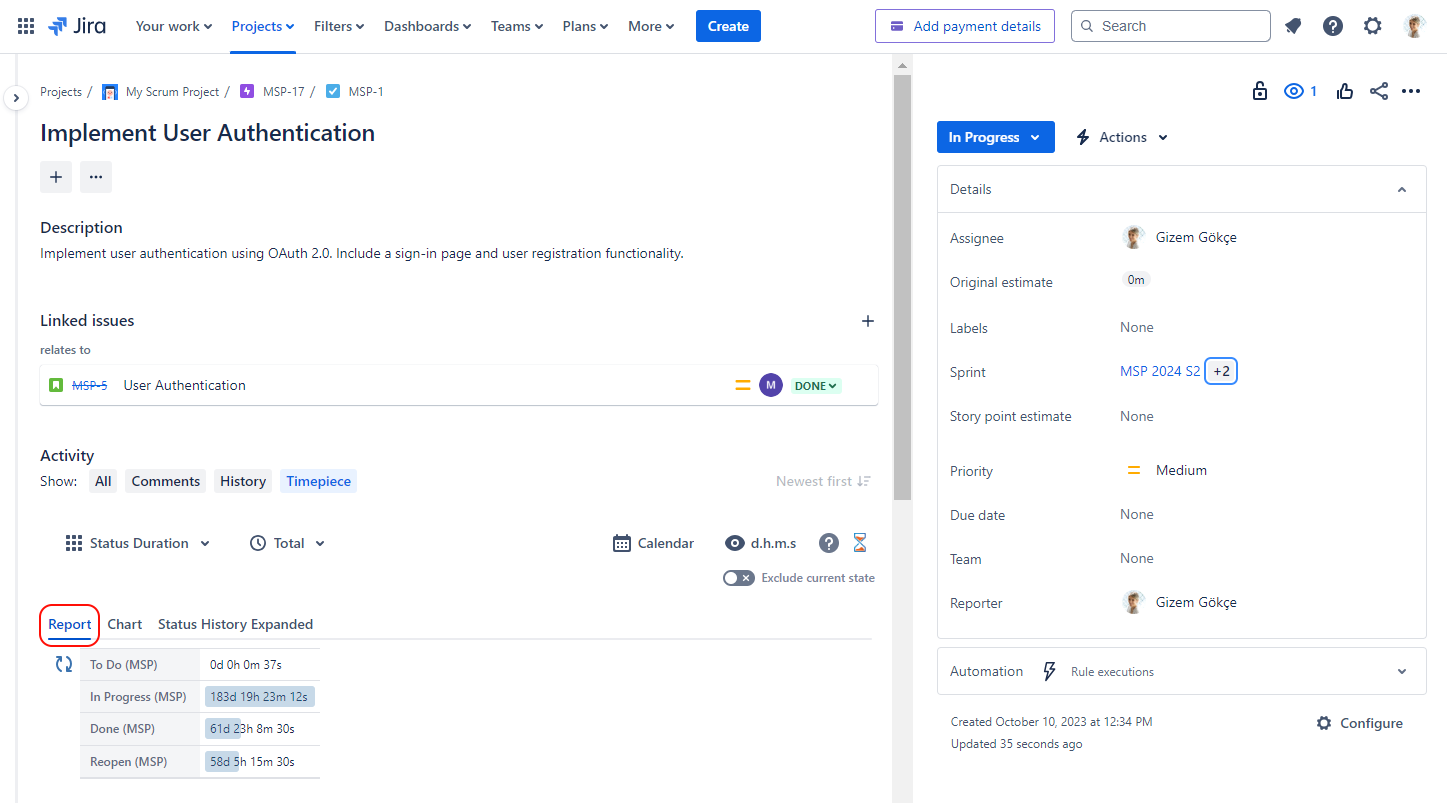
Report
The Report Tab displays the report data as a table.
The exact layout of the table varies by report type.
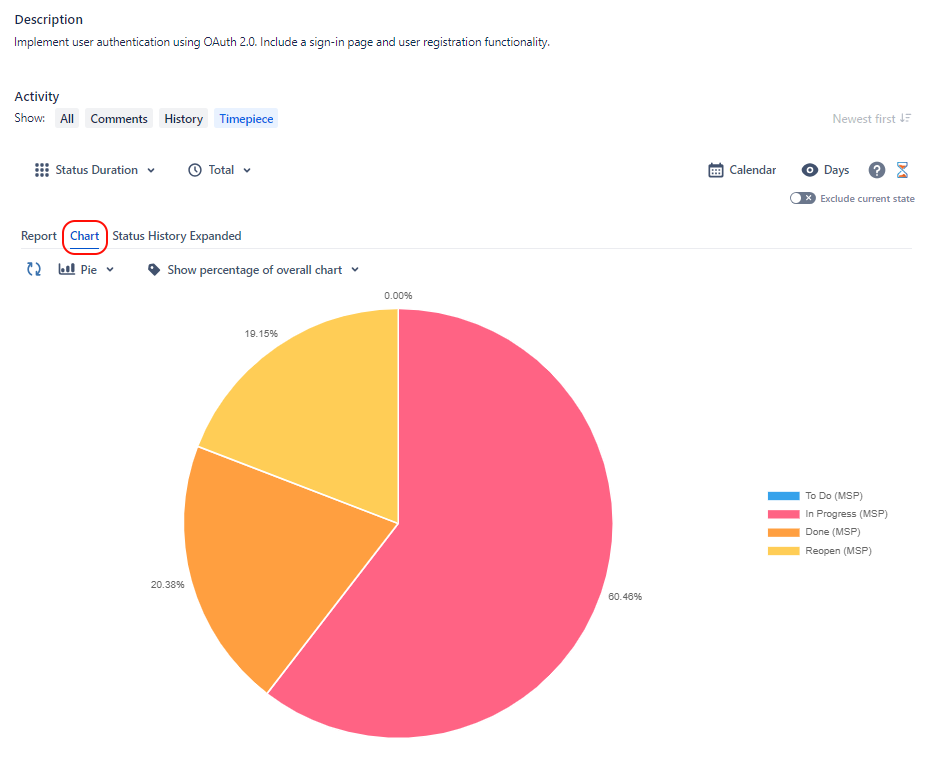
Chart
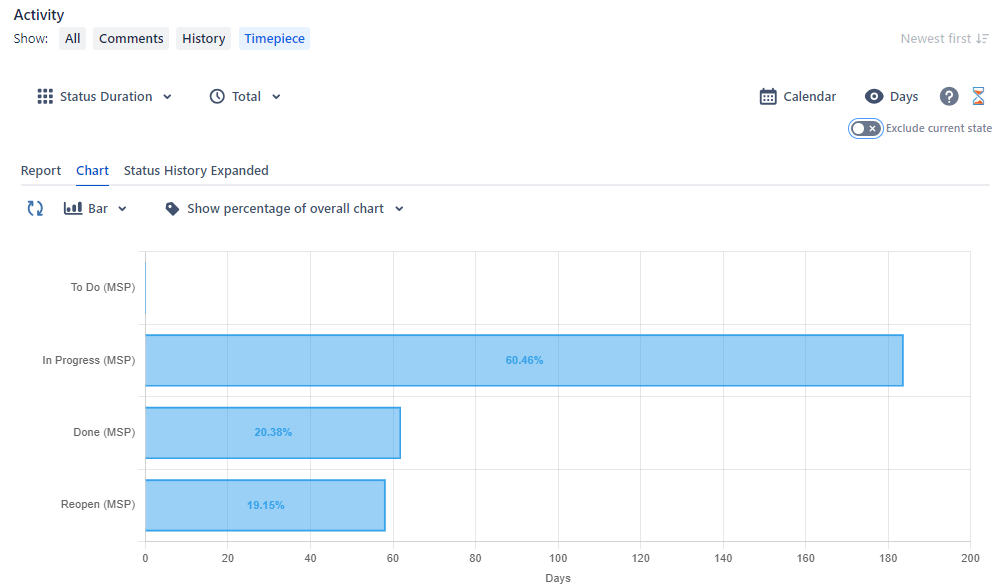
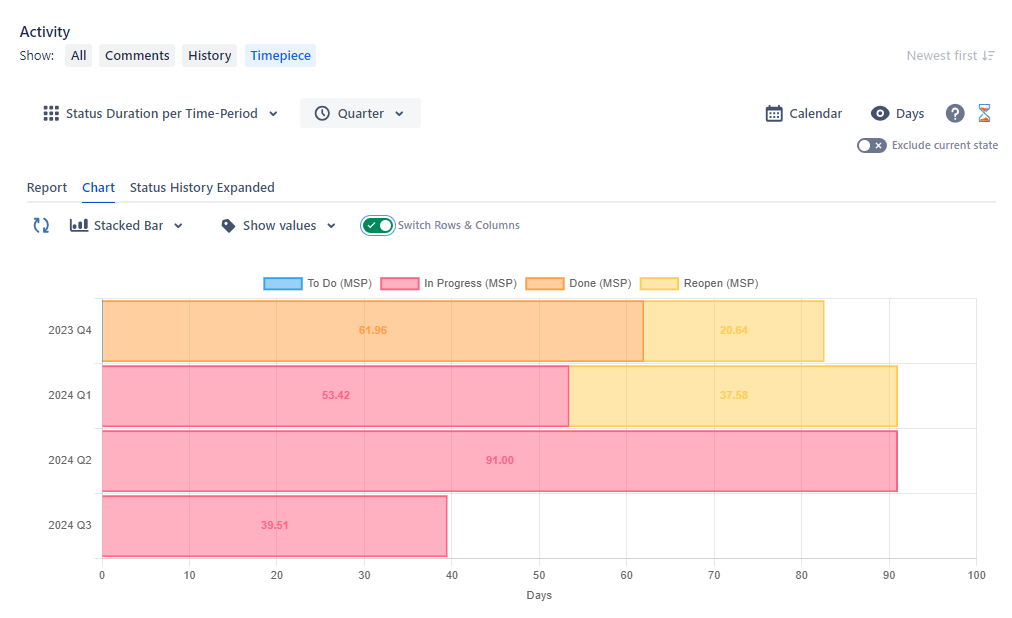
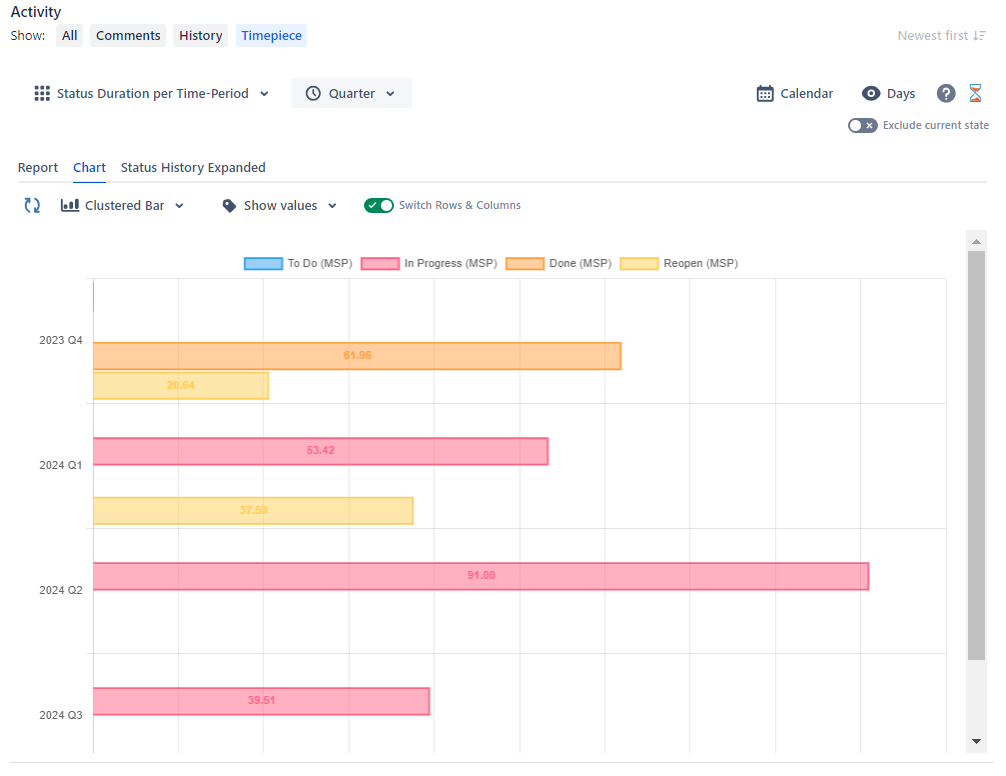
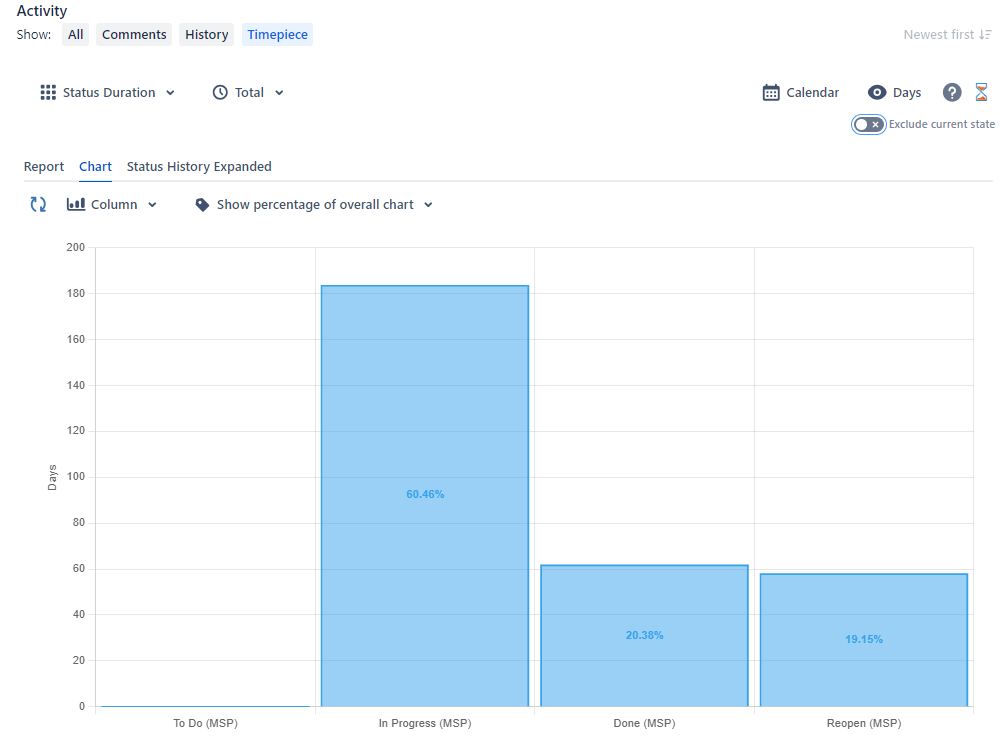
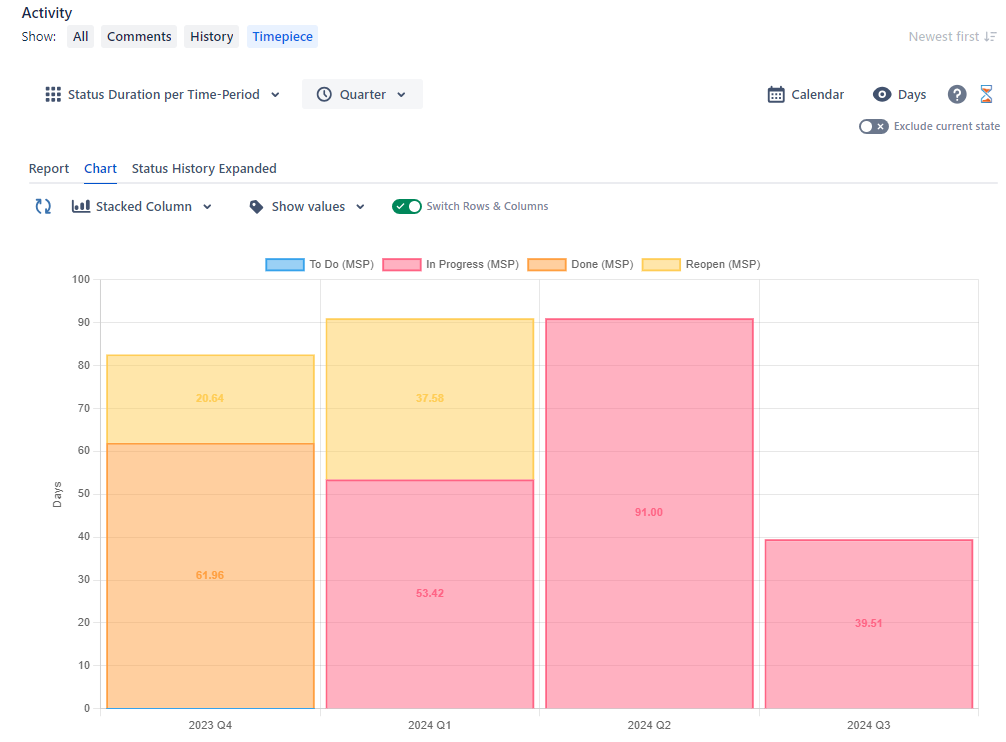
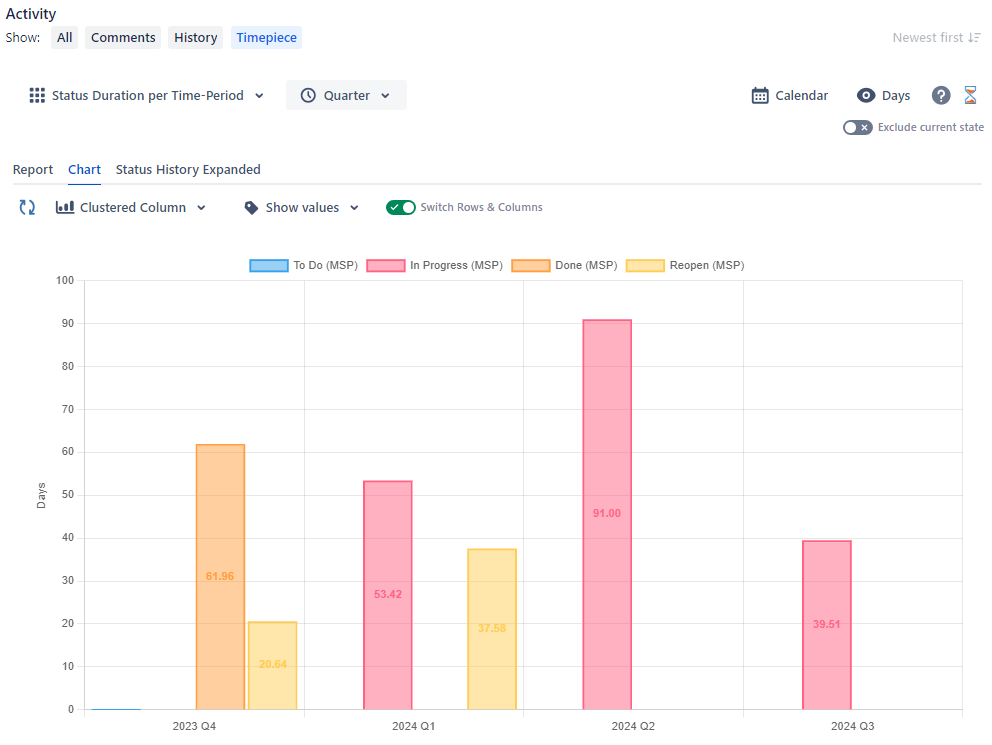
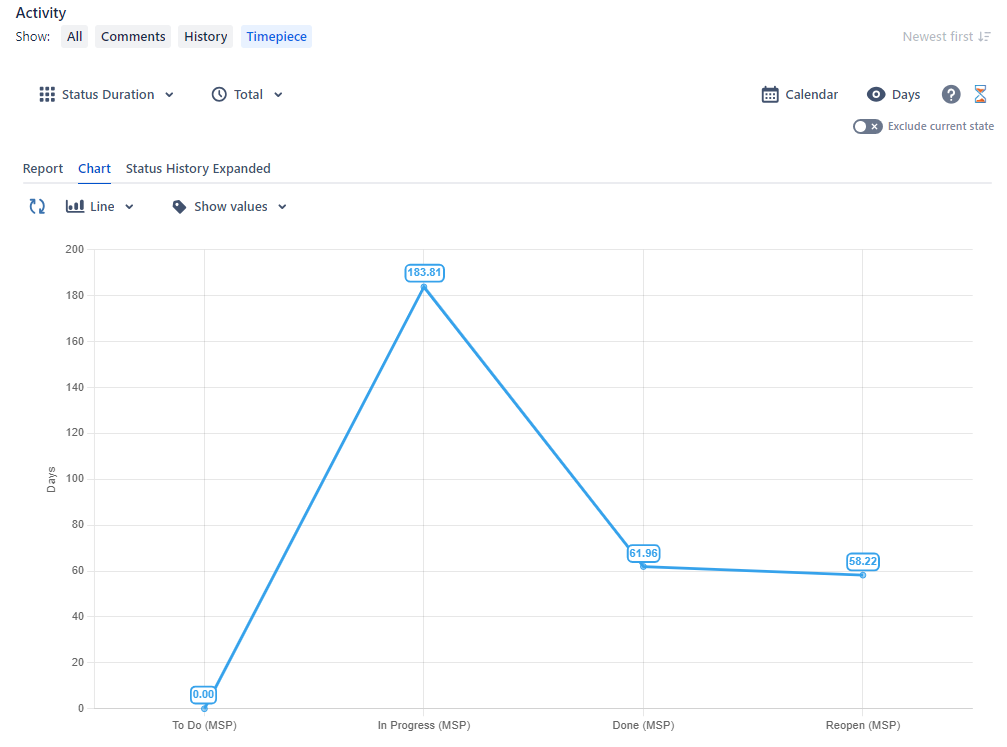
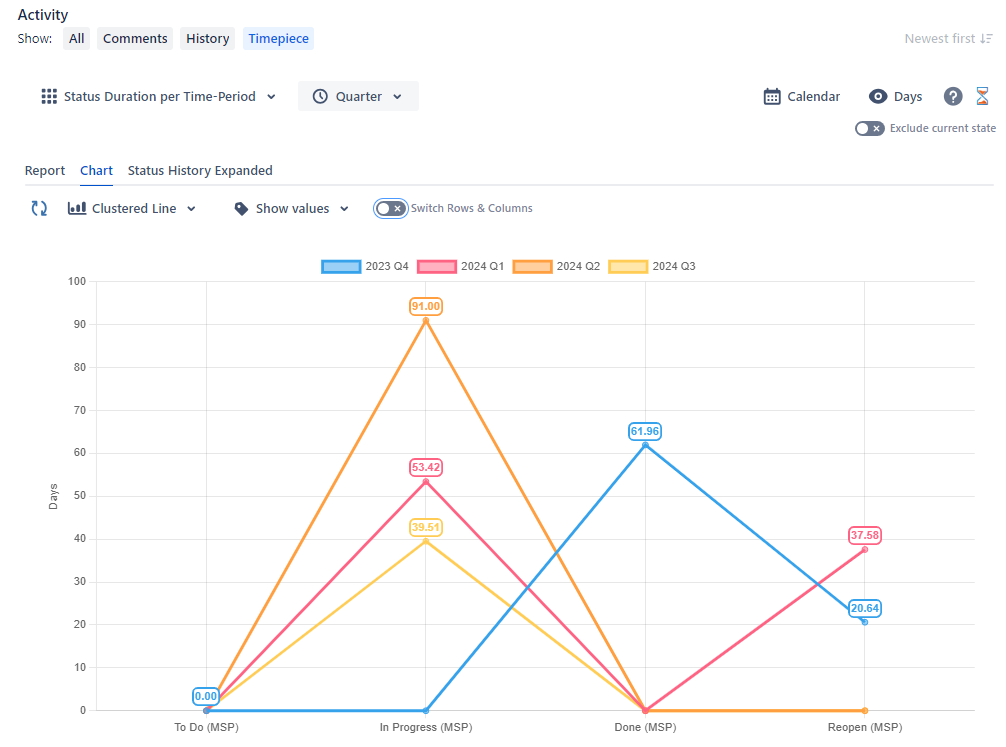
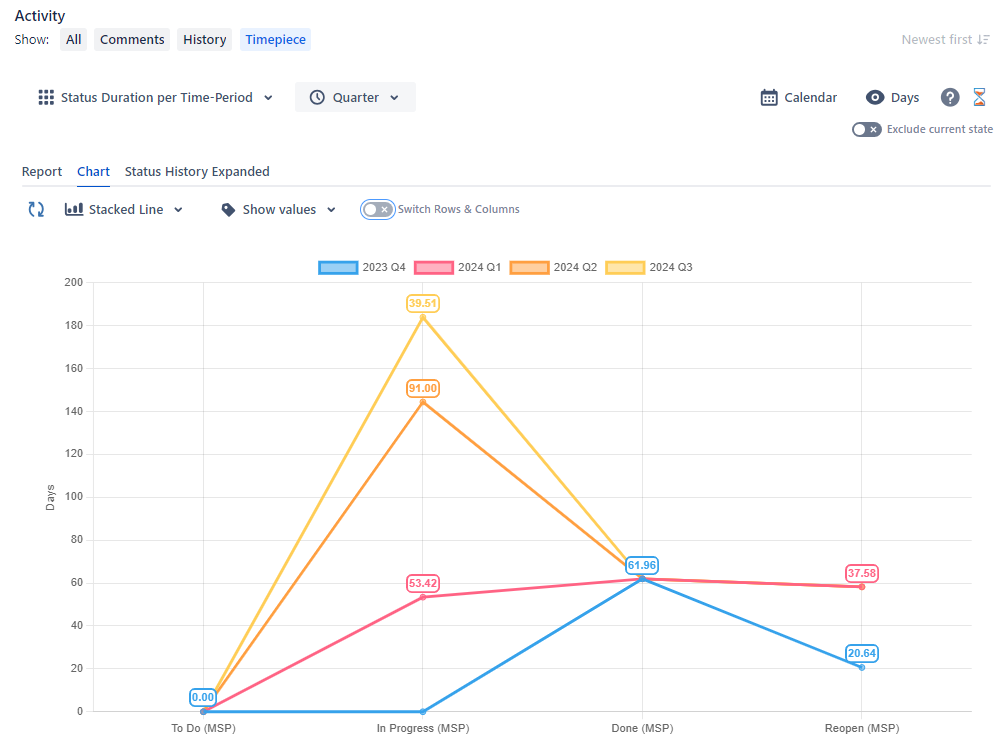
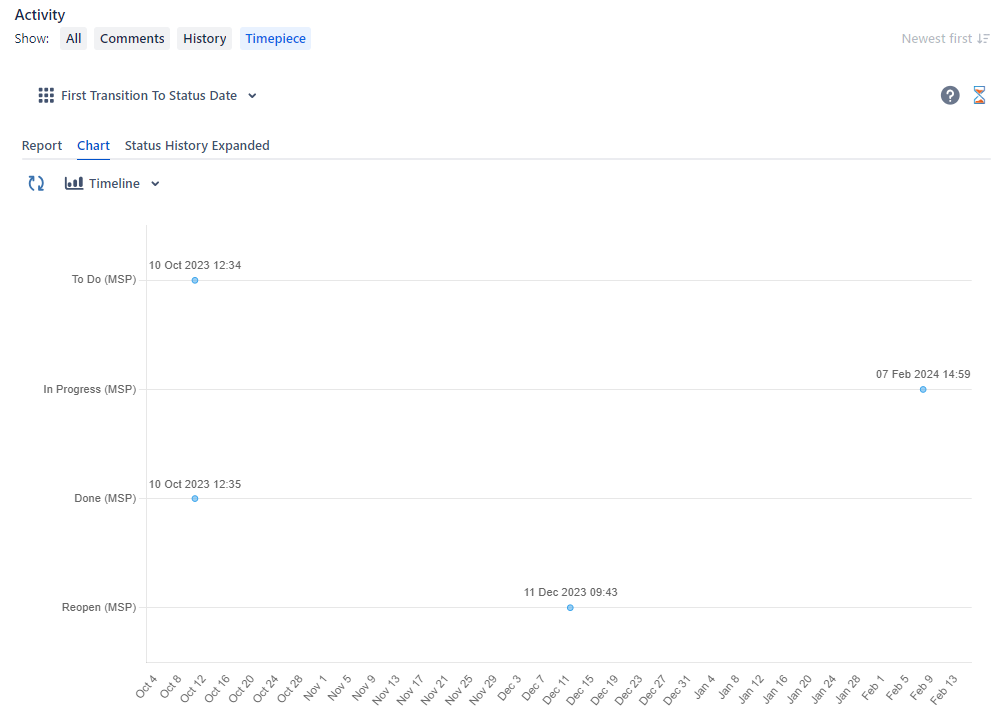
The Chart tab displays the report data as one of several available chart types.
Status History Expanded
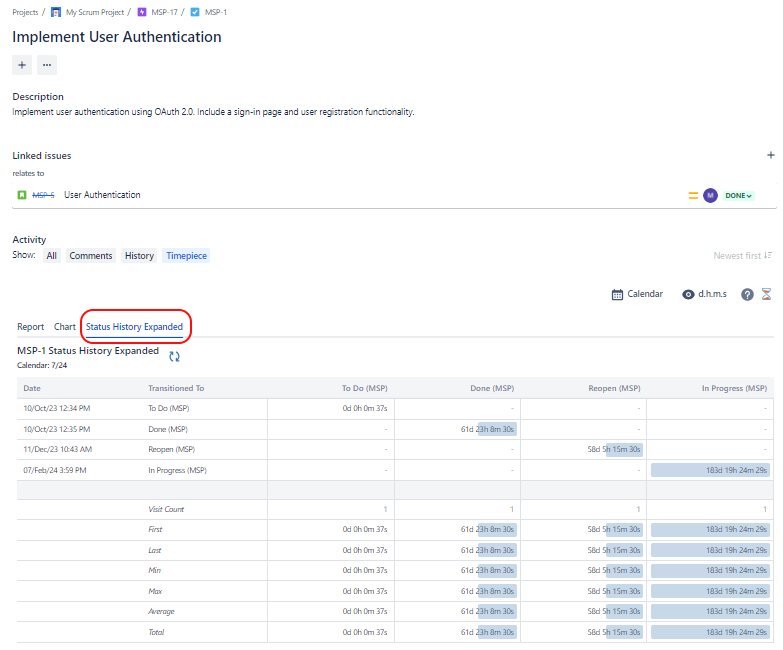
The Status History Expanded Tab displays for the issue, the report with the same name.
See Status History Expanded page for details about this report type.
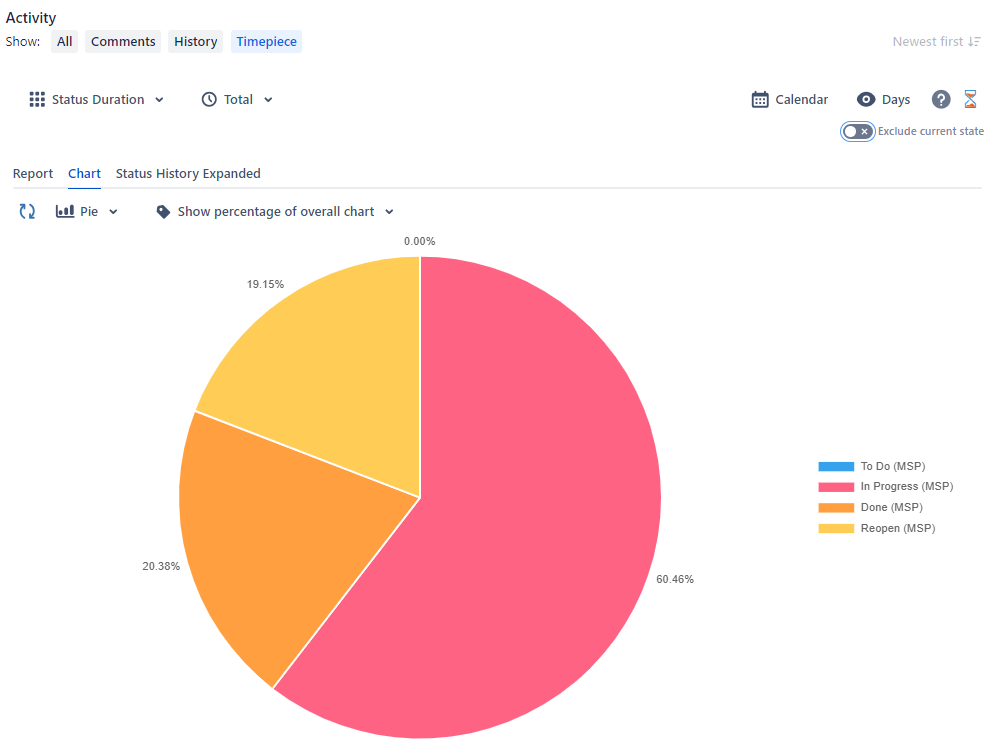
Exclude Current State
If you are looking at an issue that hasn't been updated for a long time (for example the issue was closed months ago), the charts will be completely dominated by the latest state of the issue and earlier statuses/assignees will not be distinguishable in the chart.
To overcome this you can use the Exclude Current State checkbox. When checked, this option causes the status/assignee duration since the last change in issue history to be excluded from the report. This way charts display much more useful output.
It is mainly used to improve chart use but the checkbox affects Data and Chart tabs. IT does not affect the Status History Expanded tab.
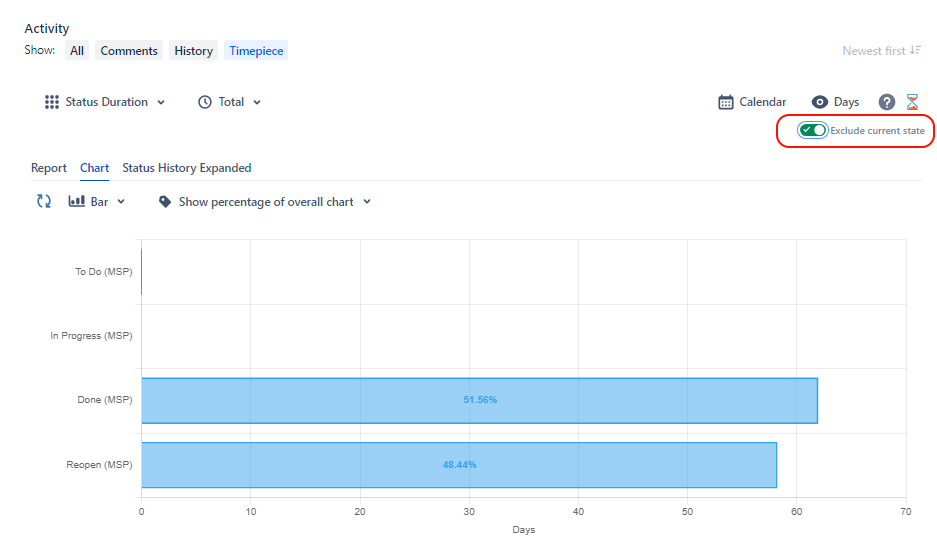
Please note that Exclude Current State does not exclude the latest status completely but rather excludes the duration since the latest status/assignee change in issue history. If the issue has visited Closed status more than once, the Closed column will still display a value greater than zero when Exclude Current State is checked.