Business Need
You should check the audit logs of your Jira Automation rule to ensure that Timepiece data is retrieved correctly and to troubleshoot any potential execution errors.
Solution
First, configure the logging points within your automation rule to output the background data.
-
Open your Automation rule.
-
Click Add action and select the “LOG ACTION” action.
The following log configurations can be implemented within your automation rules to track and audit your Timepiece workflows
How to Log Raw Report Data?
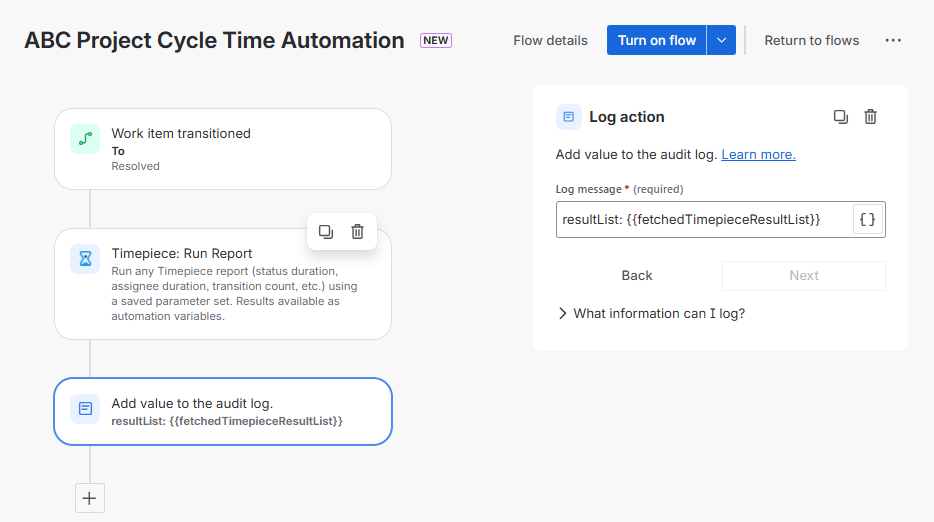
This log action is used to output the entire raw dataset returned by the Timepiece report to ensure the report data is pulled successfully.
Step 1: Configure the Log Action
-
Log Message:
resultList: {{fetchedTimepieceResultList}}
Step 2: Verify the Output in the Audit Log

How to Log the Calculated Variable?
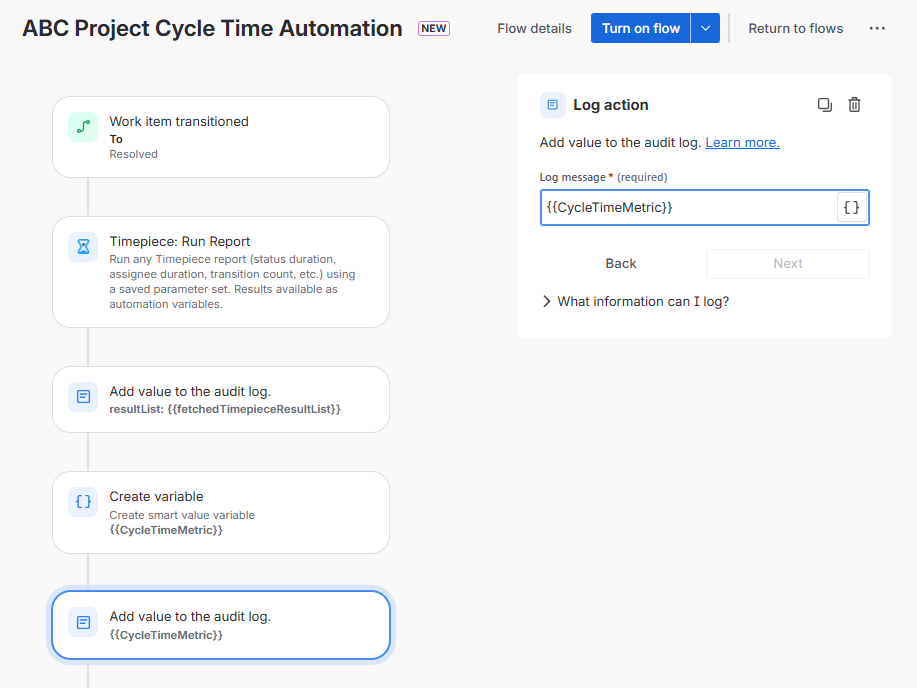
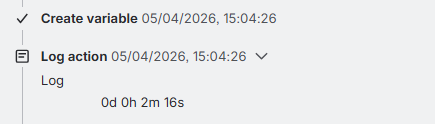
This log action displays the specific value stored within your custom variable. Once the metric is extracted from the dataset and stored in the variable, this action logs the value to verify it has been processed correctly.
Step 1: Configure the Log Action
-
Log Message:
{{CycleTimeMetric}}
Step 2: Verify the Output in the Audit Log
How to Log Specific Key Fields in a Branch?
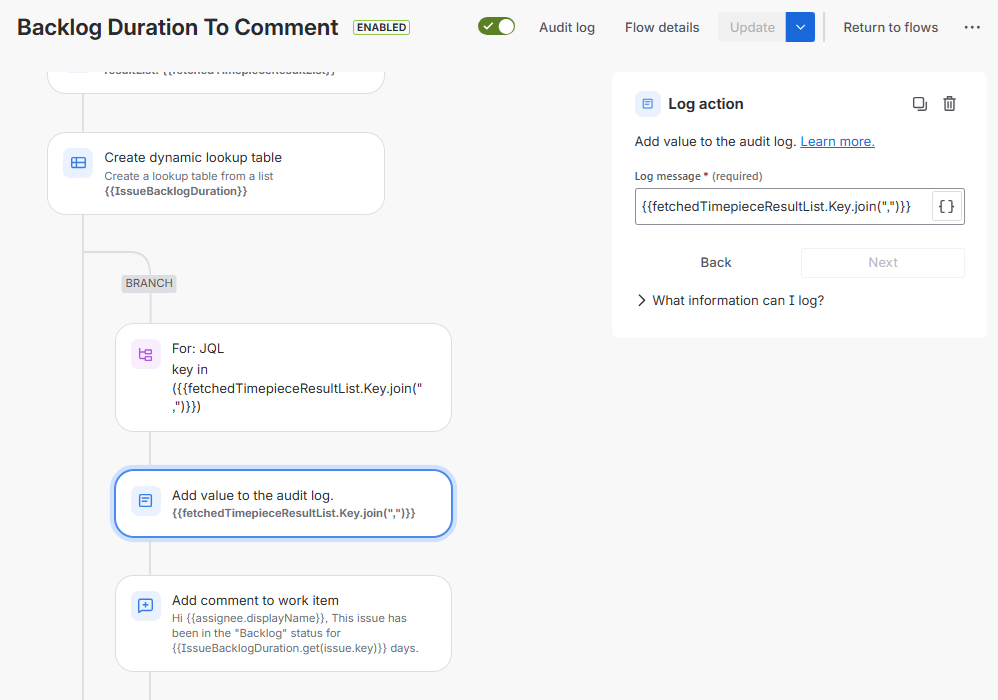
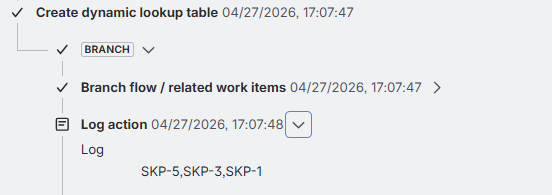
This log action is used to list only the issue keys (like SSP-1, SSP-2) side by side with commas. It helps you quickly see which issues are being processed by the automation.
Step 1: Configure the Log Action
-
Log Message:
{{fetchedTimepieceResultList.Key.join(",")}}
Step 2 : Verify the Output in the Audit Log
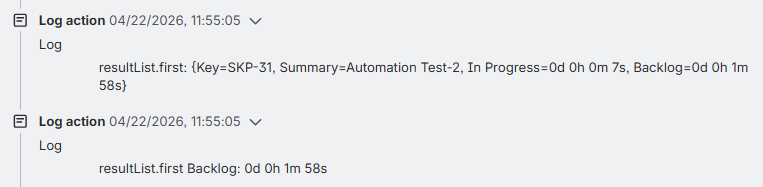
How to Log the First Item of the Dataset?
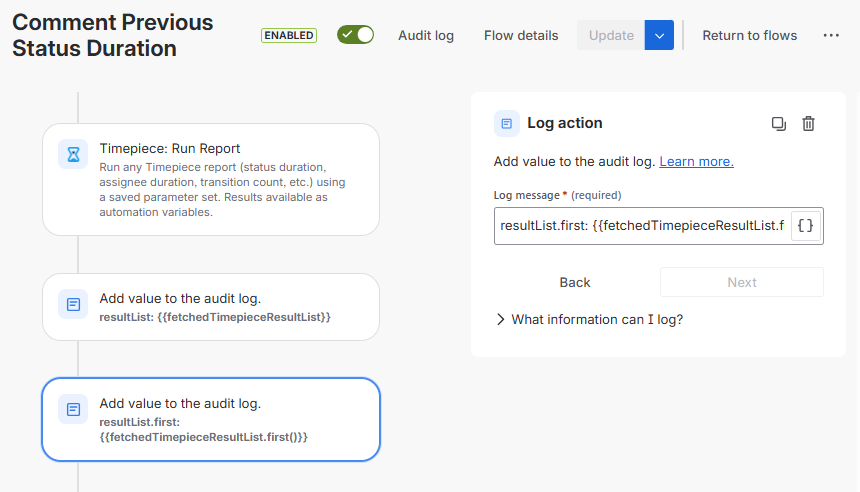
This log action is used to output only the first row of the retrieved dataset to ensure you are targeting the correct issue data.
Step 1: Configure the Log Action
-
Log Message:
resultList.first: {{fetchedTimepieceResultList.first()}}
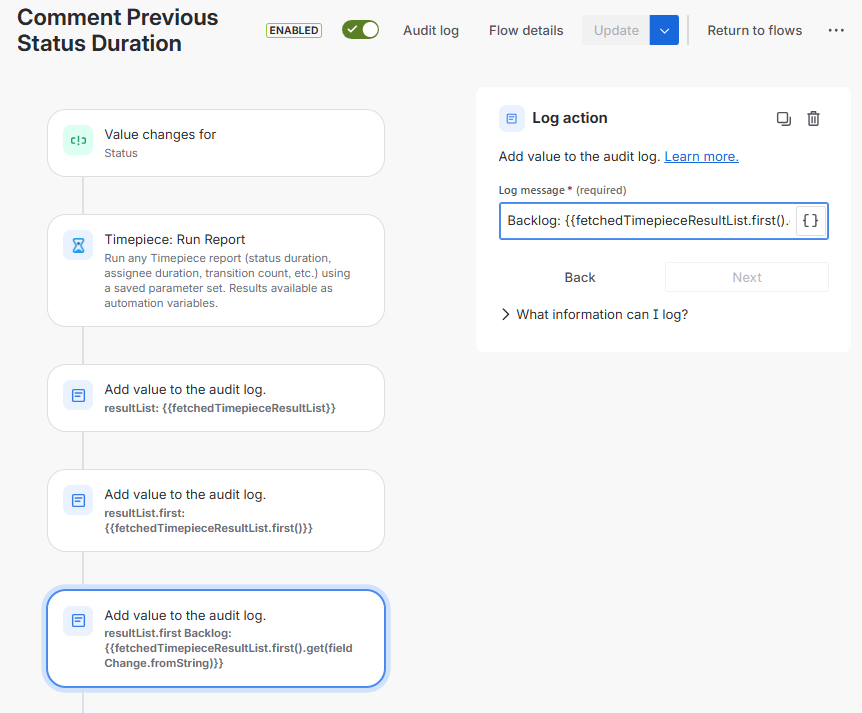
Log the specific field value directly from that isolated first row to verify you can pull the exact metric you need from it.
-
Log Message:
resultList.first Backlog: {{fetchedTimepieceResultList.first().get(fieldChange.fromString)}}
Step 2: Verify the Output in the Audit Log